
Google Slides automation: let Sai build decks from your reference slides
This skill gives Sai the decks you build from the same pattern again and again: the sales kickoff, the customer QBR, the onboarding deck, the weekly pipeline slides. Sai copies the structure of a reference deck in Google Slides, fills it from your planning doc and sheets, and applies the rules you’ve taught it, like sentence-case titles and one idea per slide. Every correction you make can become a rule, so the next deck needs fewer.
The skill
# Skill: Build a Google Slides deck

## When to use
Any deck built from a known pattern in Google Slides: sales kickoff, customer QBR, onboarding, weekly pipeline or project status.

## Inputs
- The reference deck: last time's version or a template deck in Drive.
- The content: the planning doc, the numbers sheet, and any notes in the task.
- Slide rules: the Slide rules doc (titles, layout, logo, chart style, words to avoid).

## How to build
1. Make a copy of the reference deck named <Deck>_<date>. Never edit the reference.
2. Keep its theme, master layouts and section structure. Delete only the slides the content doesn't need.
3. Fill each slide from the planning doc and sheet. One idea per slide; move extra points to speaker notes.
4. Rebuild charts from the sheet with "link to spreadsheet" so they can be refreshed.
5. Apply every rule in the Slide rules doc, then check each slide against them.
6. Leave a comment on any slide that needs a photo, a quote or a number I haven't given you.

## Never
- Share the deck or change its sharing settings.
- Invent numbers, quotes or customer names.
- Change the theme or master layouts.

## Output
The new deck in Drive, a slide outline, and the list of slides with comments for me.
What it does
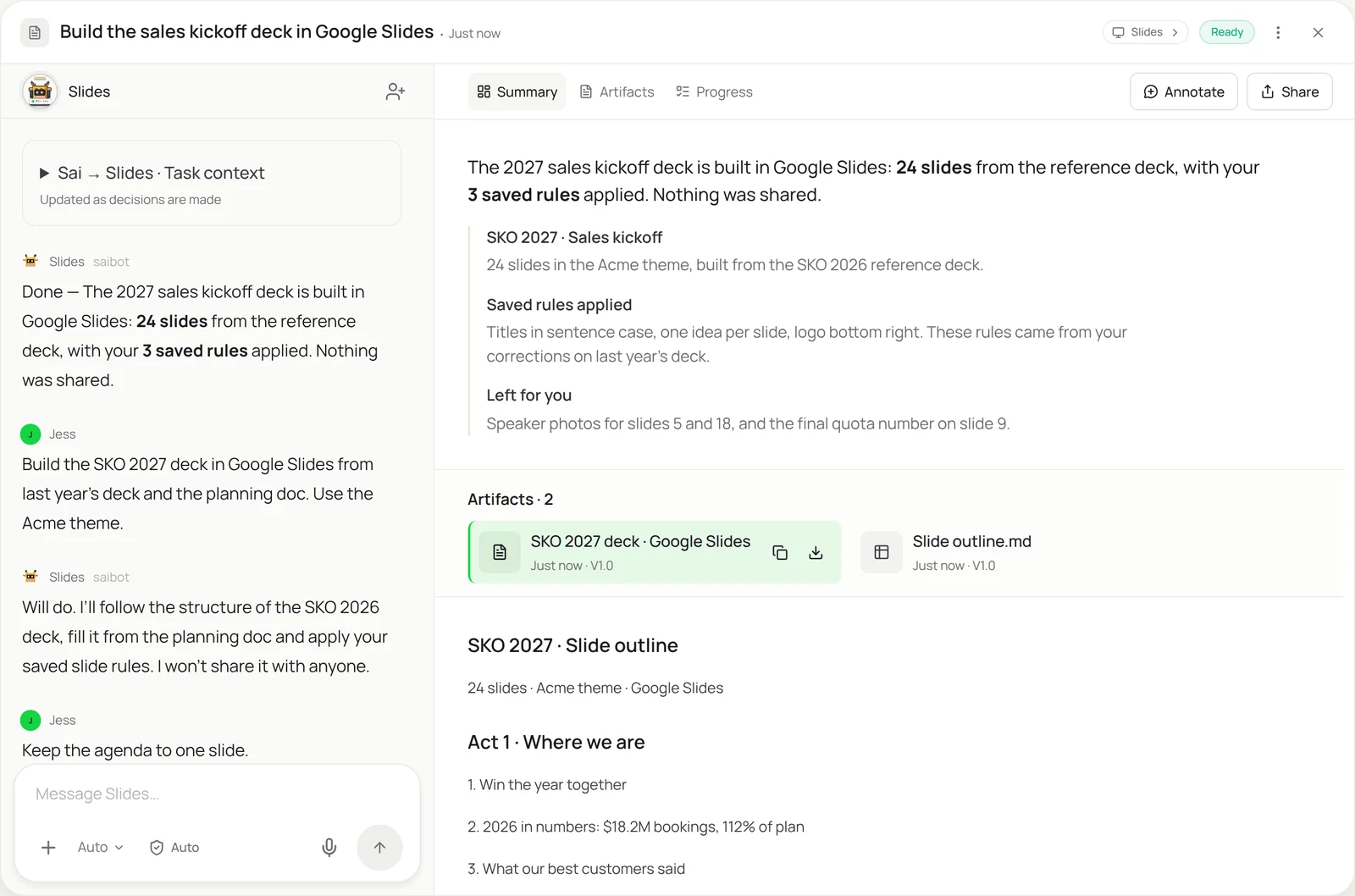
- Copy the reference deck. Sai starts from the deck you point to, usually last year’s version or a team template, and makes a dated copy in Drive. Theme, master layouts and section structure come along, so the new deck looks like it belongs from the first slide. The reference itself is never edited.
- Gather the content. Next it reads what goes in: the planning doc, the numbers sheet, notes from the task. It works through Google Docs and Sheets in the browser on its own computer, and through Google Workspace for files you’ve shared with it, so nothing needs to be exported or pasted in.
- Build slide by slide. Sai fills each slide in Google Slides the way you would: titles, body text, tables and images, one idea per slide, with extra detail moved to speaker notes. Charts are inserted from the sheet as linked charts, so they refresh when the numbers change.
- Apply your rules. Before finishing, Sai checks every slide against your Slide rules doc: title case, logo position, chart colors, words your brand avoids. When you correct a slide, the correction can be saved as a new rule in the skill, so the same fix is never needed twice.
- Comment and hand back. Anything Sai can’t fill without you, a speaker photo, a customer quote, a final target, gets a comment on that slide. You get the deck, an outline and the list of open comments. Nothing is shared. For decks kept in PowerPoint, the PowerPoint automation skill does the same job.
Why it works without an API
Google Slides has an API, but using it means writing code against object IDs and layouts, and add-ons only fill simple placeholders. Sai builds the deck through the Slides interface like a person, so it can copy a reference deck, move content between layouts, link charts and follow style rules written in plain language. Simular’s workflow for embedding YouTube videos in Google Slides shows the same approach on a smaller job. How computer use works.
What you get back
- A new deck in Drive, built from the reference
- A slide-by-slide outline
- Linked charts that refresh from Sheets
- Comments on the slides that need you
Apps it uses
- Google Slides
- Google Docs
- Google Sheets
- Google Drive
Who it’s for
AI sales assistant
Sales teams rebuild the same decks for every kickoff, territory review and pitch. An AI sales assistant with this skill builds them from the reference deck and the latest numbers, in the brand theme, so reps rehearse instead of formatting.
- Sales kickoff deck
- Territory and pipeline reviews
- Pitch decks by segment
Read the AI sales assistant guide
AI customer success manager
Every account gets a QBR built from the same template with its own usage and support numbers. An AI customer success manager uses this skill to build each one from the account’s sheet and notes, and to leave comments where the CSM should add the story.
- Customer QBR decks
- Onboarding decks by plan
- Renewal decks
Read the AI customer success manager guide
AI chief of staff
All-hands, board prep and investor updates often live in Google Slides. An AI chief of staff with this skill builds them from the planning doc and the KPI sheet with linked charts, so the founder edits the message instead of moving boxes.
- All-hands deck
- Investor update slides
- Board prep in Slides
Read the AI chief of staff guide
AI project manager
Project status decks follow the same shape every week: milestones, risks, decisions needed. An AI project manager uses this skill to build the status deck from the tracker and meeting notes, and to flag any risk without an owner.
- Weekly status deck
- Milestone reviews
- Steering committee slides
Read the AI project manager guide
Common variations
- A deck from a reference deck: Last year’s deck as the pattern
- Charts from a Google Sheet: Linked charts that refresh with the data
- The same deck in PowerPoint: Recurring decks kept as .pptx
- Customer QBRs from a template: One deck per account from its sheet
- Notes into slides: Meeting notes or a doc turned into a deck
- Translate a deck: Text replaced slide by slide, layout kept
Routines that use this skill
- Automated SEO reports: Pull clicks, rankings and top pages from Search Console and your SEO tool every Monday, and build the weekly SEO report.
- Automated client reporting: Collect each client’s numbers from ads, analytics and social dashboards and fill their monthly report template.
More skills
- PowerPoint automation: Update a deck with new numbers, charts and notes, slide by slide, in the real PowerPoint app, without breaking the template.
- Excel automation: Clean, merge and update workbooks, refresh a model from new numbers, and build the weekly report in the real Excel app.
- Website data to Excel or Sheets: Pull prices, listings and tables from websites with no export into a clean Google Sheet or Excel file, on a schedule if you want.