
How to automate Google Workspace with Sai: Gmail, Calendar and Sheets
Sai can automate Google Workspace across apps: it reads Gmail, checks Google Calendar, updates Google Sheets and files documents in Drive, all in one task. This guide covers what Sai can do in each app and in combination, the workflows sales teams, investors and operators automate first, and how to set them up with integrations, skills, routines and approvals.
Tools: Gmail, Google Calendar, Google Sheets, Google Drive, Google Docs
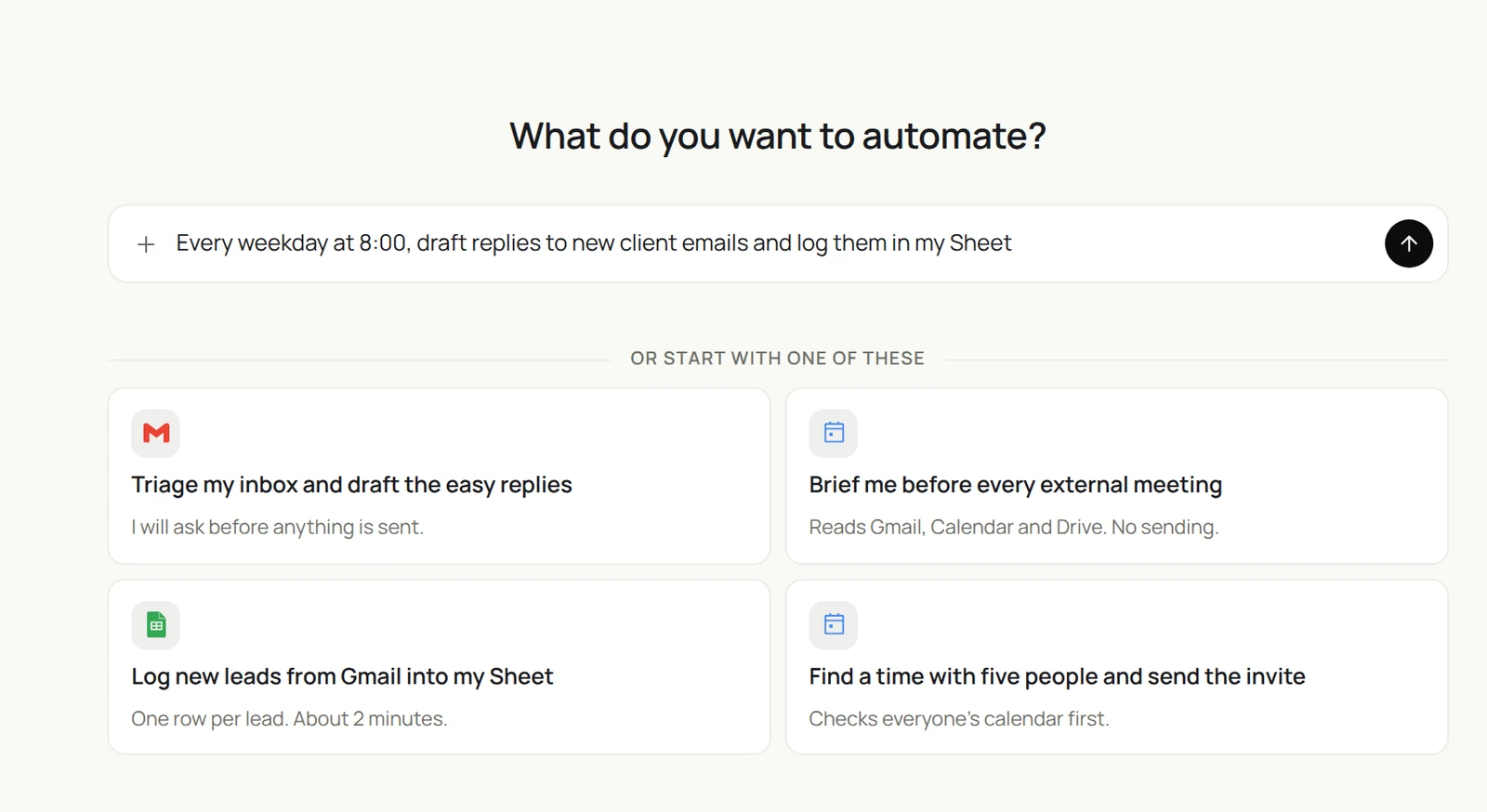
TL;DR: what Sai does in Google Workspace
Most work in Google Workspace is not inside one app. It is an email that becomes a row, a row that becomes a meeting, a meeting that needs a brief. Sai is an AI agent that works across all of them in a single task, on a schedule, and asks before it sends or shares anything. Here is what that covers, by team:
- Sales. Reads inbound emails, logs every lead in a Pipeline sheet, checks your calendar and drafts a reply that offers real open slots. Follows up on rows whose status has gone quiet, books the meeting once they answer, and writes a brief from past emails and shared files before the call.
- Investors and VCs. Turns pitch emails into a deal flow sheet with stage, round and sector, files decks in Drive, and drafts a meeting request or a polite pass. Collects monthly updates from portfolio founders into one sheet, chases the ones that are late, and drafts the LP update.
- Founders and operators. Pulls weekly numbers from report emails into a KPI sheet, drafts the investor update from it, and schedules across five calendars without the back-and-forth.
- Executives and assistants. Triages the inbox before you open it, writes a morning brief, protects focus time on the calendar and prepares every external meeting.
- Finance and ops. Logs invoices and receipts from Gmail into a sheet, files the PDFs in Drive by month, and drafts payment reminders for anything overdue.
- Recruiting. Logs candidate emails in a tracker sheet, finds interview slots across the panel and sends the invites you approve.
How Sai works with Google Workspace
There are two ways Sai reaches your Google apps, and most teams use both. The first is integrations: connect Gmail, Google Calendar and Google Drive once in Abilities → Integrations, and Sai can read, search and write through them directly, including Docs and Sheets in your Drive. The second is the browser: Sai can open any Google app on its own cloud computer, signed in as you, for anything an integration does not cover, such as a sheet’s formatting or a setting buried in a menu.
Either way, Sai can chain the apps in one task. It can read a thread in Gmail, find an open slot in Calendar, add a row to Sheets, save an attachment to Drive and draft the reply, without you copying anything between tabs.
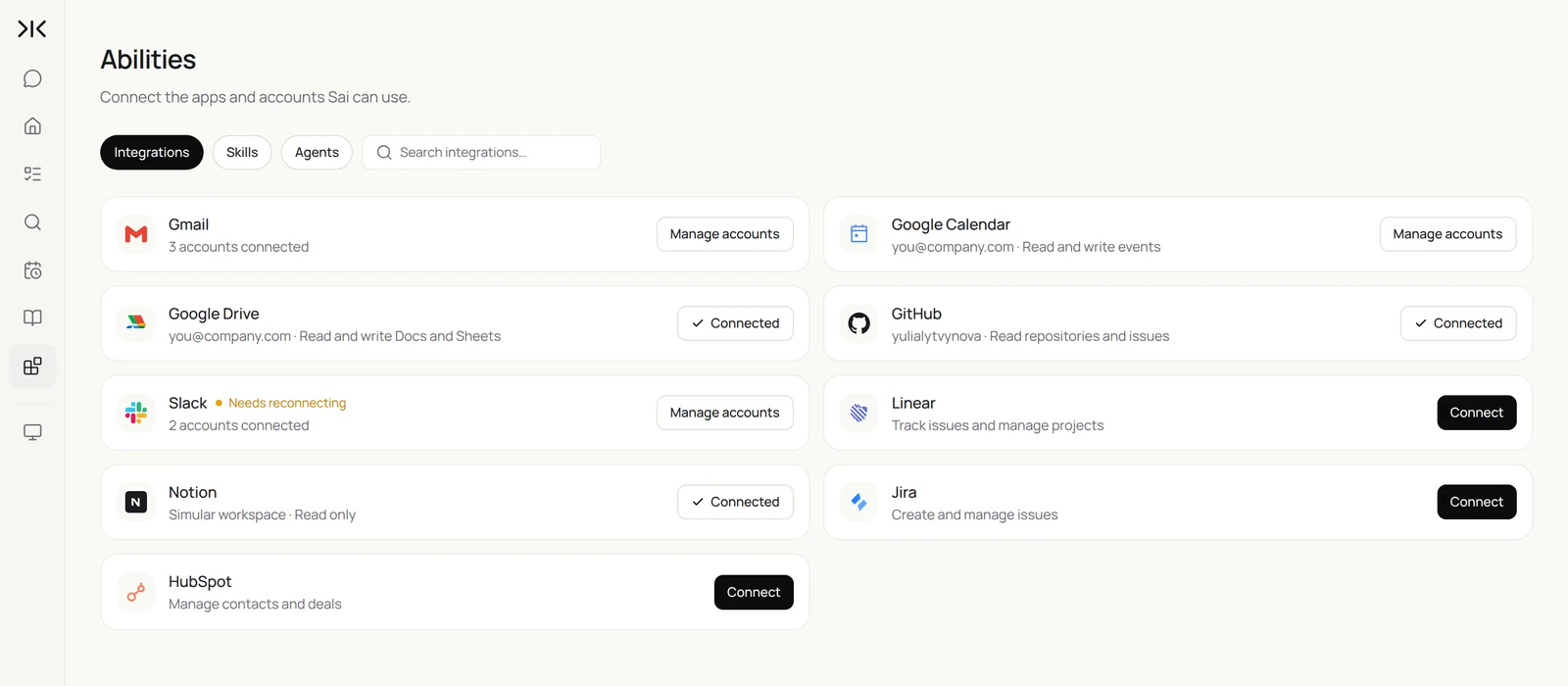
How far Sai can go in each Google app
What Sai can do in each app, and the approval setting we recommend. Reading and writing to your own files is safe on automatic. Anything another person will receive should wait for you.
| App | What Sai can do | Recommended approval |
|---|---|---|
| Gmail | Search and read threads, summarize, label, archive, save attachments, draft replies and new emails, send | Ask before sending |
| Google Calendar | Read your calendar and others’ free/busy, find slots, create and move events, add agendas and briefs | Ask before inviting others |
| Google Sheets | Read, add and update rows, fill columns, create tabs, keep formulas intact, build weekly summaries | Automatic, in named sheets |
| Google Docs | Write briefs, updates and meeting notes, edit drafts you point it to | Automatic for your docs |
| Google Drive | Find files, file attachments into folders, rename, share | Ask before sharing outside |
| Across apps | Run one task that reads, decides and writes across all of the above | Same as the strictest step |
If your company restricts third-party apps in Google Workspace, your admin may need to approve the connection first. Sai can still work through the browser on its own computer, signed in as you.
Gmail × Calendar × Sheets: the combinations that matter
These are the cross-app workflows that save the most time. Each is set up later in this guide.
| Workflow | Who it is for | Apps | What Sai does | Routine |
|---|---|---|---|---|
| Inbound leads to pipeline | Sales | Gmail → Sheets → Calendar → Gmail | Logs each lead, finds two open slots, drafts the reply | Weekdays 8:00 |
| Follow up on quiet deals | Sales | Sheets → Gmail | Drafts a follow-up for every row with no reply in 5 days | Daily 9:00 |
| Deal flow from pitch emails | VC | Gmail → Drive → Sheets → Gmail | Logs the pitch, files the deck, drafts a meeting request or pass | Daily 19:00 |
| Portfolio monthly updates | VC | Gmail → Sheets → Docs | Collects metrics from founder updates and drafts the LP update | Monthly |
| Meeting briefs | Everyone | Calendar → Gmail → Drive → Docs | Writes a one-page brief for each external meeting | Before each meeting |
| Schedule across people | Everyone | Calendar → Gmail | Finds a slot for five people and sends the invite you approve | On demand |
| Inbox triage and morning brief | Executives | Gmail → Calendar → Docs | Sorts the inbox, drafts replies, summarizes the day | Weekdays 7:30 |
| Weekly KPI sheet | Founders, ops | Gmail → Sheets → Gmail | Copies numbers from report emails, drafts the update | Mondays 8:00 |
| Invoices and receipts | Finance | Gmail → Drive → Sheets | Files the PDF, logs amount and due date, flags overdue | Daily 18:00 |
Set up Sai for Google Workspace
Setup takes about 15 minutes. After that, every Workspace workflow reuses the same connections, skills and approval rules.
Step 1: Connect Gmail, Calendar and Drive
Open Abilities → Integrations and connect Gmail, Google Calendar and Google Drive with the Google account you work in. You can connect more than one Gmail account. Sheets and Docs come with Drive. If you prefer, sign in on Sai’s cloud computer instead, through Sai’s approval link, so your password never goes into a chat.
Step 2: Write your rules as skills
Open Abilities → Skills → Add skill → Write skill instructions. One skill for how you write email and one for your sheets usually covers everything: which sheet is the source of truth, which columns mean what, and what Sai must never do.
When to use it
Any task that reads or writes my Gmail, Calendar, Sheets or Drive.

Email
- Short, warm, specific. Sign off with "Best," and my first name.
- Offer two concrete times when proposing a meeting, in the other person's time zone.
- Never send, forward or reply-all without my OK.

Calendar
- Keep 9:00-11:00 free for focus. No meetings on Friday afternoons.
- Ask before inviting anyone outside the company.

Sheets
- Pipeline sheet is the source of truth for leads. One row per company.
- Never delete rows or overwrite formulas. Add a note if something looks wrong.

Drive
- File attachments under /Clients/<Company>/<Year>.
- Never share a file outside the company without asking.
Step 3: Choose what runs on Auto
The guardrail next to the chat input switches between Auto and Manual. Use Auto for work that only reads or writes your own files, such as logging leads or updating a KPI sheet. Use Manual for anything that sends an email, invites someone or shares a file. Sai then drafts and waits for you.
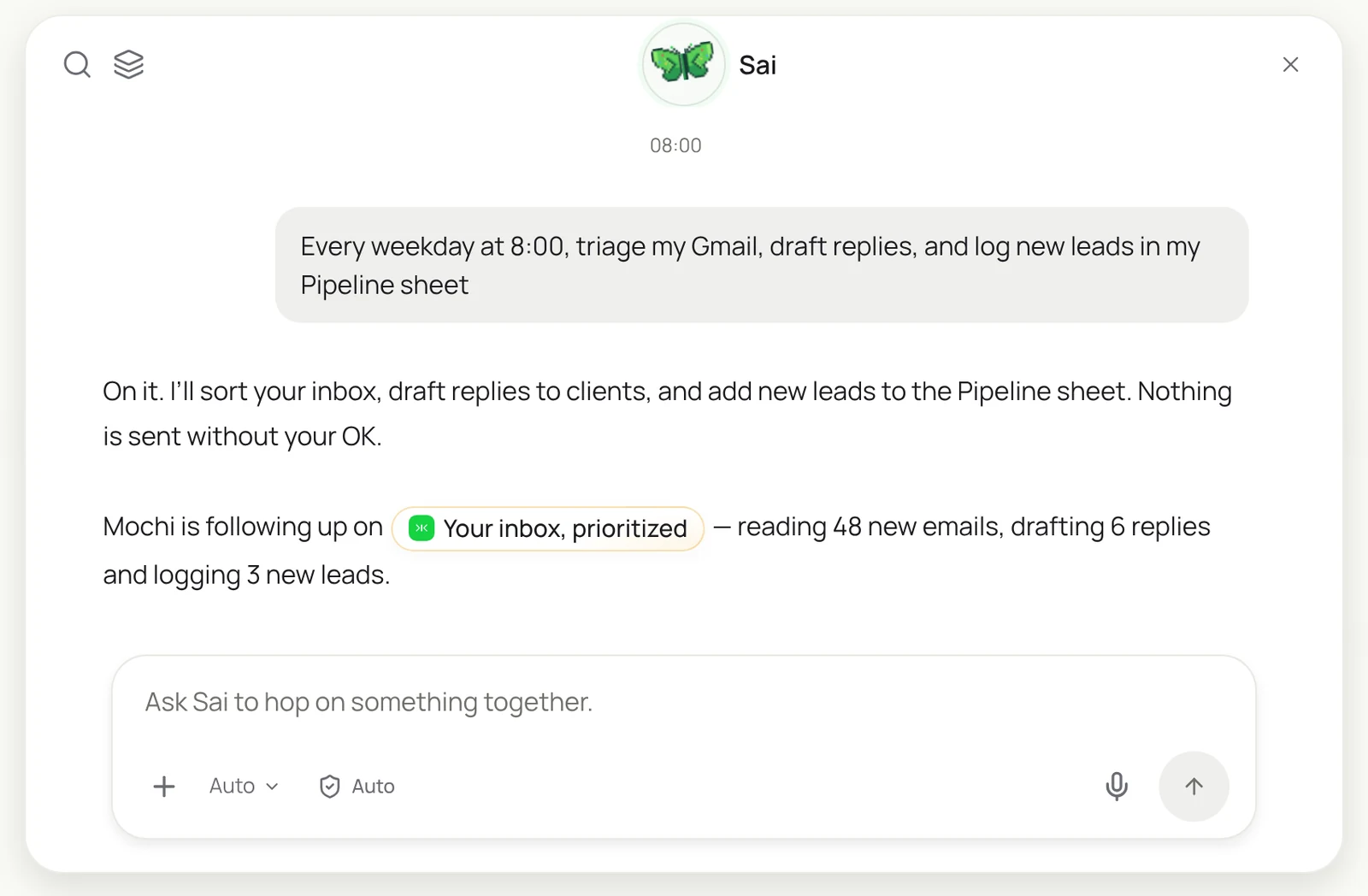
Step 4: Turn the task into a routine
Run the task once and check the sheet and drafts. Then open Routine → New and describe the job in a sentence, including when it should run, or start from one of the Workspace starters. Turn on Code-Replay for routines that repeat the same steps. See Routines.
Recipes: sales
From the first email to the booked meeting, without retyping anything.
Every weekday at 8:00, go through new emails in Gmail. Log every inbound lead in the Pipeline sheet, check my calendar, and draft a reply that offers two open slots this week. Don’t send.
- 48 emails, 7 inbound leads
- 7 rows added, 1 duplicate merged
- 14 free 30-minute slots
- 7 drafts in Gmail
Inbound leads to pipeline, with real times
The fastest way to answer every lead the same morning.
Every weekday at 8:00, read new emails in Gmail since yesterday.
For each inbound lead: add a row to the Pipeline sheet with company, name, email, ask and source.
Check my Google Calendar and draft a reply that offers two open 30-minute slots this week.
Skip newsletters, receipts and anyone already in Pipeline. Do not send.
Skill: Email and Sheets Rules. Approval: Auto for the sheet, Manual for email. Related: automating Google Sheets and Gmail.
Follow up on quiet deals
Let the sheet decide who needs a nudge.
Every day at 9:00, open the Pipeline sheet.
For each row with Status = proposal sent and Last touch older than 5 days,
read the email thread in Gmail and draft a short follow-up that adds something new.
Update Last touch when I send it.
Skill: Email and Sheets Rules. Approval: Manual.
Book the meeting when they reply
Close the loop between Gmail and Calendar.
When a lead replies to one of my scheduling emails and picks a time,
create the Google Calendar event with a video link and the agenda from the thread,
invite them, and set Status = meeting booked in the Pipeline sheet.
Ask me before sending the invite.
Skill: Email and Sheets Rules. Approval: Manual for invites.
Recipes: investing
For funds that live in their inbox: deal flow, portfolio updates and LP reporting.
Every evening, read new pitch emails in Gmail. Add each company to the Deal Flow sheet with stage, round, sector and a one-line summary, save the deck to Drive, and draft either a pass or a meeting request.
- 11 pitches today
- 9 decks filed by company
- 11 rows with stage, round and sector
- 3 meeting requests, 8 polite passes
Deal flow from pitch emails
Every pitch logged, every deck filed, every founder answered.
Every evening at 19:00, read new pitch emails in Gmail.
For each company: add a row to the Deal Flow sheet with stage, round, sector, location and a one-line summary.
Save the deck to Drive under /Deal Flow/<Company>.
Using my Investment Thesis skill, draft a meeting request for fits and a polite pass for the rest.
Do not send.
Skill: Investment Thesis. Approval: Auto for Sheets and Drive, Manual for email.
Collect portfolio updates
One sheet for every company’s monthly numbers.
On the 5th of every month, find this month's update email from each company in the Portfolio sheet.
Copy revenue, burn, runway and headcount into this month's columns.
For companies with no update yet, draft a friendly reminder to the founder.
List anything that moved more than 20% since last month.
Skill: Email and Sheets Rules. Approval: Manual for reminders.
Draft the LP update
Start from the numbers, not a blank page.
Using the Portfolio sheet and this quarter's founder updates in Gmail,
draft the quarterly LP update in Google Docs:
fund summary, highlights by company, new investments and follow-ons, and what we are watching.
Link every number to its source email.
Skill: Email and Sheets Rules. Approval: Auto, draft only.
Recipes: everyday operations
The routines that give executives, founders and operators back their mornings.
Before every meeting with someone outside the company, read the invite, my past emails with them and any Drive files we shared. Write a one-page brief and put it in the event description.
- 4 external meetings
- 31 threads across 4 companies
- 6 docs and 2 decks
- 4 briefs linked in the invites
Inbox triage and morning brief
Start the day with one page instead of 48 emails.
For a complete inbox setup with follow-ups and scheduling, see the AI email assistant.
Every weekday at 7:30, go through my unread Gmail.
Sort each thread into Reply today, Waiting on others, Read later and Archive.
Draft replies for Reply today.
Write a morning brief with today's meetings from Google Calendar, the six emails that need me, and any deadlines this week.
Skill: Email and Sheets Rules. Approval: Manual for replies.
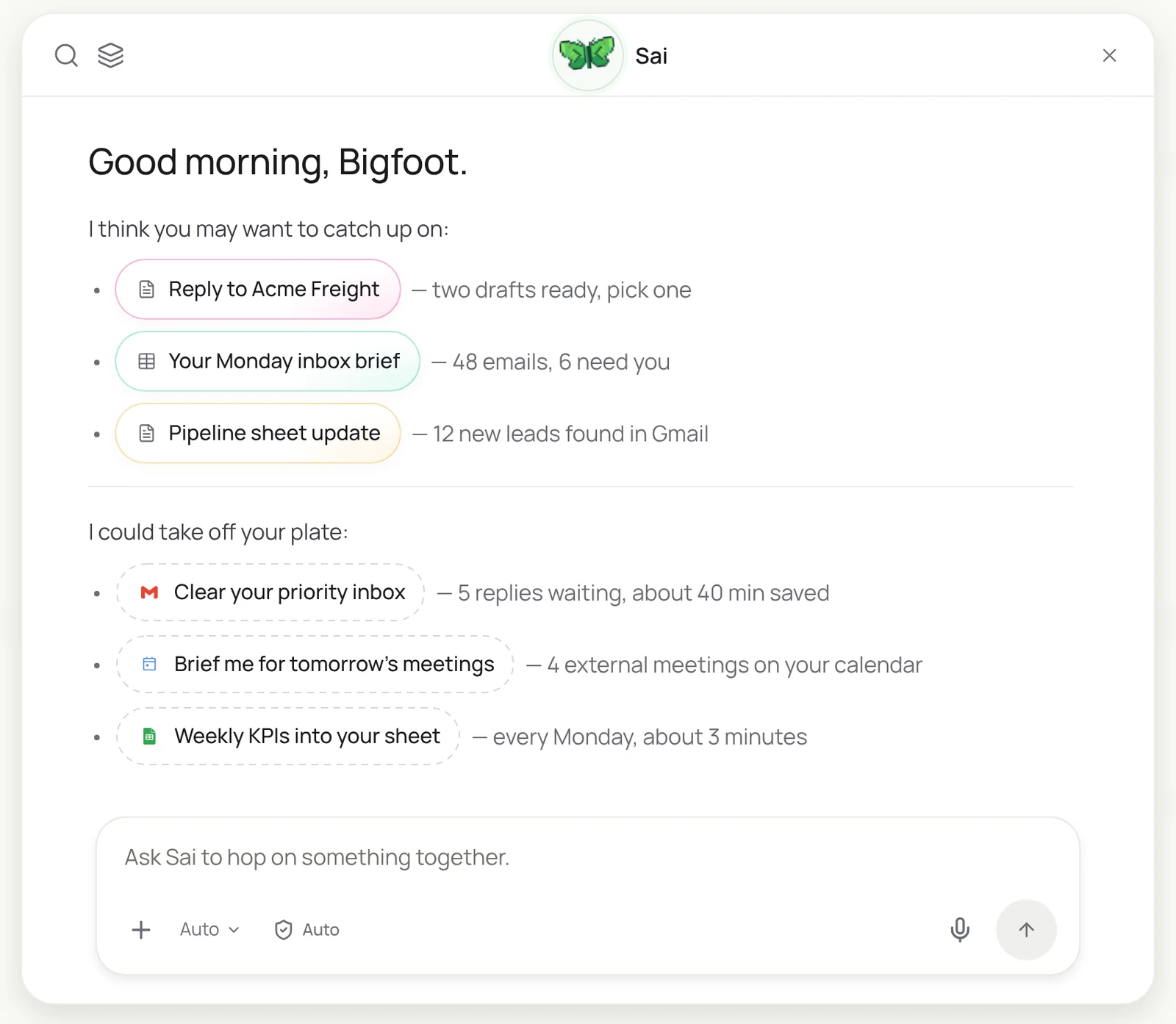
Brief every external meeting
Walk into every call knowing the history.
One hour before each Google Calendar meeting with someone outside the company,
read my past emails with the guests and any Drive files we shared.
Write a one-page brief: who they are, open questions, what we promised, and the goal for this call.
Link it in the event description.
Skill: Email and Sheets Rules. Approval: Auto, read only.
Schedule across five calendars
No more reply-all threads to find an hour.
Find a 45-minute slot next week that works for Ana, Dev, Sam, Lee and me,
during everyone's working hours and outside my focus time.
Draft the invite with the agenda from this email thread and attach the planning doc from Drive.
Show me the slot before you send it.
Skill: Email and Sheets Rules. Approval: Manual. Related: linking Google Sheets and Gmail for schedules.
Fill the weekly KPI sheet
Numbers in, update drafted, every Monday.
Every Monday at 8:00, find last week's report emails from Stripe, our analytics tool and the support desk.
Copy signups, active accounts, MRR, churn and tickets into a new row of the KPI sheet.
Write three lines on what changed and draft the weekly team email.
Skill: Email and Sheets Rules. Approval: Auto for the sheet, Manual for the email. For the full founder cadence, see AI chief of staff for founders.
Invoices and receipts
Every bill logged and filed before month end.
Every day at 18:00, find new invoices and receipts in Gmail.
Save each PDF to Drive under /Finance/<Year>/<Month>.
Add a row to the Bills sheet with vendor, amount, currency, due date and a link to the file.
Draft a reminder for any invoice we sent that is more than 7 days overdue.
Skill: Email and Sheets Rules. Approval: Auto for Drive and Sheets, Manual for reminders.
Where the results land
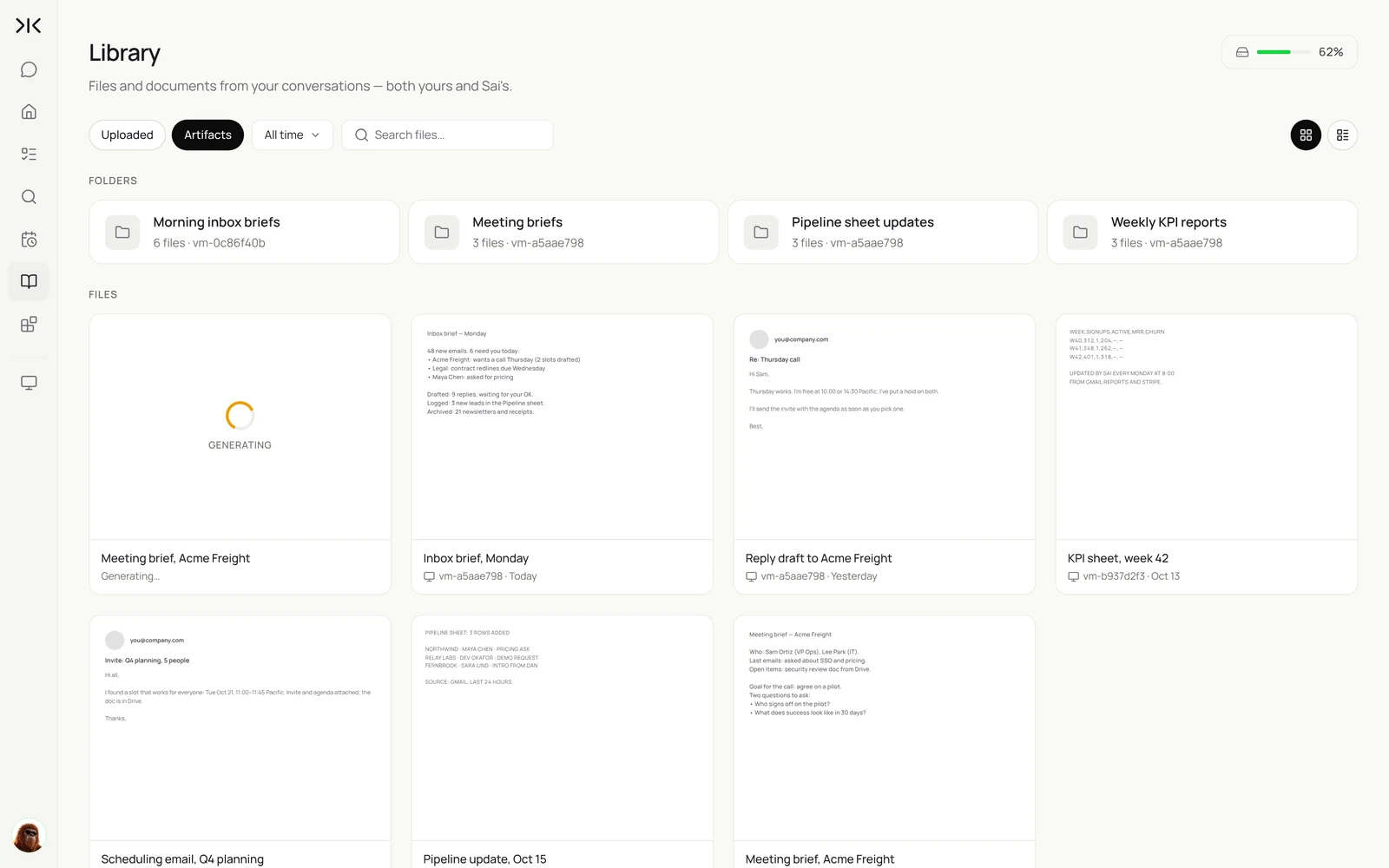
Sai saves what it produces in your Library, grouped by routine: inbox briefs, meeting briefs, reply drafts and weekly reports. Rows and files go where you told them to, in your own Sheets and Drive, and email drafts wait in Gmail.
Keep your Google account safe
- Approve anything that leaves. Keep Manual on sending email, inviting people and sharing files. Sai drafts, you approve in one pass.
- Name the files Sai may change. Point every task to specific sheets and folders, and tell Sai never to delete rows or overwrite formulas.
- Use the right account. Connect the work account the task belongs to, and use a shared inbox only if your team has agreed who answers what.
- Check your admin’s policy. Some Google Workspace organizations require admin approval for third-party connections. Ask before connecting a company account.
- Start with reading. Begin with briefs and logging, then add drafting, then sending once you trust the drafts.
Why automate Google Workspace with Sai
Why Sai is a good fit for Workspace work.
- It works across apps in one task. Gmail, Calendar, Sheets, Docs and Drive are steps in the same job, not separate automations stitched together with triggers.
- It understands the content. Sai reads the email and decides whether it is a lead, a pitch or a receipt, so your sheet gets the right rows and the right columns.
- It follows your rules. Skills hold how you write, which sheet is the source of truth and what must never happen, and every correction can be saved back.
- You stay in control. Auto for your own files, Manual for anything that leaves, and every draft in one place to approve.
- It runs on a schedule. Routines run on Sai’s cloud computer, so the brief, the pipeline and the KPI sheet are ready before you open your laptop.
- It gets cheaper as it repeats. With Code-Replay, routines that repeat the same steps replay them instead of reasoning through them again, and Sai ranks #1 on OSWorld for finishing real work on a real computer.
Frequently asked questions
Can Sai automate Gmail, Google Calendar and Google Sheets together?
Yes. One Sai task can read Gmail, check Google Calendar, update Google Sheets, write a Google Doc and file attachments in Drive, in that order, and wait for your approval before anything is sent.
How does Sai connect to Google Workspace?
Connect Gmail, Google Calendar and Google Drive in Abilities → Integrations. Sheets and Docs come with Drive. Sai can also open any Google app in a browser on its own computer, signed in as you.
Will Sai send emails without asking me?
Only if you allow it. With the guardrail on Manual, Sai drafts emails and invites and waits for your OK. Many teams keep Auto for logging and briefs and Manual for anything that is sent.
Can Sai update a Google Sheet from Gmail?
Yes. Sai can read new emails, decide which ones matter, and add or update rows in a named sheet, keeping your formulas and columns intact.
Can Sai schedule meetings across several people?
Yes. Sai checks free/busy in Google Calendar, finds a slot that fits everyone’s working hours and your rules, drafts the invite with an agenda, and sends it when you approve.
Can VCs use Sai to manage deal flow in Gmail?
Yes. Sai can turn pitch emails into rows in a deal flow sheet, file decks in Drive, draft meeting requests or passes, and collect monthly portfolio updates into one sheet.
Do I need a Google Workspace admin to use Sai?
Not for a personal Google account. For a company account, check whether your admin restricts third-party apps; if so, they may need to approve the connection first.
How much does it cost to automate Google Workspace with Sai?
You can set up and test every workflow on the Free plan, which includes a daily allotment of computer time. Daily routines usually need Pro at $50 a month. See Plans, usage, and limits.
Related guides
Go deeper on the pieces used here.
Ready-made skills for Workspace jobs: website data to Google Sheets, Google Slides automation and invoice data extraction.