
AI email assistant: how to get an AI that sorts, drafts and follows up on your email
An AI email assistant reads your inbox the way a good assistant would: it sorts what matters from what doesn’t, drafts replies in your voice, follows up when nobody answers, and turns meeting requests into real times on your calendar. People who spend 2 hours a day in email typically get that down to 20 to 30 minutes of reviewing drafts. This guide explains what an AI email assistant does, how it compares with the AI built into Gmail and Outlook and with email apps, what it costs, and how to set one up with Sai in Gmail and Google Calendar. Nothing is sent without your approval.
Tools: Gmail, Google Calendar, Google Sheets, Slack
TL;DR: the AI email assistant you end up with
By the end of this guide, Sai runs your inbox every day and leaves you only the decisions. It runs six routines:
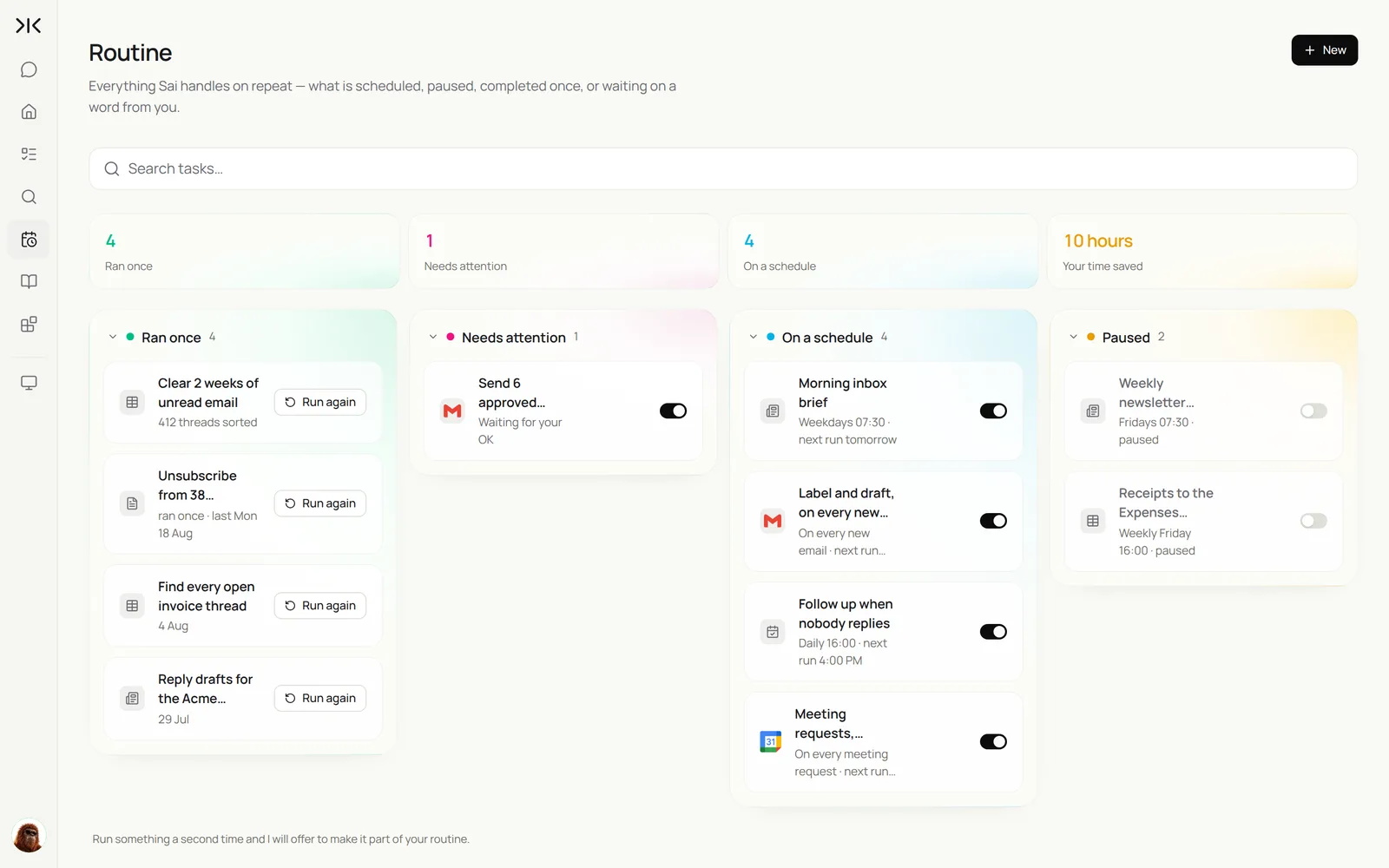
- Morning inbox brief. At 7:30, what needs you today, what can wait and what was handled.
- Label and draft. Every new email is labeled, and the easy ones get a reply drafted in your voice.
- Follow-ups. Threads where nobody replied get a nudge drafted after the delay you choose.
- Meeting requests. Answered with real open times from your calendar.
- Cleanup. Newsletters unsubscribed or grouped into one weekly digest.
- Receipts. Logged to your Expenses sheet with a link to the email.
What is an AI email assistant?
An AI email assistant is an AI agent that manages email on your behalf: reading, sorting, drafting, following up and scheduling, under rules you set. The difference from a writing tool is that it works through the whole inbox on its own, on a schedule, and comes back with drafts and decisions rather than waiting for you to open each email.
Sai is built for this because email is rarely only email. A reply often needs a date from your calendar, a number from a sheet or a file from Drive, and Sai can get all of them in the same task. If you want help with calendar, travel and meeting prep as well, see the AI executive assistant guide.
Where an AI email assistant fits
Most inboxes already have some AI. Here is what each kind does on its own.
| Built-in AI in Gmail or Outlook | AI email app | Rules and filters | AI email assistant agent | |
|---|---|---|---|---|
| Writes a reply when you ask | Yes | Yes | No | Yes, and drafts before you ask |
| Works through the inbox on its own | No | Partly | Yes, by fixed rules | Yes, by your written rules |
| Uses your calendar, sheets and files | Partly | Rarely | No | Yes, across apps |
| Follows up on unanswered threads | No | Some | No | Yes, after the delay you set |
| Works in your existing inbox | Yes | Often needs a new app | Yes | Yes, in Gmail |
| Sends without you | No | Sometimes | Yes, auto-rules | No, in this setup |
For writing-only tools, see the best AI email writers. For assistants that also handle calendar and errands, see the best AI executive assistants.
What an AI email assistant does every day
Start with triage. Drafts and follow-ups depend on good labels.
| Workflow | What Sai does | Cadence | Needs your approval |
|---|---|---|---|
| Triage | Labels every email: Needs you, Reply, FYI, Newsletter, Receipt | On every new email | No |
| Reply drafts | Drafts replies in your voice, using the thread, calendar and files | On every Reply email | Yes, before sending |
| Morning brief | One summary of what needs you today | Weekdays 7:30 | No |
| Follow-ups | Drafts a nudge on threads with no reply | Daily 16:00 | Yes, before sending |
| Scheduling | Offers real open times, sends the invite once confirmed | On every meeting request | Yes, before sending |
| Cleanup | Unsubscribes or groups newsletters, logs receipts | Weekly | Unsubscribes: yes, first time |
What you need before you start
- A Sai account. The Free plan includes one cloud computer for building and testing. Daily routines usually run on Pro. See Plans, usage, and limits.
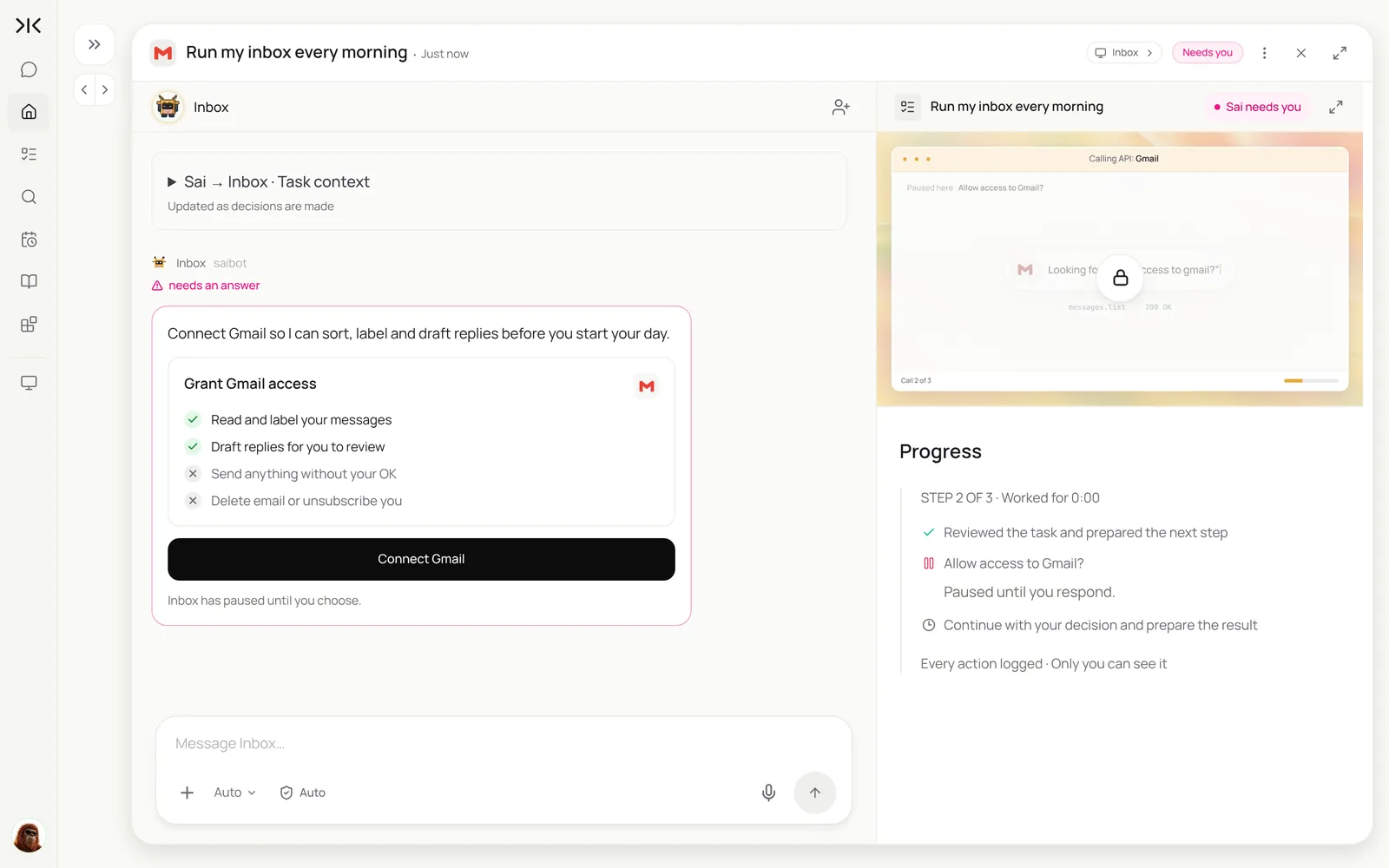
- Gmail and Google Calendar connected in Abilities → Integrations. Sai shows exactly what it can and cannot do before you grant access.
- Ten emails you wrote that sound like you, so Sai can learn your voice.
- Your labels. Use Sai’s defaults or your own; keep it to five or six.
Step 1: Write your Email skill
This is where your voice and your rules live. Sai loads it for every email task.
When to use it
Any task that reads, sorts, drafts or follows up on my email.

Labels
- Needs you: from my team, customers, investors, anything with a deadline or money.
- Reply: questions I can answer in a few lines.
- FYI: updates, notifications, CCs.
- Newsletter. Receipt.

How I write
- Short. First name greeting, no "I hope this finds you well". Sign off "Best, Sam".
- Offer two specific times, never "let me know what works".

Never
- Send, delete or archive anything without my OK.
- Reply to legal, HR or press emails. Label them Needs you.
- Share files or numbers with anyone outside the company without asking.
Step 2: Clear the backlog and start triage
Start with a one-time cleanup so the routines begin from a clean inbox.
Using my Email skill, go through the last 14 days of unread email.
Label every thread. Draft replies for the Reply threads. List anything that needs me with one line each.
Group newsletters I haven't opened in 30 days and ask me which to unsubscribe from. Don't send or delete anything.
Using my Email skill, go through the last 14 days of unread email. Label every thread, draft replies for the Reply threads, list what needs me, and group newsletters I haven’t opened in 30 days. Don’t send or delete anything.
- 412 threads
- 412 labeled
- 9 times offered
- 31 drafts
Step 3: Draft replies in your voice
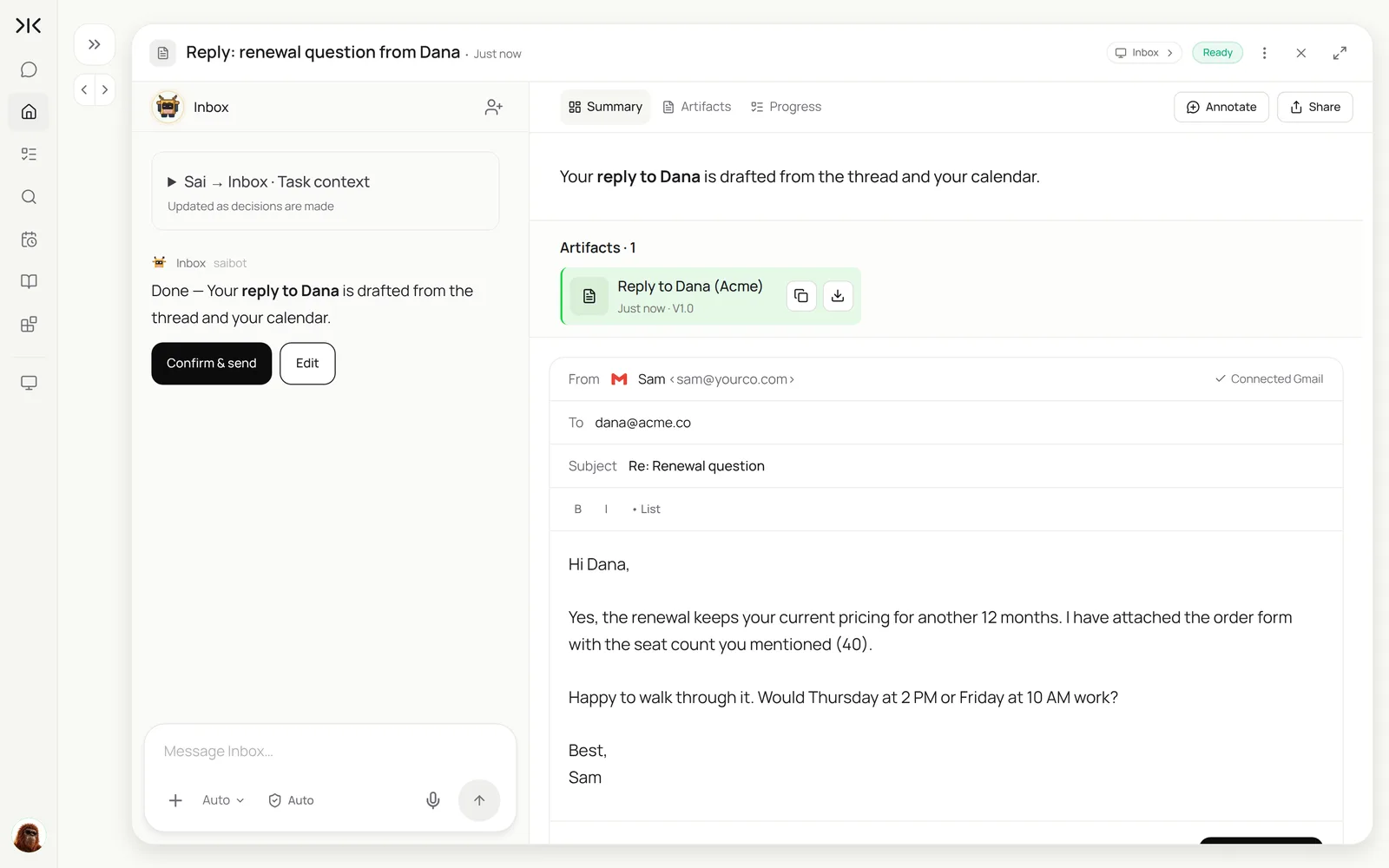
For each Reply email, Sai drafts a response from the thread, your calendar and your files, then waits for you. Edit a draft and Sai can save what changed to the skill, so the next one sounds more like you.
Step 4: Follow up and schedule meetings
Most dropped balls in email are threads nobody followed up on, and meeting requests that take five emails to settle.
Every day at 4 PM, find threads where I sent the last message more than 3 business days ago and nobody replied.
Draft a short, friendly nudge in the same thread. Skip anything labeled FYI or Newsletter.
For any new meeting request, check my calendar and draft a reply with two open times in the next 5 business days,
keeping mornings before 10 free. When they confirm, create the invite. Show me before sending.
Find threads where I sent the last message more than 3 business days ago with no reply and draft a short nudge. For new meeting requests, draft a reply with two open times in the next 5 business days, keeping mornings before 10 free.
- 7 threads
- 7 nudges
- 4 requests
- 8 slots · mornings kept free
For calendar-heavy weeks, the Sai × Google Workspace guide covers Calendar and Sheets in more depth.
Step 5: Put your inbox on a schedule
Once each task looks right, make it a routine:
| Routine | When it runs | What you do |
|---|---|---|
| Morning inbox brief | Weekdays 7:30 | Read it |
| Label and draft | On every new email | Approve drafts |
| Follow-ups | Daily 16:00 | Approve nudges |
| Meeting requests | On every request | Approve times |
| Newsletter digest and receipts | Fridays | Skim the digest |
Start from the daily inbox triage template if you’d rather not write the routine yourself. See Routines for approvals.
How much does an AI email assistant cost?
With Sai you can build and test every step on the Free plan. Running triage, drafts and follow-ups every day usually needs Pro at $50 a month (see Plans, usage, and limits). Waiting for your approval uses no computer time.
Writing-only AI in email apps typically costs $10 to $30 a month per person and drafts when asked. A human assistant who manages email costs far more and covers more ground. An AI email assistant sits in between: it does the sorting, drafting and chasing, and you make the calls.
Will AI replace email assistants?
AI handles the volume: sorting, routine replies, follow-ups and scheduling. It does not handle the judgment calls, the sensitive conversations or knowing which relationship needs a call instead of an email. People who have an assistant often use Sai so the assistant can spend their time on the work that needs a person.
An AI email assistant for small business
For a founder or a small team sharing an inbox, a good first month:
- Week 1: write the Email skill and run the 14-day cleanup.
- Week 2: turn on label and draft, and approve every draft.
- Week 3: add follow-ups and meeting requests.
- Week 4: add receipts to your Expenses sheet and the weekly newsletter digest.
- Point Sai at a shared inbox like support@ or hello@ only after it runs well on yours.
What to look for in an AI email assistant
| What to look for | Why it matters | How Sai handles it |
|---|---|---|
| Clear permissions | You should know exactly what it can do | Shows Can and Cannot before you grant Gmail access |
| Drafts, not auto-sends | Your name is on every email | Nothing is sent without your OK in this setup |
| Learns your voice | Generic drafts take as long to fix as to write | Email skill, updated from your edits |
| Works across apps | Replies need calendars, sheets and files | Calendar, Sheets, Drive and Slack in the same task |
| Follow-ups and scheduling | That is where most time is lost | Daily nudges and real open times |
| Runs while you’re away | The inbox doesn’t stop | Routines on Sai’s cloud computer |
Example: one week of email with an AI email assistant
An illustrative founder getting about 120 emails a day. Your numbers will differ; the shape of the change is typical.
| Task | Before (hours/week) | With Sai (hours/week) | What you still do |
|---|---|---|---|
| Reading and sorting | 4 | 0.5 | Read the morning brief |
| Writing routine replies | 3 | 1 | Approve and tweak drafts |
| Following up | 1.5 | 0.2 | Approve nudges |
| Scheduling meetings | 1.5 | 0.2 | Approve times |
| Newsletters and receipts | 1 | 0 | Nothing |
| Total | 11 | About 2 | About 25 minutes a day |
Keep your AI email assistant safe
- Drafts only to start. Keep approvals on for sending, deleting and unsubscribing.
- Sensitive mail stays with you. Put legal, HR, press and finance rules in the skill so those threads are labeled, not answered.
- Watch for instructions in emails. Sai treats email content as data, not commands, and won’t act on requests hidden in a message.
- Revoke any time. Disconnect Gmail in Abilities → Integrations and access stops immediately. See Security, privacy, and trust.
Frequently asked questions
What is the best AI email assistant?
The best one works in your existing inbox, drafts instead of sending, learns your voice, and can use your calendar and files. Sai does all of these in Gmail, and runs on a schedule on its own computer.
What does an AI email assistant do?
It sorts incoming email, drafts replies in your voice, follows up on unanswered threads, answers meeting requests with real times, and cleans up newsletters and receipts. You approve anything sent.
Is there an AI that can manage my inbox?
Yes. With Sai, routines label every new email, draft replies, send you a morning brief and draft follow-ups, with your approval before anything goes out.
Can an AI email assistant schedule meetings?
Yes. Sai checks your Google Calendar, drafts a reply with two open times, and creates the invite once the other person confirms.
How much does an AI email assistant cost?
With Sai you can build and test on the Free plan; daily routines usually need Pro at $50 a month.
Will it send emails without me?
No. In this setup Sai drafts and you approve. You can loosen that later for specific cases, such as accepting meeting times.
Does it work with Outlook?
This guide uses Gmail. Sai can work in other email clients through the browser on its cloud computer; the steps and approvals are the same.
Is it safe to give an AI access to my email?
Grant only what it needs, keep sending and deleting on approval, put rules for sensitive mail in the skill, and revoke access any time in Abilities.
Related guides
Keep building on the same pieces.