
How to build an AI executive assistant with Sai
An AI executive assistant takes the coordination work off your plate: the morning brief, the inbox, meeting prep, scheduling and follow-ups. This guide builds one with Sai, step by step, on the Gmail, Google Calendar, Slack and Drive accounts you already use, with every email and invite waiting for your approval before it goes out.
Tools: Gmail, Google Calendar, Slack, Google Drive, Notion
TL;DR: the AI executive assistant you end up with
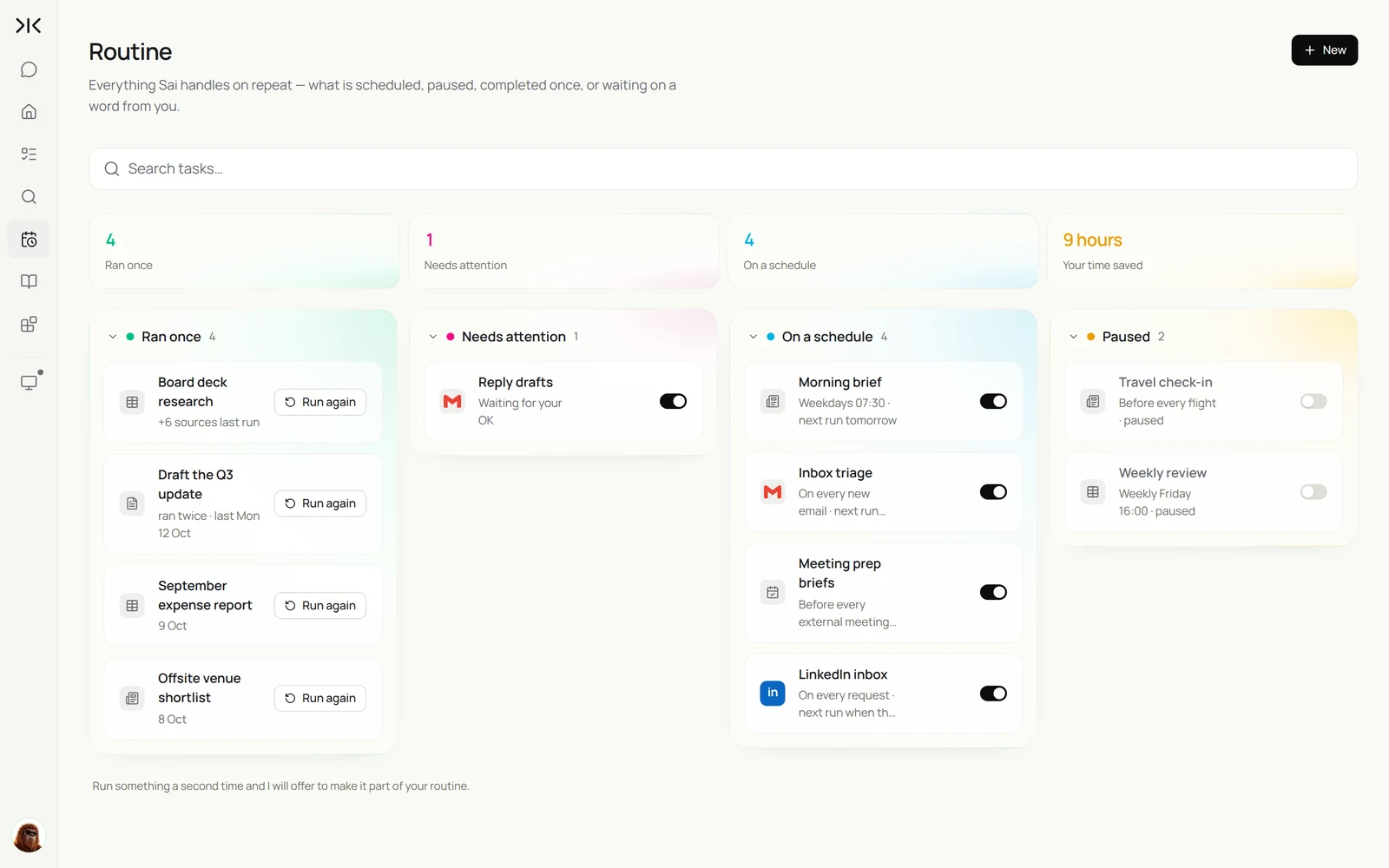
By the end of this guide you have an AI executive assistant that runs your day's admin on its own cloud computer and checks with you before anything leaves your name. It runs five routines:
- Morning brief. Your meetings, the emails that need you, Slack mentions and what is due this week, on one page before 7:30.
- Inbox triage. Sorts new email every two hours, drafts replies in your voice and files the noise. Nothing sends without your OK.
- Meeting prep. A one-page brief before every external meeting: who is coming, your last exchange with them and open items.
- Scheduling. Finds times that work, drafts the invite and holds it for approval.
- Weekly review. On Friday, a list of what got done, what slipped and what is coming next week.
What is an AI executive assistant?
An AI executive assistant is software that does the coordination work a human executive assistant handles: reading and sorting email, drafting replies, managing the calendar, preparing for meetings and keeping track of follow-ups. Unlike a chatbot, it acts in the apps where that work lives, on a schedule, and reports back.
The useful ones share three traits. They know your priorities without being reminded, they work across email, calendar and chat rather than in one app, and they ask before doing anything that speaks for you, such as sending an email or accepting an invite.
If you run a company and need the same help across its numbers, updates and leadership meetings, see How to build an AI chief of staff for founders.
What your AI executive assistant will do
Write the job description first. These are the six workflows this guide sets up. Each starts as a one-off task you check, then becomes a routine.
| Workflow | What Sai does | Cadence | Needs your approval |
|---|---|---|---|
| Morning brief | Reads calendar, inbox and Slack, writes a one-page brief | Weekdays 7:30 | No, it only reads |
| Inbox triage | Sorts new email, drafts replies, files newsletters | Every 2 hours | Yes, before any reply sends |
| Meeting prep | Researches attendees and past threads, writes a brief | Before external meetings | No, it only reads |
| Scheduling | Finds open slots, drafts invites and replies | When a request arrives | Yes, before invites send |
| Meeting follow-ups | Turns notes into action items and owner emails | After meetings | Yes, before emails send |
| Weekly review | Summarizes the week and next week’s commitments | Fridays 4:00 PM | No, it only reads |
What you need before you start
- A Sai account. The Free plan includes one cloud computer, enough to build and test each step. Routines that run all day work best on Pro. See Plans, usage, and limits.
- Your priorities, written down. The people whose email always comes first, the meetings you protect, and the things you never want handled without you.
- Accounts Sai can use. Gmail, Google Calendar, Slack and Drive, connected in Abilities → Tools or signed in on the cloud computer through an approval link.
- Two or three emails you are happy with, so the drafts sound like you.
Step 1: Write your “how I work” skill
Everything else depends on this. A skill is how Sai remembers your preferences across every task, so you never re-explain who matters or how you write. Open Abilities → Skills, describe a new skill, and adapt this one.
Name: how-i-work

People who come first (VIP list)
- My co-founder, board members, our top 10 customers (list in Drive > Admin > VIPs)
- Anyone from @acmefreight.com until the renewal closes

My calendar
- No meetings before 9:30 or after 5:30. Fridays after 2 PM are protected.
- External meetings are 30 minutes unless I say otherwise. Add a Zoom link.

How I write
- Short, warm, direct. First name only. No "I hope this finds you well".
- Sign off with "Best, Alex".

Rules
- Never send, accept, decline or delete anything without my approval.
- Never share my calendar details with people outside the company.
- If you are unsure who something is from or what they want, ask me.
Sai turns your description into a structured skill for you to review before it is saved. Every time you correct a draft for the same reason twice, add the correction here. More in Skills.
Step 2: Get a morning brief before you wake up
Start with the routine that saves the most attention and risks nothing: it only reads. Run it once by hand, check the brief, then put it on a schedule.
Every weekday at 7:30, send me a one-page brief:
1. Today's meetings, with one line of prep for each external one.
2. Emails from the last 24 hours that need a reply from me, VIPs first.
3. Slack threads where I was mentioned and have not answered.
4. Anything due this week from my task list in Notion.
Send it to my inbox and as a Slack DM. Read only: do not reply to anything.
Every weekday at 7:30, send me a one-page brief: today’s meetings with prep notes, emails that need me, Slack threads where I was mentioned, and anything due this week.
- 5 meetings today, 2 external
- 38 new emails, 4 need you
- 3 threads where you were mentioned
- Brief ready: 1 page
Step 3: Let your AI executive assistant triage the inbox
Inbox triage is where an AI executive assistant earns its keep, and where trust matters most. Sai sorts every new email, drafts the replies only you could send, and files the rest. You approve the drafts in one pass.
If email is the main job, the AI email assistant guide goes deeper on labels, reply drafts in your voice and follow-ups.
Every two hours from 8 AM to 6 PM, triage new email in Gmail:
- Label each email Needs me, FYI or Filed. Use my how-i-work skill for VIPs.
- For Needs me: draft a reply in my voice. If it is a meeting request, check my calendar and propose two times.
- Move newsletters and notifications to the Filed label. Never delete anything.
Hold every draft for my approval before sending.
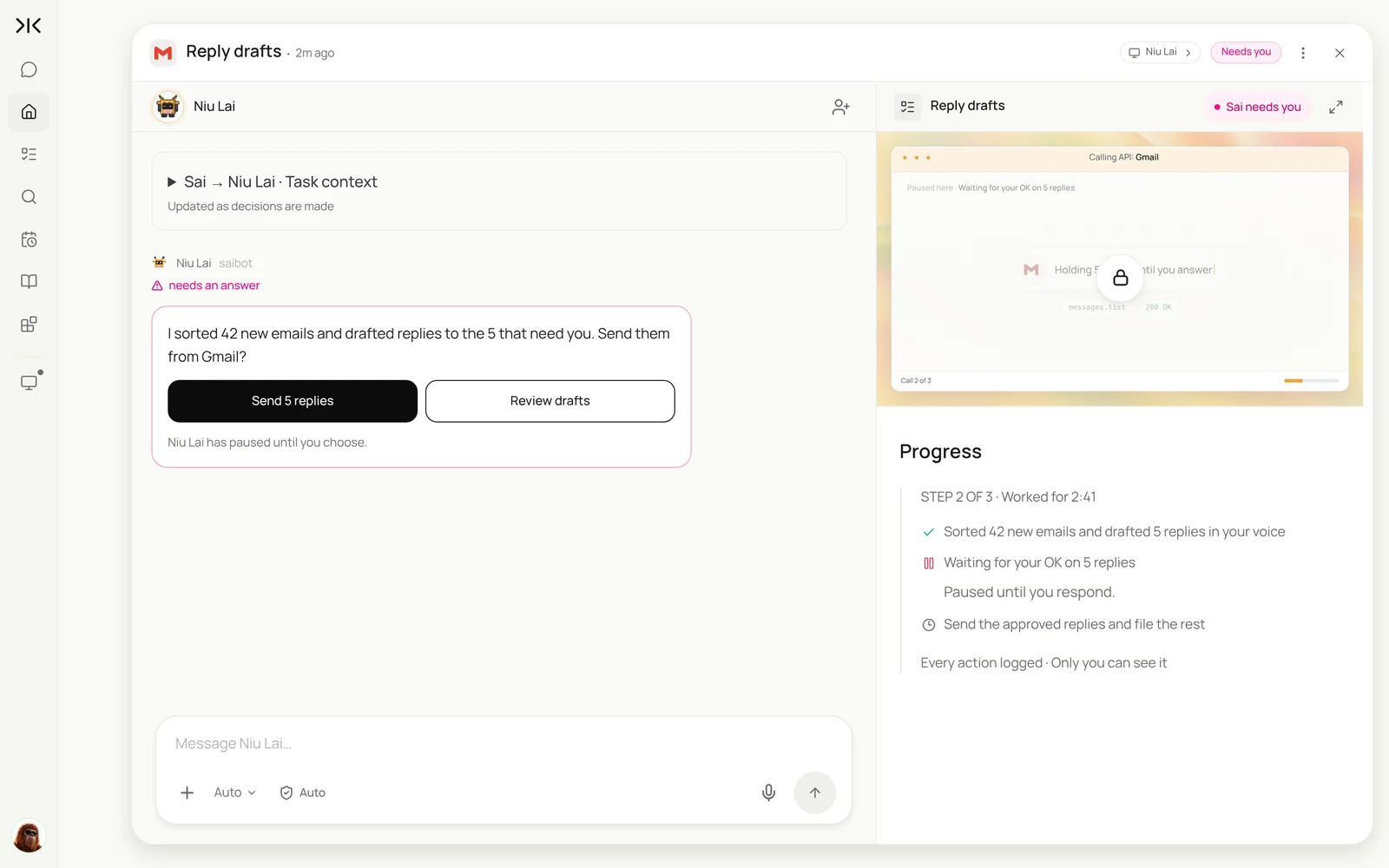
Triage my inbox every two hours. Draft replies to anything that needs me, using my how-I-work skill, and hold them for my OK. File newsletters and notifications.
- 42 new emails sorted
- 2 meeting requests matched to open slots
- 5 replies drafted
- Approved by you · 1 reply edited
- 5 sent, 23 filed, 0 deleted
For a deeper look at triage rules and labels, see how to automate Gmail morning triage and the Gmail and Outlook inbox cleanup guide.
Step 4: Walk into every meeting prepared
Before each external meeting, Sai reads the invite, looks up who is coming, pulls your last emails with them and any notes in Drive, and writes a one-page brief. You read it in two minutes on the way in.
One hour before every meeting with someone outside the company:
1. Read the invite and attendee list.
2. For each attendee: role, company, our last email exchange, anything they posted publicly this month.
3. Open items from our last meeting notes in Drive.
4. Write a one-page brief in Drive > Meeting briefs and send me the link on Slack.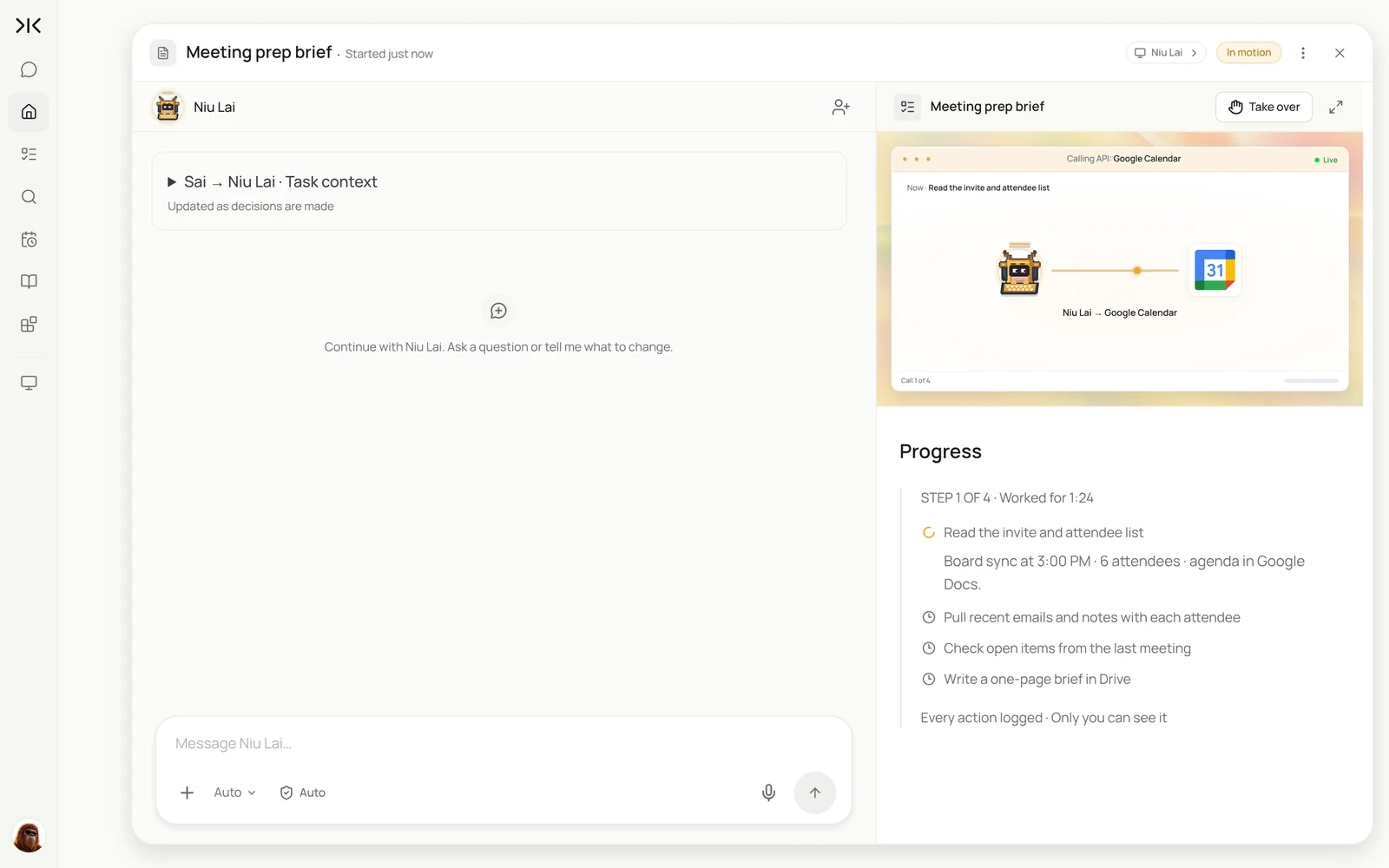
Step 5: Hand off scheduling
Scheduling is a back-and-forth that eats days. Give Sai your rules once, in the skill, and let it propose times, draft the reply and prepare the invite. You approve, it sends.
When someone asks to meet, by email or Slack:
- Find two or three slots that follow my calendar rules in how-i-work.
- Draft a reply offering them, and a calendar invite with a Zoom link.
- Hold both for my approval. After I approve, send them and add the meeting to my calendar.
Step 6: Close the loop after meetings
Most dropped balls happen after the meeting. Point Sai at your notes or the recording transcript and it turns them into action items with owners, and drafts the follow-up email.
After each meeting with notes in Drive > Meeting notes:
- Extract decisions and action items with an owner and a due date.
- Add them to my Notion task list, skipping anything already there.
- Draft a short follow-up email to the attendees with the action items. Hold it for my approval.
The same pattern is a ready-made use case on Simular Platform: turn meeting notes into action items.
Step 7: Put your AI executive assistant on a schedule
Once each task gives you a result you are happy with, choose Set as recurring. Together, these routines are your assistant's week.
| Routine | When it runs | What you do |
|---|---|---|
| Morning brief | Weekdays 7:30 AM | Read one page |
| Inbox triage | Every 2 hours, 8 AM to 6 PM | Approve the reply drafts |
| Meeting prep | 1 hour before external meetings | Read the brief |
| Scheduling | When a request arrives | Approve the proposed times |
| Weekly review | Fridays 4:00 PM | Read what slipped and what is next |
Turn on Code-Replay for routines that repeat the same steps, such as the morning brief. Sai replays the recorded steps instead of reasoning through them again, which lowers computer time on every run. Every setting is explained in Routines.
Keep your AI executive assistant safe
- Approve everything that speaks for you. Replies, invites, accepts and declines wait in the approval queue. Reading and sorting can run unattended.
- Never delete. Filing is reversible; deleting is not. The skill says so, and Sai asks before any irreversible action anyway.
- Keep private details private. The skill tells Sai what it may share about your calendar, and with whom.
- Review the skill monthly. VIPs and priorities change; a stale skill is the most common reason a draft goes wrong.
Why build your AI executive assistant on Sai
It finishes the task. Sai ranks #1 on OSWorld, the public benchmark for agents completing real work on a real computer, which is what a brief that spans email, calendar, Slack and Drive is.
It works where your work is. Sai uses your apps the way you do, so it is not limited to the handful of tools with an integration.
It learns how you work. Your skill holds your preferences and every correction, so the assistant gets better without being re-briefed. If you are comparing options, see our roundup of the best AI executive assistants.
Frequently asked questions
What is an AI executive assistant?
An AI executive assistant is software that handles an executive’s coordination work: email triage, replies, calendar management, meeting prep and follow-ups. Sai does this by working in your apps on its own cloud computer and asking before anything is sent.
Can an AI executive assistant send emails for me?
Yes, but with Sai only after you approve. Replies, invites and accepts wait for your OK by default. You can approve, edit or reject each one.
Does it work with Gmail and Google Calendar?
Yes. Connect them in Abilities → Tools, or sign in on the cloud computer. Sai also works with Outlook, Slack, Notion and web apps without an integration, because it uses them like a person.
Will it delete my email?
No. The guide’s skill tells Sai never to delete, and Sai asks before any irreversible action. It files and labels instead.
How is this different from an AI scheduling tool?
Scheduling tools handle one job inside one app. An AI executive assistant on Sai covers the whole day: brief, inbox, meetings, scheduling and follow-ups, across every app you use.
How much does it cost?
You can build and test each step on the Free plan, which includes a daily allotment of computer time. Routines that run all day usually need Pro at $50 a month. See Plans, usage, and limits.
How long does it take to set up?
About 30 minutes to write the skill and run each task once, then a week of light corrections as you approve drafts.
Is my data used to train models?
No. Sai uses model providers under enterprise agreements that do not train on your data. See Security, privacy, and trust.
Related guides
Keep building on the same pieces.
Skills that fit this role: Mac automation, expense report automation, AI PDF form filling and, for industry teams, real estate data entry and insurance eligibility verification.