
Routines
Recurring tasks you describe once, on a schedule you set. Most work is not a one-off request: it is the same brief every Monday, the same report at month end, the same follow-up each time a form comes in. A routine is how Sai handles it.
What is a routine in Sai?
A routine is a recurring task that Sai runs on a schedule you define. It stores the instruction, the cadence, the workspace it runs in, the tools and skills it may use, and the rules for what needs your approval. Where a conventional workflow automation tool asks you to assemble triggers, action blocks and field mappings before anything can run, a routine holds a description, the same sentences you would use to brief a colleague, and Sai works out the steps at run time.
That difference matters most on the second run and every run after it. Scheduled tasks built as node graphs break when a page moves, a column is renamed, or a step needs judgement rather than a rule. A routine re-reads the situation each time, so it absorbs the small differences between one week and the next without being rebuilt.
Routines cover the ordinary shapes of recurring work: daily briefs, weekly monitoring and research, recurring data collection into a spreadsheet, scheduled reporting, inbox and pipeline triage, and any task that should run each time a new item appears.
How to build a routine
There are three ways in, and they suit different moments.
1. Start from a description
Open Routine, choose Add new task, and write what you want in plain language. Sai turns the description into a recurring task, with no trigger to select, no connector to authorize step by step, and no fields to map between actions. Name what to read, what to produce, where to put it, and what a repeat run should do. See Writing good tasks for a full example.
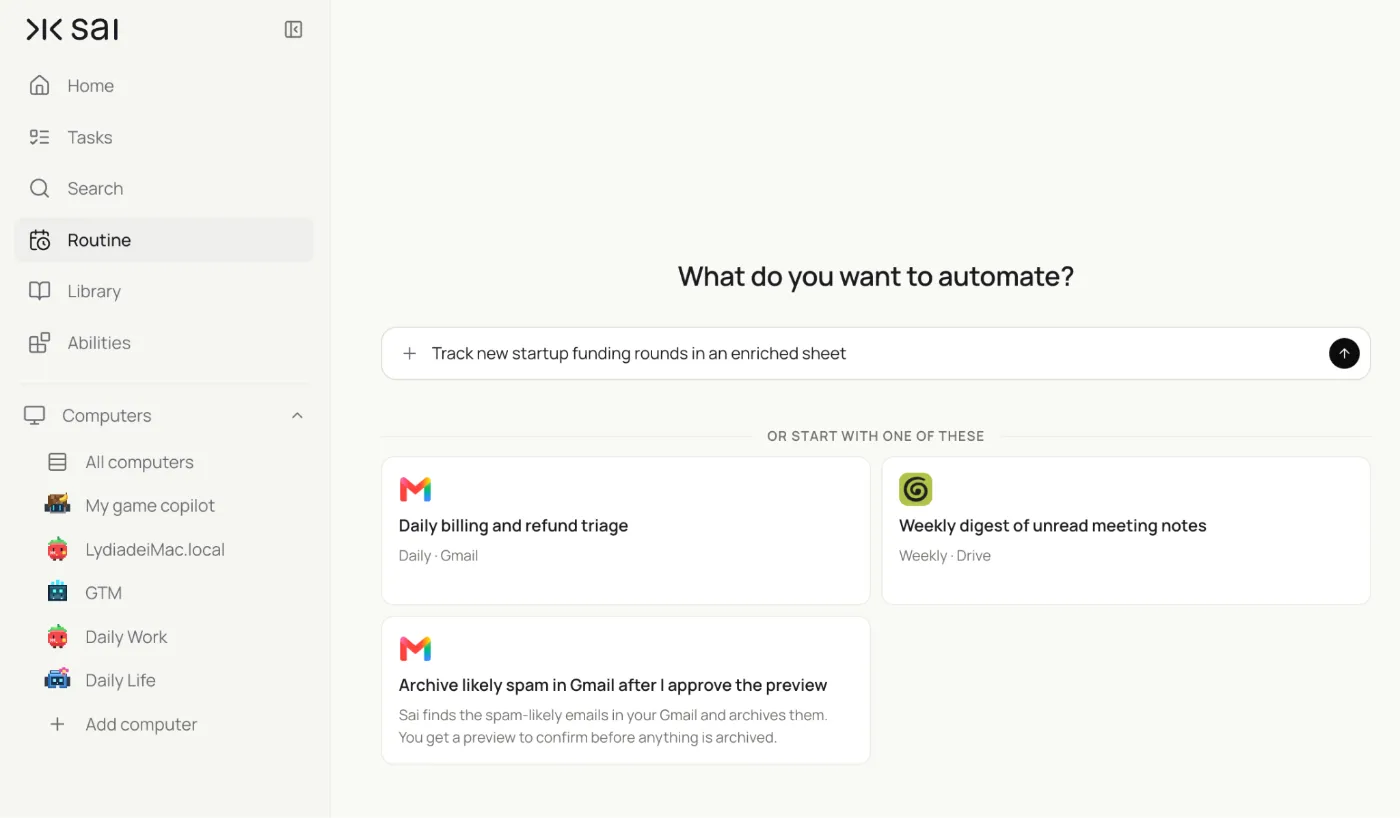
2. Turn a task you already ran into a routine
Any task can become recurring after the fact. Run it once, check the result, and choose Set as recurring. The instruction and the context it established carry over. This is the most reliable path, because you have already seen the output before putting it on a schedule.
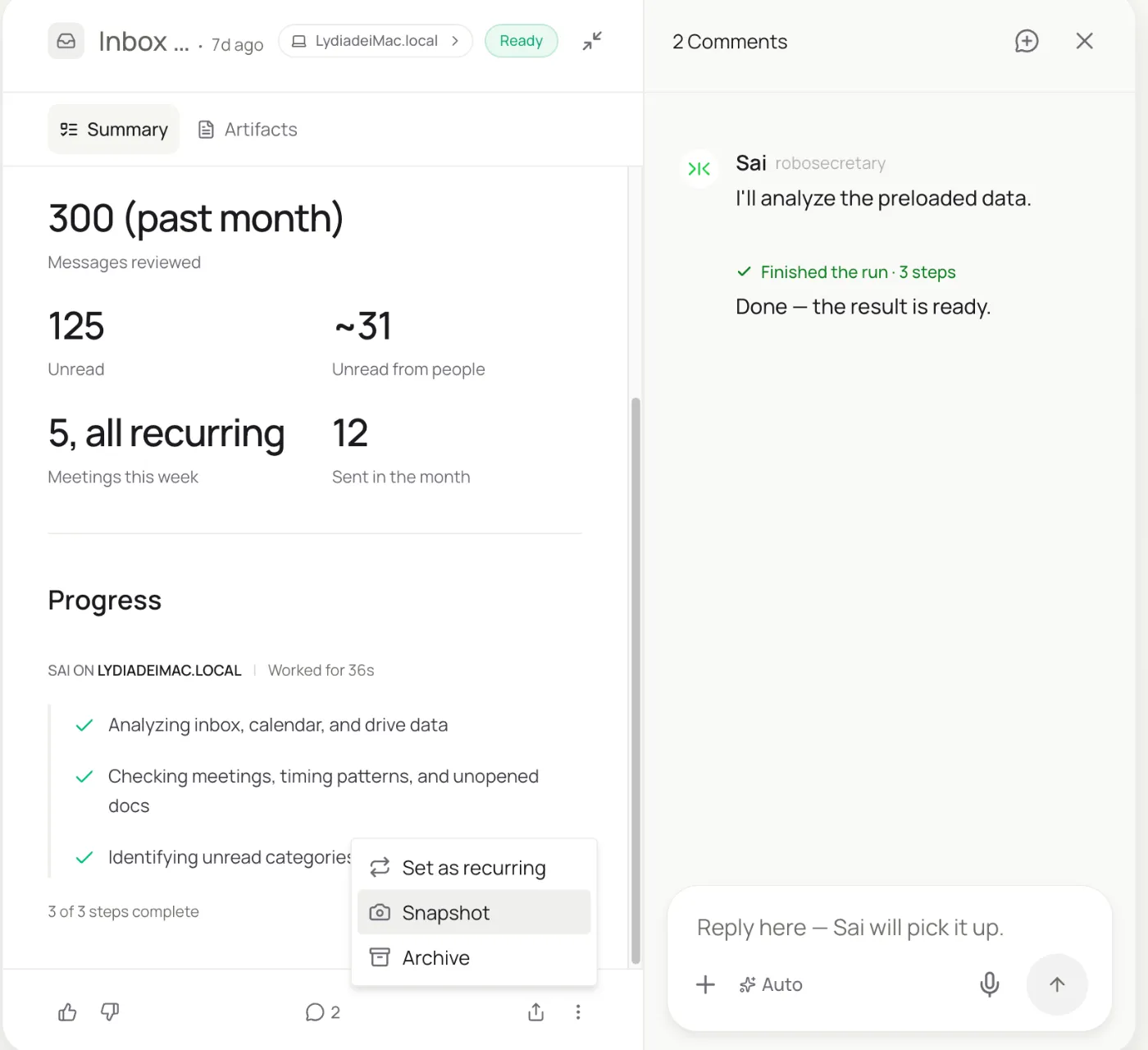
3. Start from a recommended task
The To Automate section suggests tasks based on the work you do. Try one as a single run, adjust the wording if it is close but not right, then set it as a routine. It is the shortest route to a working schedule when you are not yet sure what is worth automating.
What you can edit in a routine
Every routine opens into an edit panel. Nothing here requires rebuilding the task: you are adjusting settings around a description.
| Setting | What it controls |
|---|---|
| Name | How the routine appears in your list and run history |
| Description | The instruction itself: the task, its steps, and its rules |
| Schedule | Hourly, Daily, Weekdays, Weekly, or Custom, plus the exact time and time zone |
| Workspace | Which computer and context the run happens in |
| Model | The model the run uses; follows your account default unless you pin one |
| Skills | The skills loaded for each run: integrations and your own saved methods |
| Replay skill | A recorded procedure replayed deterministically before the agent takes over |
| Code-Replay | When active, the replay runs first on every run and the agent steps in only if it fails |
| Max duration per run | A ceiling of 15, 30, 60, or 120 minutes, or a custom limit |
| Auto-approve safe actions | On for pre-approved reads; off to review anything that writes externally |
Code-Replay keeps a repeating task cheap. Once a procedure works, Sai replays the compiled version instead of reasoning through it again, and falls back to the agent only when the replay fails.
Auto-approve safe actions is the line between an unattended run and one that waits for you. Leave it off and anything that writes outside your workspace collects in the approval queue instead of running.
Each routine also keeps a run history with the status and time of every past run, the next scheduled run, and a Run now button for running it off-schedule.
Routine examples by role
Each example is written as a recurring task with a cadence and a destination.
Founder
- Monday 8am competitive brief: “Every Monday at 8am, check the pricing and changelog pages of [competitor list] for anything that changed since last week. Write each change into the [Competitive Watch] sheet with the date, the old value, and the new value. Skip anything already recorded.”
- Friday investor update draft: “Every Friday at 4pm, pull this week's shipped items from [tracker], revenue figures from [dashboard], and any hiring changes, then draft the weekly investor update in the standard format and leave it as a draft for review.”
Sales and business development
- Weekly prospect top-up: “Every Monday, find companies matching [ICP criteria] that announced funding or a relevant hire in the last seven days, and append them to the [Prospects] sheet with company, contact, trigger event, and source link. Deduplicate against rows already there.”
- Daily pipeline hygiene: “Every weekday at 6pm, check [CRM] for deals with no activity in 14 days and email me a single list, ordered by value, with the last touch date for each.”
Recruiting
- Daily applicant triage: “Every morning, pull new applicants from [source] into the [Candidates] tracker, and flag the ones matching the [role brief] with a one-line reason. Do not rank or reject anyone. Flag only.”
- Weekly sourcing sweep: “Every Tuesday, search for people matching [profile] who changed roles in the last month, and add new names to the [Sourcing] sheet with their current title and why they fit.”
Marketing
- Daily mention sweep: “Every day at 9am, collect mentions of [brand] across [channels] from the last 24 hours, group them by sentiment, and draft a reply for each one that warrants an answer. Hold all drafts for approval before anything posts.”
- Monthly content performance: “On the first of each month, pull traffic and ranking data for [pages] and write a short report naming the three pages that moved most and the likely reason for each.”
Operations
- Meeting notes to owners: “Each time a new meeting transcript lands in [folder], extract the decisions and action items with their owners and due dates, and add them to the [Project] tracker. Skip items already in the tracker.”
- Weekly report assembly: “Every Friday at 3pm, gather the numbers from [sources], fill the [Weekly Report] template, and save it to [destination]. Update the existing row for the current week rather than adding a new one.”
Routines vs. traditional workflow automation
A workflow automation platform asks for the process before the first run: pick a trigger, add action blocks, map the fields between them, and add branches for the cases that differ. That work is front-loaded, and it has to be redone whenever a source, a layout or a requirement changes. A routine inverts the order: the description is the configuration, and the agent resolves the steps at run time by reading what is actually in front of it.
The trade-off is worth stating plainly. A node-based tool gives deterministic branching and high throughput for mechanical, high-volume pipelines where every case is known in advance. A routine is the better fit for scheduled work that carries judgement: deciding which of today's emails is a real request, reading a page that was redesigned last week, or summarising something that reads differently every time. Sai narrows the gap on determinism with Code-Replay, which replays the compiled procedure on every run and falls back to the agent only when the interface has moved.
Frequently asked questions
What is the difference between a routine and a one-time task?
A one-time task runs when you ask and ends there. A routine is stored with a schedule, runs again on its own, and can be told how to treat items it handled on previous runs.
Do I need to build a trigger or connect nodes?
No. Write what should happen and how often in plain language. There are no trigger nodes, connectors or field mappings to configure.
Can I turn a task I already ran into a routine?
Yes. Choose Set as recurring on any task and it keeps its instruction and context as a scheduled task.
What schedules are available?
Hourly, daily, weekdays, weekly, or a custom schedule, each with a specific time and time zone.
Does a routine run when my computer is off?
Yes. Routines run on the cloud computer attached to their workspace, independent of your local machine.
Can I stop a routine from sending anything without me?
Yes. Turn off auto-approve for safe actions, and anything that writes externally waits in the approval queue until you respond.
How do I stop a routine creating duplicates?
State the repeat behavior in the description: append only new items, update the matching row in place, or skip anything already recorded.
What happens when a run fails?
The run is logged at the point it stopped and the routine stays active. The next scheduled run proceeds normally.
Can I change the model a routine uses?
Yes. A routine follows your account default model, and you can pin a specific model in the edit panel instead.
Can I run a routine immediately, outside its schedule?
Yes. Run now runs it once without affecting the schedule.