
Expense report automation: let Sai build your expense report
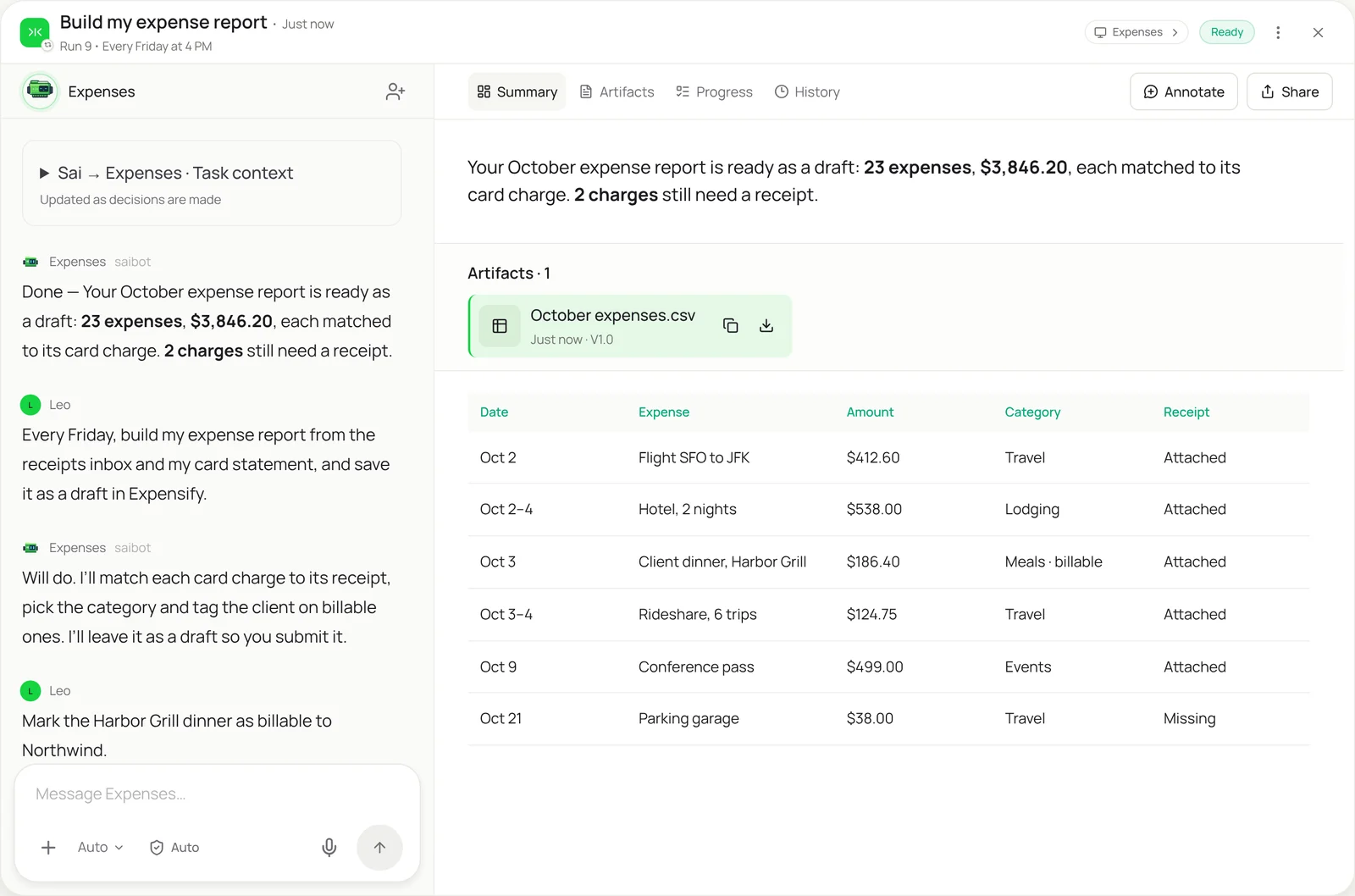
This skill builds the expense report nobody wants to do. Sai collects receipts from your inbox, phone uploads and Drive, matches each one to a charge on your card statement, picks the category, tags the client on billable items and enters everything in your expense tool, such as Expensify, Concur or Ramp. The report is saved as a draft with every receipt attached, and anything without a receipt is listed for you. You submit it.
The skill
# Skill: Expense report

## When to use
Building an expense report for a period: weekly, monthly or after a trip. Works with Expensify, Concur, Ramp, Brex or a spreadsheet template.

## Inputs
- Charges: the card statement or card feed for the period.
- Receipts: the receipts@ inbox, the Receipts folder in Drive, and phone photos.
- Rules: the Expense policy doc (categories, per-diem limits, what needs a note) and the Clients list for billable items.

## How to build
1. List every charge in the period from the card statement.
2. Find the receipt for each charge by amount and date (within 3 days) and merchant name.
3. Set the category from the policy. Add the client and mark it billable when the receipt or my note says so.
4. Add a short business purpose for meals, travel and anything over $75.
5. Enter each expense in the expense tool with the receipt attached, in a report named <Name> <Month>.
6. Flag charges with no receipt, amounts over policy limits, and personal-looking charges.

## Never
- Submit the report or approve anything.
- Change amounts, merge charges or invent a business purpose I didn't give.
- Add expenses that aren't on the card statement or backed by a receipt.

## Output
A draft report in the expense tool, a list of missing receipts and policy flags, and the total.
What it does
- List the charges. Sai starts from the card statement for the period, so the report covers every charge and nothing that wasn’t really spent. It opens the statement in your bank or card portal, or reads the export, and lists each charge with date, merchant and amount.
- Find every receipt. Receipts are everywhere: the receipts inbox, email confirmations from airlines and hotels, phone photos in Drive. Sai matches each one to a charge by amount, date and merchant, and reads photos and PDFs the way you would, including faded paper receipts. Files on your Mac can be gathered with the Mac automation skill.
- Categorize and tag. Each expense gets its category from your policy, a business purpose where one is needed, and a client tag when it’s billable. Sai uses only the purposes and clients you’ve given it; if a meal needs a reason and none is on file, it asks rather than inventing one.
- Enter the report. Sai opens your expense tool, whether that’s Expensify, Concur, Ramp or a company spreadsheet, and enters each expense with the receipt attached, the same way you would. The report is saved as a draft under the right name, ready for you to check and submit.
- Flag what’s missing. You get the total, a list of charges with no receipt, and anything over a policy limit. Run it weekly as a routine and receipts never pile up. For company-level bookkeeping, the same receipts can be matched in QuickBooks.
Why it works without an API
Expense tools scan receipts, but someone still has to forward them, fix the categories, add the purposes and chase the missing ones, and corporate tools like Concur rarely connect to the rest of your workflow. Sai does the whole job through the screen: it gathers receipts from wherever they are, enters them in whichever tool your company uses, and follows your policy. See Simular’s take on receipt scanners and organizers. How computer use works.
What you get back
- A draft expense report with receipts attached
- Categories, purposes and billable clients filled in
- A list of charges missing receipts
- Policy flags and the report total
Apps it uses
- Gmail
- Expense tool
- Google Drive
- Google Sheets
Who it’s for
AI executive assistant
Executives travel and spend on cards, and their expense reports are always late. An AI executive assistant with this skill collects every receipt, builds the report weekly and asks only about the dinners that need a purpose, so the executive just reviews and submits.
- Weekly executive expense report
- Travel receipts by trip
- Missing receipts chased
Read the AI executive assistant guide
AI bookkeeping
Bookkeepers spend month-end chasing receipts for card charges. An AI bookkeeper uses this skill to match receipts to every company card charge and build each cardholder’s report, so the books close without a hunt through inboxes.
- Company card reconciliation
- Reports per cardholder
- Month-end receipt chase
AI chief of staff
Founders pay for a lot on their own cards and forget to expense it. An AI chief of staff with this skill builds the founder’s monthly report from the card statement and receipts, so reimbursements and the books stay accurate.
- Founder reimbursement report
- Subscriptions on personal cards
- Monthly close support
Read the AI chief of staff guide
AI sales assistant
Field reps rack up travel and client meals that have to be billed to the right accounts. An AI sales assistant uses this skill to build each rep’s report with the client on every billable expense, so reps stay on the road instead of in the expense tool.
- Rep travel and meals
- Billable expenses by account
- Trip reports after events
Read the AI sales assistant guide
Common variations
- Monthly report in Expensify: Card statement and receipts into a draft
- Concur expense reports: The same job in SAP Concur
- Receipts from email: Airline, hotel and app receipts pulled from the inbox
- A trip report: All expenses for one trip, with per diem
- Company card reconciliation: Every cardholder’s charges matched in the books
- Mileage log: Trips from your calendar turned into mileage
More skills
- QuickBooks automation: Enter bills, attach receipts and code bank transactions in QuickBooks Online by your rules, with big bills and unknowns left for you.
- Invoice data extraction: Read invoices from email and vendor portals and log vendor, amount, due date and line items in a sheet, with totals checked.
- Payroll automation: Enter approved pay changes and hours into Gusto, ADP or Rippling before each run, check the preview, and leave the run for you to submit.