
Invoice data extraction: from email and vendor portals to a sheet
This skill turns Sai into an accounts payable clerk who never skips the boring part. Every morning it collects new invoices from your AP inbox and from the vendor portals that never email them, reads each PDF, and logs vendor, invoice number, dates, amount and line items in your AP sheet. It checks that the line items add up and flags possible duplicates, so 30 invoices a day take minutes to review instead of an hour to type.
The skill
# Skill: Extract invoice data

## When to use
Any task that collects vendor invoices and records their details: the daily AP run, a backlog of unprocessed invoices, or a month-end sweep for anything missed.

## Inputs
- Where invoices arrive: the AP inbox (ap@), plus the vendor portals listed in the Vendors sheet with their sign-in.
- Where they go: the AP sheet, one row per invoice, line items on the Lines tab.

## How to extract
1. Collect invoices received since the last run. Skip statements, receipts and quotes.
2. For each invoice record: vendor, invoice number, invoice date, due date, currency, subtotal, tax, total, PO number if present.
3. Record every line item: description, quantity, unit price, amount.
4. Check that line items plus tax equal the total. If not, flag the invoice and keep the numbers as printed.
5. Flag a possible duplicate when vendor and invoice number match an earlier row, or vendor, amount and date match within 7 days.
6. Save each PDF to Drive > AP > YYYY-MM with the name Vendor_InvoiceNumber.pdf and link it in the row.

## Never
- Pay, approve or schedule a payment.
- Change or delete existing rows in the AP sheet.
- Reply to vendors or forward invoices outside the company.

## Output
New rows in the AP sheet, a short summary (count, total, due this week, flags), and a list of invoices I need to look at.
What it does
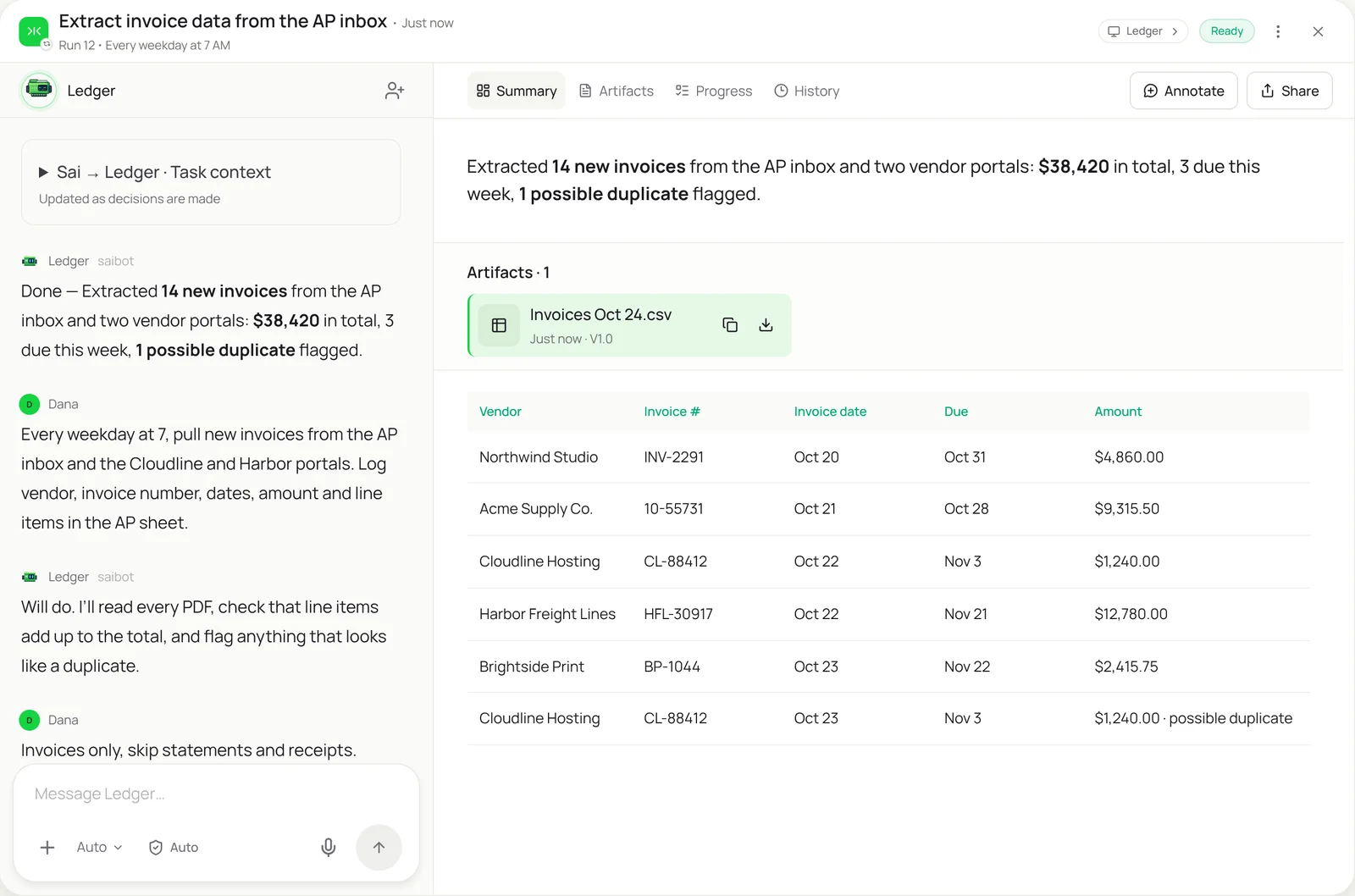
- Collect the invoices. Sai starts on its own cloud computer each morning and gathers everything that arrived since the last run. It searches the AP inbox for invoice attachments and opens the vendor portals that keep invoices behind a login, downloading each new one from the billing page. Statements, receipts and quotes are left out, so the queue holds only real invoices.
- Read each invoice. It opens every PDF and reads it the way a clerk would, whatever the layout: vendor, invoice number, invoice and due dates, currency, subtotal, tax and total, the PO number when there is one, and every line item. Scanned invoices work too, because Sai reads the page on screen rather than relying on text inside the file.
- Check the math. Before anything is logged, Sai adds up the line items and tax and compares the result with the invoice total. If they don’t match, it records the numbers exactly as printed and flags the invoice for you, instead of quietly correcting it.
- Catch duplicates and exceptions. Sai compares each invoice with what is already in the AP sheet. Same vendor and invoice number, or the same vendor, amount and date within a week, is marked as a possible duplicate. Invoices from vendors that aren’t in your Vendors sheet, or without a PO when one is required, go on the exception list.
- Log it and hand back. Each invoice becomes a row in the AP sheet with its line items on a second tab and a link to the PDF, which Sai files in Drive by month. Then it sends a short summary: how many invoices, the total, what is due this week, and the ones that need you. Approving and paying stay with your team.
Why it works without an API
Invoice extraction tools usually need a template per vendor, an inbox they can read through an integration, or a paid connector for each accounting system, and none of them can sign in to a vendor portal to fetch the invoices that never get emailed. Sai reads the invoice on screen like a person, so new vendors and layout changes need no setup, and the same skill covers your inbox, vendor portals and a folder of scans. How computer use works.
What you get back
- New rows in your AP sheet, with line items on a second tab
- Each PDF filed in Drive by month and linked from its row
- A daily summary: count, total and what is due this week
- A list of flags: duplicates, totals that don’t add up, new vendors
Apps it uses
- Gmail
- Chrome
- Google Drive
- Google Sheets
- QuickBooks
Who it’s for
AI bookkeeping
Accounts payable is where most small finance teams lose their week: invoices arrive in three inboxes and a dozen portals, and someone types them into a sheet or QuickBooks. An AI bookkeeper with this skill runs the collection and entry every morning, so your bookkeeper starts the day reviewing a short list of flags instead of a pile of PDFs.
- Daily AP intake from inbox and portals
- Draft bills for QuickBooks or Xero
- Month-end sweep for missing invoices
AI e-commerce operations
Online stores pay suppliers, freight carriers, warehouses and app subscriptions, each with its own invoice format and portal. An AI e-commerce operations agent uses this skill to keep a clean record of landed costs, catch double-billed shipments, and match supplier invoices to purchase orders before they are paid.
- Supplier and freight invoices
- Landed cost by shipment
- Duplicate shipment charges
Read the AI e-commerce operations guide
AI chief of staff
At an early-stage company the founder is often the AP department. An AI chief of staff with this skill makes sure every invoice is captured and nothing is paid twice, and rolls spend by vendor into the monthly KPI sheet and investor update.
- Founder-run AP without the typing
- Spend by vendor for the KPI sheet
- Subscriptions that renewed without notice
Read the AI chief of staff guide
AI employees
For teams processing hundreds of invoices a month, give the job to an AI employee: a dedicated Sai computer with this skill, access to the AP inbox and portals, and the rule that it never approves or pays. It works through the queue before your team logs on and leaves the exceptions for them.
- High-volume AP queues
- Shared service and multi-entity teams
- Backlogs after a system migration
Common variations
- Invoices that arrive by email: Gmail or Outlook attachments from the AP inbox
- Invoices behind vendor portals: Chrome on Sai’s computer, signed in through an approval link
- A folder of scanned paper invoices: Drive or Dropbox folder of scans and phone photos
- Line items for cost of goods: Every line to the Lines tab with SKU and quantity
- Draft bills in QuickBooks or Xero: Entered as drafts for your bookkeeper to approve
- Receipts for expense reports: Card receipts from email matched to transactions
More skills
- QuickBooks automation: Enter bills, attach receipts and code bank transactions in QuickBooks Online by your rules, with big bills and unknowns left for you.
- Order entry automation: Turn emailed and PDF purchase orders into sales orders in your ERP or order system, and draft the confirmation for each customer.
- NetSuite automation: Enter vendor bills in NetSuite from the PO and receipt, attach the PDF and leave each one Pending Approval, with mismatches left for you.