
Mac automation with AI: let Sai tidy and run chores on your Mac
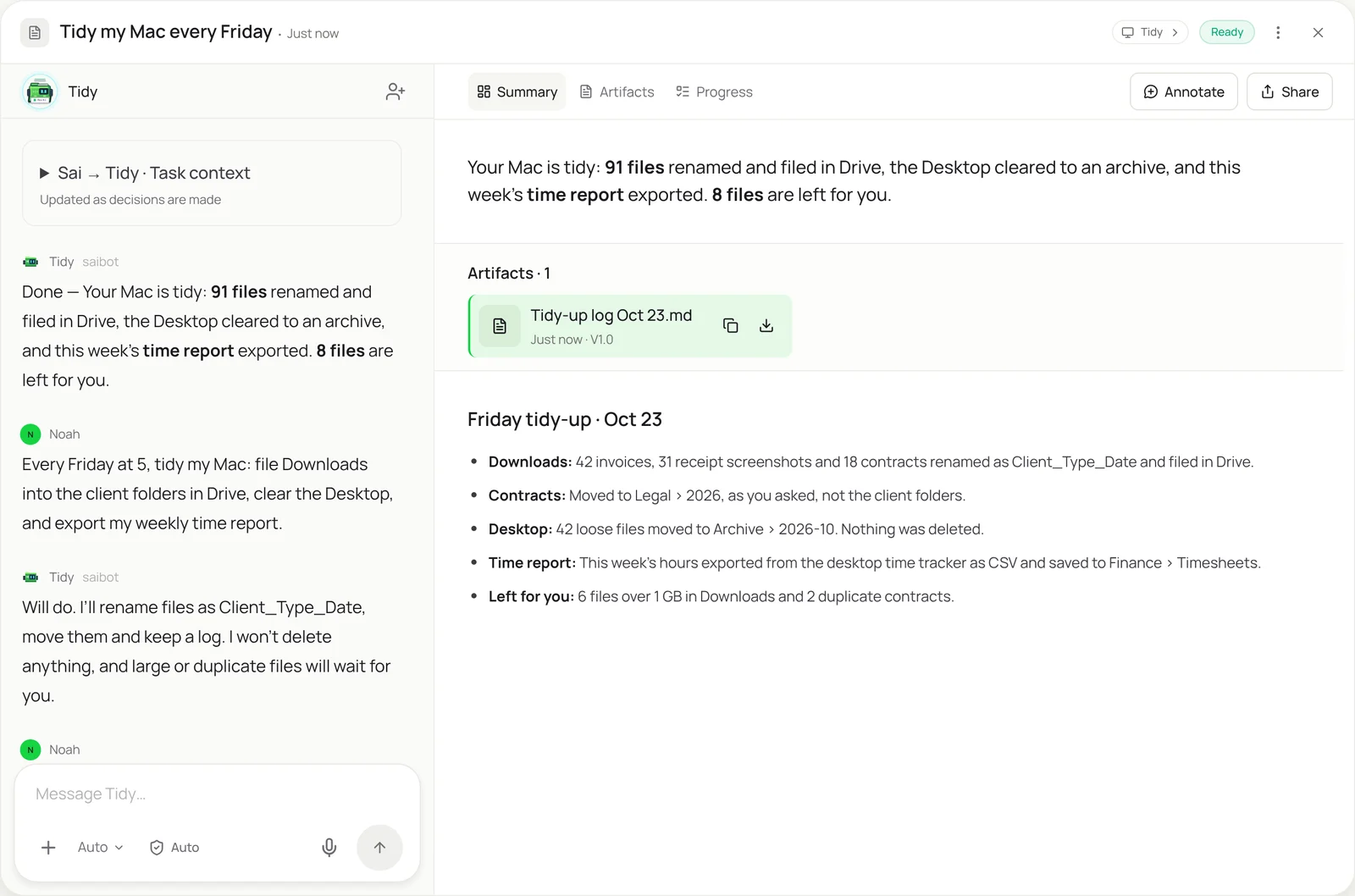
This skill is for the small Mac chores that never get done: a Downloads folder full of invoices and screenshots, a Desktop you can’t see, the weekly export from an app that only runs on your laptop. With your Mac connected, Sai works in Finder and your apps the way you would, renames and files everything by your rules, and keeps a log. It never deletes anything, and it leaves large or duplicate files for you.
The skill
# Skill: Mac tidy-up and chores

## When to use
Recurring housekeeping on my Mac: filing Downloads, clearing the Desktop, renaming scans and screenshots, and exporting data from apps that only run on the Mac.

## Inputs
- Folders to clean: Downloads, Desktop, and any others listed in the Folders tab.
- Where files go: the Drive or local folder for each type (invoices, receipts, contracts, screenshots, exports).
- Naming rule: Client_Type_YYYY-MM-DD, with the client name taken from the file content when it isn't in the filename.

## How to tidy
1. List files added since the last run. Skip anything opened in the last hour.
2. Identify each file's type and client from its name and content.
3. Rename it with the naming rule and move it to its folder. Contracts always go to Legal.
4. Move anything left on the Desktop to Archive/YYYY-MM.
5. Run the listed app exports (for example the weekly time report) and save them where the Folders tab says.
6. Write a log of every move: old name, new name, folder.

## Never
- Delete, empty the Trash or overwrite a file.
- Touch system folders, Applications or Library.
- Open files outside the folders listed.

## Output
A tidy-up log, files in their folders, and a list of large, duplicate or unclear files for me.
What it does
- Look at what’s new. Sai connects to your Mac through the Sai desktop app and lists what arrived since the last run in the folders you named: Downloads, Desktop, a scans folder. Files you opened in the last hour are left alone, so nothing you’re working on moves under you.
- Work out what each file is. A filename like “scan_0042.pdf” says nothing, so Sai opens the file and reads it: an invoice from a client, a signed contract, a receipt, a screenshot of a booking. It takes the client name and date from the content, the way you would when you finally sort the folder.
- Rename and file. Each file gets a name that follows your rule and moves to its folder in Drive or on the Mac, with special cases you set, like contracts always going to Legal. Loose files on the Desktop move to a dated archive. Nothing is deleted or overwritten, and every move is logged.
- Run app chores. Some data only lives in apps on your Mac: a time tracker, a Numbers sheet, a local accounting file. Sai opens the app, runs the export you described and saves the file where it belongs. On Windows, the same idea is the desktop automation skill.
- Log and repeat. You get a short log of what moved where, plus the files Sai left for you: very large files, duplicates and anything it couldn’t identify. Set it up once and it runs every Friday as a routine, with the same rules each time.
Why it works without an API
Apple’s built-in tools, Automator and Shortcuts, are powerful but need you to build each action and break when a file doesn’t match the pattern. Sai reads files and works through Finder and your apps by seeing the screen, so “file my Downloads by client” is the whole instruction. It handles the messy cases, like a scan with no useful filename, that rule-based tools skip. How computer use works.
What you get back
- Files renamed and filed in the right folders
- A clear Desktop, archived by month
- Exports from Mac-only apps
- A log, plus files left for you to decide
Apps it uses
- Finder
- Google Drive
- Numbers or Excel
- Gmail
Who it’s for
AI executive assistant
Executives live in Downloads: board packs, signed contracts, receipts, travel documents. An AI executive assistant with this skill files everything every Friday, so documents are where the team expects them and receipts are ready for expenses.
- Signed documents to the right folders
- Receipts filed for expenses
- Travel documents by trip
Read the AI executive assistant guide
AI chief of staff
Founders accumulate files across every part of the company on one laptop. An AI chief of staff uses this skill to keep contracts, investor documents and hiring files in the shared Drive, named so anyone can find them, and to export the weekly numbers from local tools.
- Contracts and investor docs filed
- Hiring files to the right folders
- Weekly exports from local tools
Read the AI chief of staff guide
AI bookkeeping
Bookkeeping starts with documents: invoices, receipts and statements downloaded all month. An AI bookkeeper with this skill files them by client and month as they land, so month-end starts with everything in one place, ready for invoice data extraction.
- Invoices and receipts by month
- Statements to the client folder
- Ready for month-end
AI social media manager
Creative work leaves a trail of exports, screenshots and versions. An AI social media manager uses this skill to file assets by campaign, keep only final versions in the shared folder, and archive the rest, so the team never posts the wrong file.
- Assets filed by campaign
- Final versions to the shared folder
- Screenshots archived
Read the AI social media manager guide
Common variations
- File Downloads by client: Invoices, contracts and receipts to Drive
- Rename scans and screenshots: Names from the content, not “scan_0042”
- Fill a PDF on your Mac: Forms filled from your documents
- Numbers or Excel exports: A weekly export from a local workbook
- The same chores on Windows: Desktop apps and folders on a PC
- Replace an Automator workflow: A plain-language rule instead of actions
More skills
- Desktop automation: Run repetitive work in any Windows or Mac app with no API or macros, by seeing the screen and clicking like a person.
- AI PDF form filler: Fill out PDF and web forms from your W-9, bank letter and past forms, then stop before anything is signed or sent.
- Expense report automation: Match card charges to receipts, pick categories and tag billable clients, then save the expense report as a draft for you to submit.