
Desktop automation: let Sai run the desktop apps that have no API
This skill is for the desktop app everyone works around: the dispatch system on the office PC, the old accounting package, the lab software that only exports by hand. Sai opens the app on its own computer, sees the screen and clicks through it like a person, then runs the reports, exports and updates you describe and files the results where your team works. No API, scripts or macro recorder needed.
The skill
# Skill: Run a desktop app job

## When to use
Repetitive work in a desktop app that has no API, no export schedule and no macro support: running and exporting reports, entering updates, moving files the app produces, or end-of-day steps.

## Inputs
- The app: its name, how to open it, and which account to use (already signed in on the Sai computer).
- The job: the screens to visit, the options to choose, and an example of a good result.
- Where results go: the Drive or shared folder and the file naming pattern.

## How to work
1. Open the app and wait until it is fully loaded. Close pop-ups only with Cancel or Close.
2. Follow the job steps in order. Use the same menus, filters and dates each run, with dates for the current period.
3. Export each result in the formats listed. Name files <Report>_<YYYY-MM-DD>.
4. Check each export: not empty, the date range is right, and row counts look like a normal day.
5. File the results and close the app.
6. If the app shows an error, a screen I haven't described, or asks to update, stop and tell me with a screenshot.

## Never
- Change settings, users or data inside the app.
- Install updates or new software.
- Delete files the app created.

## Output
The exported files in the right folder, a short summary of the run, and any gaps or errors with screenshots.
What it does
- Open the app. Sai runs on its own cloud computer, where the desktop app is installed and already signed in, or on a machine you connect. It opens the app, waits for it to load fully, and deals with the usual start-up dialogs the safe way, closing only what your instructions say to close.
- Follow your steps. Sai works through the job you described in plain words: which menu, which filters, which date range, which button. It reads the screen like a person does, so it copes with apps that have no API, no macro support and no accessible controls, and it uses the same options every run.
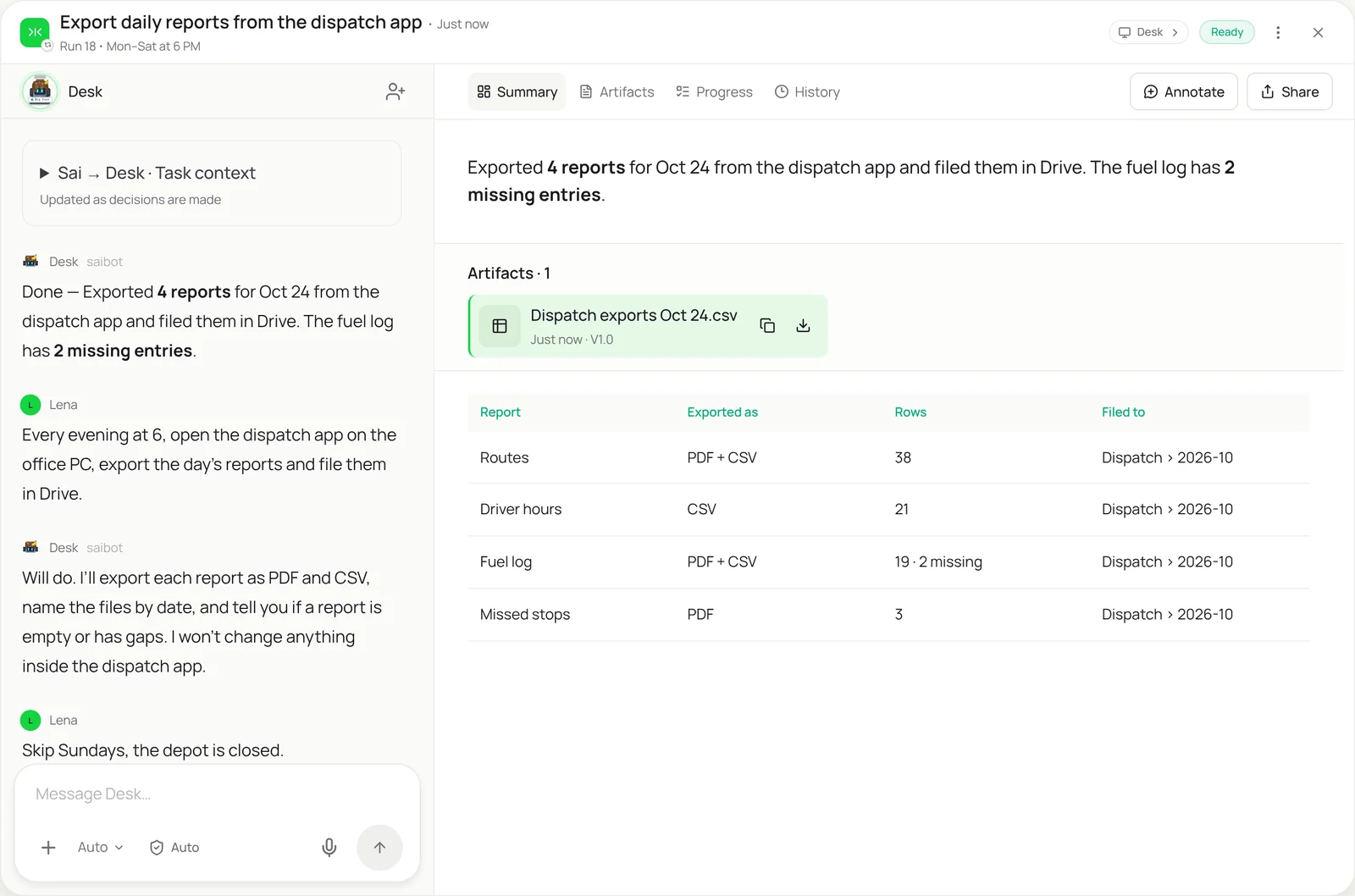
- Export and save. Each report or result is exported in the formats you asked for, PDF, CSV or Excel, and named by report and date. If the app can only print, Sai prints to PDF. Files are filed in the Drive or shared folder your team already uses, so nobody has to log in to the old PC.
- Check the results. Before calling it done, Sai checks each file: is it empty, does it cover the right dates, do the row counts look like a normal day? A fuel log with missing entries or a report with half the usual rows is flagged in the summary, not filed silently.
- Report and repeat. Sai sends a short summary of what it exported and anything that looked wrong, with screenshots if the app showed an error. Once the job works, it can run on a schedule as a routine, every evening or every Friday, without anyone touching the office PC.
Why it works without an API
Most desktop software was never built to be automated: there is no API, macro recorders break when a window moves, and RPA bots need a developer to build and maintain them. Sai sees the screen and uses the mouse and keyboard like a person, following steps you write in plain words, so one description is enough to automate an app nothing else can reach. How computer use works.
What you get back
- Exported files in your shared folder, named by date
- A short summary of every run
- Gaps and errors flagged with screenshots
- An optional schedule so it runs on its own
Apps it uses
- Desktop apps
- Google Drive
- Excel
- Gmail
Who it’s for
AI bookkeeping
Plenty of firms still keep the books in desktop software: QuickBooks Desktop, Sage, practice management tools. An AI bookkeeper with this skill runs the reports and exports in those apps on schedule and files them for review, without anyone remoting into the office server.
- Reports from desktop accounting software
- Month-end exports for the accountant
- Client files saved to the right folder
AI e-commerce operations
Warehouses and stores often depend on a desktop inventory or shipping tool that only exports by hand. An AI e-commerce operations agent uses this skill to pull stock and shipment reports every evening and keep the online catalog and sheets in step.
- Stock reports from the inventory app
- Shipping and label exports
- End-of-day sales from the POS
Read the AI e-commerce operations guide
AI customer support agent
Support teams sometimes look up orders or warranties in an old desktop system that has no integration with the help desk. An AI customer support agent with this skill searches that app, copies the details back to the ticket, and saves agents from switching screens all day.
- Order and warranty lookups
- Account details copied to tickets
- Daily case exports
Read the AI customer support agent guide
AI project manager
Project data often lives in desktop tools: scheduling software, estimating apps, CAD file managers. An AI project manager uses this skill to export schedules and status reports from those tools each week and turn them into the update the team reads.
- Schedule exports from desktop tools
- Weekly status from estimating apps
- Files moved to the project folder
Read the AI project manager guide
Common variations
- Daily report exports: End-of-day reports from a desktop app into Drive
- Legacy app data entry: Records typed into an old Windows app
- Windows apps with no API: Any job you can describe, done on screen
- Mac app chores: Exports and file tidying on a Mac
- File renaming and filing: Scans and exports renamed and moved
- Replace a fragile macro: A recorded macro rewritten as plain steps
More skills
- Mac automation with AI: Rename and file downloads, clear the Desktop and export app data on your Mac, described in a sentence instead of built in Automator.
- SAP GUI automation: Run repetitive SAP transactions through the GUI from a work list, with a screenshot of every posting and a stop on every exception.
- Automated data entry: Copy records from forms, PDFs and emails into portals, CRMs and sheets, field by field, with every entry checked and logged.