
SAP GUI automation: let Sai run repetitive SAP transactions
This skill lets Sai work in SAP GUI the way a trained clerk does. It reads the day’s work from a sheet, opens the right transaction, fills each screen, saves, and records the document number with a screenshot. It stops on anything outside your rules, such as a quantity over tolerance or a blocked purchase order, so your team handles the exceptions instead of the data entry.
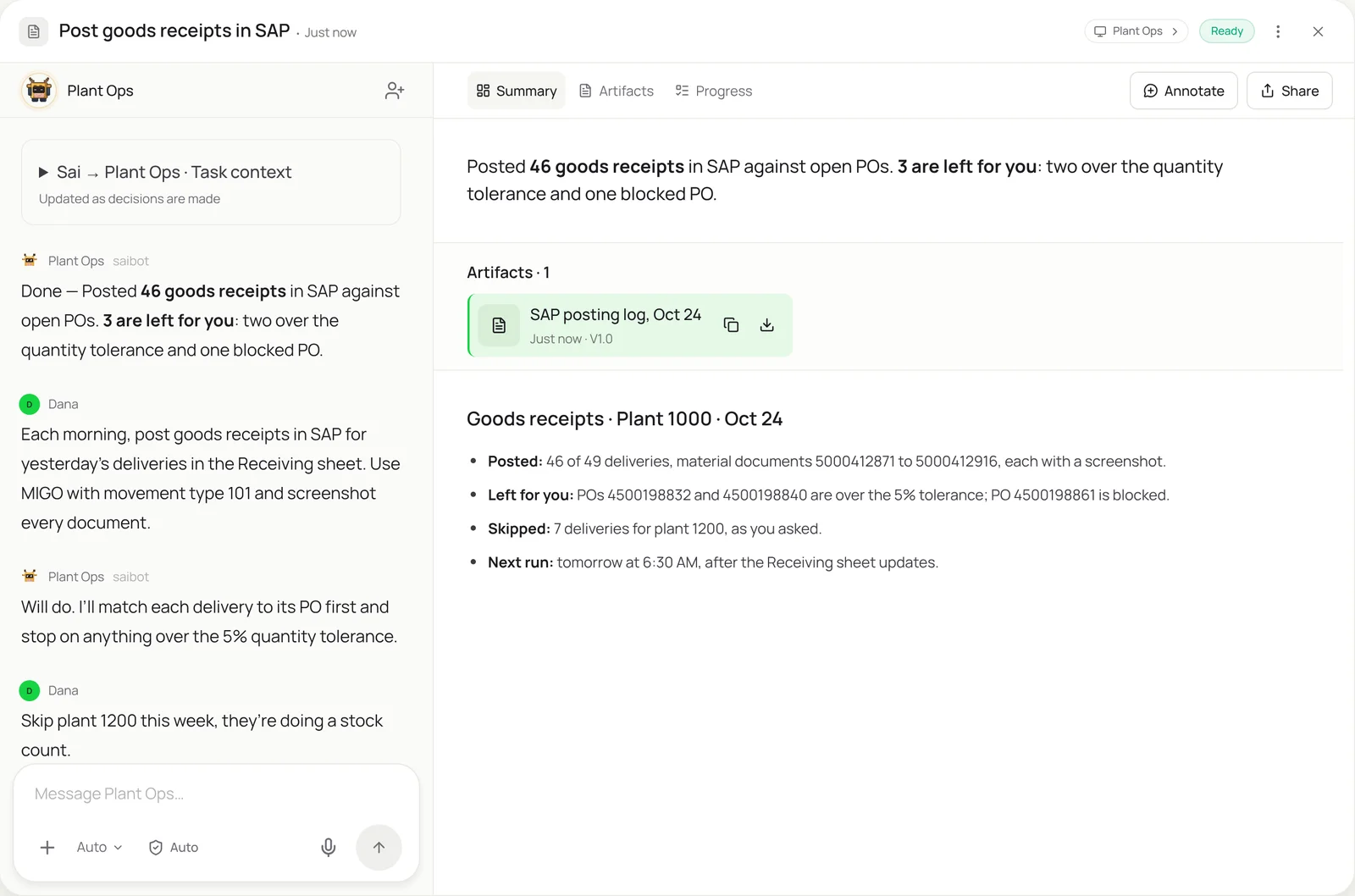
The skill
# Skill: SAP GUI transactions

## When to use
Any task that repeats an SAP GUI transaction for a list of items: goods receipts (MIGO), sales orders (VA01), purchase orders (ME21N), vendor invoices (MIRO), or a report export (ME2N, VA05).

## Inputs
- The work list: the sheet with one row per item and the columns the transaction needs.
- The system: SAP GUI on Sai's computer, client and the user created for Sai, with only the authorizations this job needs.

## How to work
1. Before posting, check each row: PO or order exists, quantity within 5% of open quantity, plant and storage location valid.
2. Open the transaction, fill each screen from the row, and use the same defaults a person would (movement type 101 for MIGO).
3. Save, read back the document number from the status bar, and take a screenshot.
4. Write the document number and a link to the screenshot back to the row, and mark it Posted.
5. If SAP shows a warning or error, do not override it. Mark the row Needs review with the message text and move on.

## Never
- Change master data, prices or configuration.
- Reverse, cancel or delete a posted document.
- Post for a plant, company code or period I haven't listed.

## Output
The work list updated row by row, a posting log with document numbers and screenshots, and a list of rows that need my review.
What it does
- Read the work list. Sai starts from the list your team already keeps: a Receiving sheet of yesterday’s deliveries, a sheet of emailed purchase orders, or an export from another system. Before touching SAP it checks every row against your rules, such as an open PO, a quantity within tolerance and a valid plant, and sets aside anything that fails.
- Open the transaction. On its own computer Sai signs in to SAP GUI with the user you created for it and opens the right transaction, MIGO for goods receipts, VA01 for sales orders, ME21N for purchase orders. It uses only the authorizations you gave that user, so it can’t reach anything outside the job.
- Fill each screen. Sai reads each SAP screen and fills it from the row: header fields, items, quantities, storage locations, the tabs that need a value. It handles pop-ups and screen sequences the way a trained clerk does, and because it reads the screen each time, a new field or a moved tab doesn’t break it.
- Save and record. After saving, Sai reads the document number from the status bar, takes a screenshot of the posted document, and writes both back to the row in your sheet. You end up with an audit trail of every posting without anyone copying numbers by hand.
- Stop on exceptions and report. When SAP shows a warning or an error, Sai never clicks past it. It records the exact message, marks the row for review and moves to the next one. At the end it sends a posting log with counts, document numbers and the rows that need a person.
Why it works without an API
SAP automation usually means GUI scripting that has to be enabled and maintained, BAPI or IDoc work that needs developers, or recorded RPA bots that break when a screen layout changes. Sai uses the SAP GUI you already run, signed in as a normal user with limited rights, and reads each screen as it goes, so there is nothing to develop and a new field or support pack doesn’t stop it. How computer use works.
What you get back
- Your work list updated row by row, marked Posted or Needs review
- A posting log with every document number
- A screenshot of each posted document for audit
- A list of exceptions with the exact SAP message
Apps it uses
- SAP GUI
- Google Sheets
- Excel
- Gmail
Who it’s for
AI bookkeeping
Finance teams on SAP spend hours entering vendor invoices in MIRO, matching them to purchase orders and goods receipts. An AI bookkeeper with this skill posts the clean three-way matches from your AP sheet, attaches a screenshot of each, and leaves price and quantity variances to your AP team.
- Vendor invoices in MIRO
- Three-way match against PO and receipt
- Variance list for review
AI e-commerce operations
When orders arrive by email or from a marketplace that isn’t connected to SAP, someone rekeys them in VA01. An AI e-commerce operations agent uses this skill to create the sales orders from the order sheet, record each order number, and flag any customer or material that doesn’t exist yet.
- Sales orders in VA01
- Marketplace orders without an integration
- Missing customers or materials flagged
- order-entry-automation
Read the AI e-commerce operations guide
AI employees
For a plant, warehouse or shared service center, give the repetitive transactions to an AI employee: a dedicated Sai computer with SAP GUI, its own SAP user and this skill. It works through receipts, orders and confirmations on a schedule and hands your team only the exceptions.
- Goods receipts every morning
- Purchase orders from request sheets
- Shared service center backlogs
AI chief of staff
Leaders at SAP companies wait on someone to run reports and paste numbers into the weekly pack. An AI chief of staff with this skill runs the same report transactions every Monday, exports them to Excel and updates the operating brief.
- Weekly report exports (ME2N, VA05)
- Numbers for the operating brief
- Open order and backlog snapshots
Read the AI chief of staff guide
Common variations
- Goods receipts in MIGO: Receiving sheet of yesterday’s deliveries
- Sales orders in VA01: Orders from email or a marketplace export
- Purchase orders in ME21N: A sheet of approved purchase requests
- Vendor invoices in MIRO: AP sheet of matched invoices
- A weekly report export: ME2N or VA05 to Excel every Monday
- Master data checks: Read-only lookups to verify vendors and materials
More skills
- Order entry automation: Turn emailed and PDF purchase orders into sales orders in your ERP or order system, and draft the confirmation for each customer.
- Desktop automation: Run repetitive work in any Windows or Mac app with no API or macros, by seeing the screen and clicking like a person.
- Automated data entry: Copy records from forms, PDFs and emails into portals, CRMs and sheets, field by field, with every entry checked and logged.