
Automated data entry: let Sai type records into the systems you use
This skill turns Sai into a careful data entry clerk. It reads the records that pile up as forms, PDFs, scans and emails, types each one into the portal, CRM or sheet where it belongs, and saves the ID the system gives back. Required fields are checked before saving, and a record that is missing something is saved as a draft and left for you, so 40 forms take minutes to review instead of a morning to type.
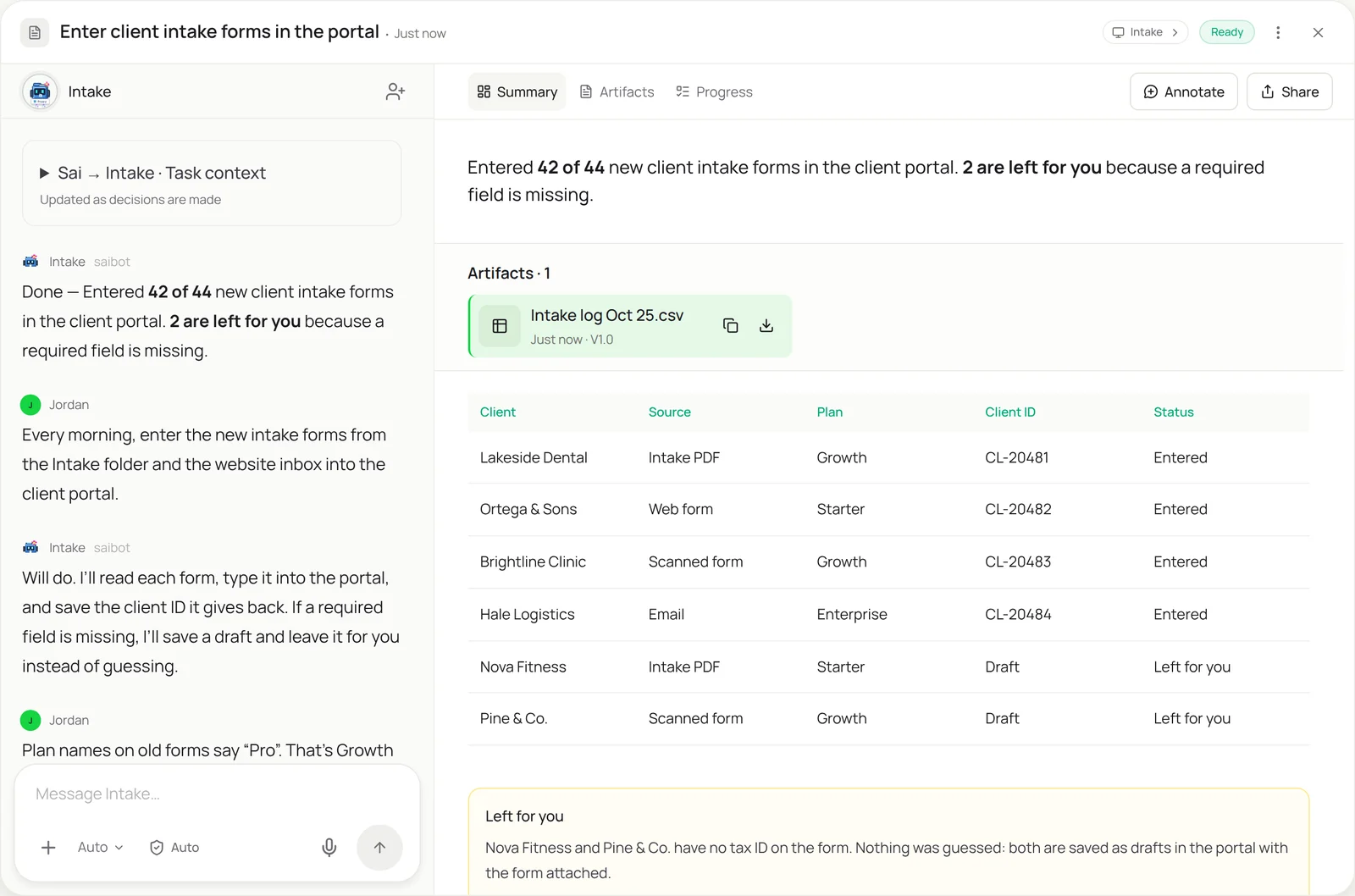
The skill
# Skill: Enter records into a system

## When to use
Any task that copies records from documents into another system by hand: intake forms into a client portal, applications into a CRM, orders into an ERP, survey or event sign-ups into a sheet.

## Inputs
- Where records come from: folders, inboxes and web forms, and what one record looks like.
- Where they go: the portal, CRM or sheet, the screen or form to use, and the Field map tab that says which form field goes in which system field.

## How to enter
1. Collect records received since the last run. Skip duplicates already in the system (same email or ID).
2. Read each record. Normalize as you go: names in Title Case, phone in +1 format, dates as YYYY-MM-DD.
3. Apply the Field map rules, including renamed values (for example old plan names).
4. Check every required field before saving. If one is missing or unreadable, save a draft, attach the source, and leave it for me.
5. Save the record, read back the ID the system shows, and write it in the log with the source file.
6. Stop and tell me if the system shows an error or a field I don't have a rule for.

## Never
- Guess or invent a value for a required field.
- Edit or delete records that were already in the system.
- Submit anything that sends a message, payment or contract to the client.

## Output
Records entered with their system IDs, a log of every entry, and a short list of drafts that need me.
What it does
- Collect the records. Sai starts each run by gathering what arrived since last time: PDFs and scans in the intake folder, attachments in the shared inbox, submissions from the website form. It checks each one against the system first, by email or ID, so a client who sent the same form twice is only entered once.
- Read every field. It reads each record the way a person would, typed or handwritten, PDF or photo: names, contact details, addresses, dates, plan, IDs. Values are cleaned as they are read, so names are in Title Case, phones in one format and dates in one style, and old values are mapped to new ones using your rules.
- Type it into the system. Sai opens the portal, CRM or desktop app on its own computer and fills the real form, field by field, the way your team does. Because it uses the same screens a person uses, it works with systems that have no import, no API and no bulk upload, and it follows your Field map for every field. For purchase orders specifically, see order entry automation.
- Check before saving. Before pressing save, Sai checks that every required field has a value it actually read. If a tax ID is missing or a date is unreadable, it saves a draft with the source attached and moves on, instead of guessing. If the system shows an error, it stops and tells you which record and which field.
- Log and hand back. After each save, Sai reads back the ID the system assigned and writes it to the log with the source file, so every record can be traced. Records that are already in the CRM can be tidied with CRM data cleanup. At the end it sends a short summary: how many records went in, which are drafts and why, and anything that needs your decision.
Why it works without an API
Data entry is still manual where the target system has no import, the import needs a perfect CSV nobody has, or the source is a pile of PDFs and scans. Sai reads the source and types into the real system through the screen, like a clerk, so it works with web portals, CRMs and desktop apps that RPA tools and integrations can’t reach without a project. How computer use works.
What you get back
- Records entered in your system, each with its ID
- A log of every entry and its source file
- Drafts for records with missing fields
- A short summary of the run
Apps it uses
- Chrome
- Google Drive
- Gmail
- Google Sheets
Who it’s for
AI RevOps manager
CRM data only stays useful if someone enters it: event leads, partner referrals, contract details from signed PDFs. An AI RevOps manager with this skill types those records into the CRM with the right owner, stage and fields, and logs every entry, so the pipeline report reflects what actually happened.
- Event and webinar leads into the CRM
- Contract details from signed PDFs
- Partner referrals with the right owner
Read the AI RevOps manager guide
AI recruiter
Candidates arrive through job boards, referrals and email, and not every source flows into the ATS. An AI recruiter uses this skill to add each candidate with their resume, source and stage, and to enter interview feedback forms, so the hiring pipeline is complete without anyone retyping.
- Referral and email candidates into the ATS
- Interview feedback forms
- Offer details into the HR system
AI e-commerce operations
Stores run on data typed between systems: wholesale orders from email, supplier price lists into the catalog, returns into the warehouse portal. An AI e-commerce operations agent uses this skill to enter each one in the right system and flag anything that doesn’t match.
- Wholesale orders from email
- Supplier price lists into the catalog
- Returns into the warehouse portal
Read the AI e-commerce operations guide
AI customer success manager
Onboarding starts with forms: kickoff questionnaires, account setup sheets, user lists. An AI customer success manager with this skill enters them into the product admin and the CRM, so new customers are set up the same day and nothing from the kickoff gets lost.
- Onboarding questionnaires
- User lists into the admin console
- Account details into the CRM
Read the AI customer success manager guide
Common variations
- PDF forms into a web portal: Intake or application forms typed into the portal
- Real estate listings and records: Listing agreements into MLS drafts and the CRM
- Emails into a CRM: Inquiry details from the inbox into new leads
- Survey results into a sheet: Paper or PDF surveys, one row per response
- Records into a desktop app: Forms typed into a Windows app with no import
- Move records between two systems: Read from one app, type into another
More skills
- Order entry automation: Turn emailed and PDF purchase orders into sales orders in your ERP or order system, and draft the confirmation for each customer.
- Website data to Excel or Sheets: Pull prices, listings and tables from websites with no export into a clean Google Sheet or Excel file, on a schedule if you want.
- CRM data cleanup: Merge duplicates, standardize fields and fill gaps in HubSpot or Salesforce by your rules, with uncertain merges left for you.