
Employee onboarding automation: let Sai set up every new hire
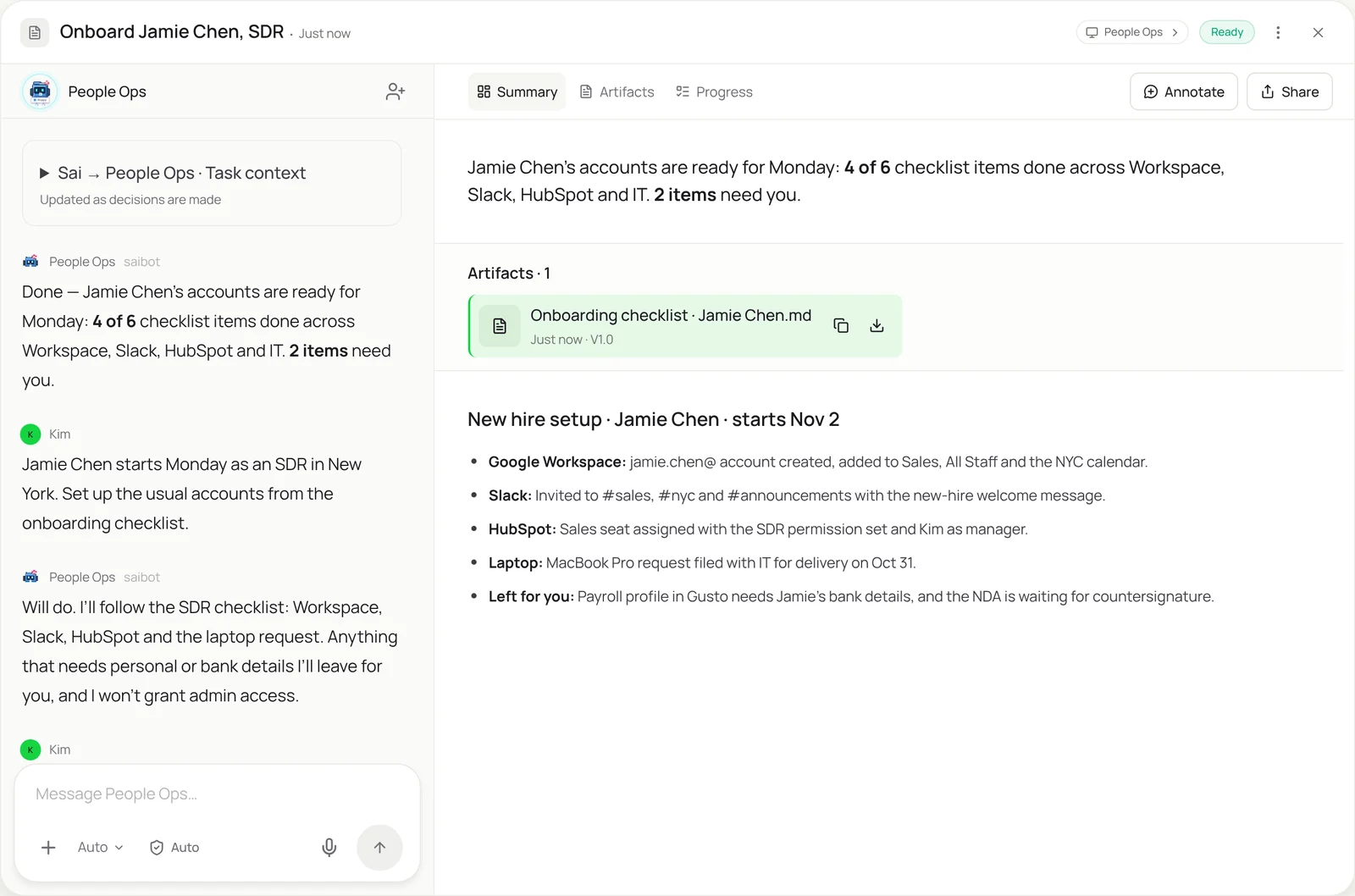
This skill turns your onboarding checklist into work that gets done. When a new hire is confirmed, Sai creates their accounts in each admin console, adds them to the right groups, channels and calendars, assigns seats and permissions for their role, and files the equipment request. Anything that needs personal details, signatures or admin rights is left for you, and at offboarding the same checklist runs in reverse.
The skill
# Skill: Employee onboarding and offboarding

## When to use
Setting up or removing a person's access: new hires, role changes, and leavers. Also quarterly access reviews.

## Inputs
- The person: name, role, team, manager, location and start or end date, from the HR sheet or the signed offer.
- The Checklist tab: for each role, the accounts, groups, channels, seats, permission sets and equipment it gets.
- Admin consoles: the ones Sai can use, with a delegated admin account that cannot change admin roles.

## How to onboard
1. Create the work account with the naming rule (first.last@). Add groups and calendars for the team and location.
2. Invite to chat and add the channels for the role.
3. Assign seats and permission sets in each tool listed for the role, with the manager set.
4. File the equipment request with the start date and shipping address from the HR sheet.
5. Leave for me: payroll and bank details, contracts and signatures, and any admin or finance access.
6. Tick off the checklist and write what was done in the person's onboarding log.

## How to offboard
Run the same checklist in reverse on the end date: suspend accounts, transfer file ownership to the manager, remove seats and channels, and file the equipment return. Never delete accounts or data.

## Never
- Grant admin, finance or security roles.
- Enter bank details, tax forms or other personal financial information.
- Delete accounts, mailboxes or files.

## Output
The checklist with every item done or left for me, and a short log per person.
What it does
- Start from the confirmed hire. Sai picks up each new hire from your HR sheet or the signed offer: name, role, team, manager, location and start date. Together with your role checklist, that’s everything it needs to know what this person should have on day one.
- Create the core accounts. Sai creates the work account with your naming rule, adds the person to the right groups, calendars and shared drives, and invites them to chat with the channels for their team. It works in the admin consoles through the screen with a delegated admin account, so it follows the same steps your IT lead would.
- Assign tools and permissions. Next come the role-specific tools: a CRM seat with the right permission set, a design license, access to the project tracker. Each one is assigned in the tool’s own admin page with the manager set. Admin, finance and security roles are never granted by Sai.
- Requests and paperwork. Sai files the laptop and equipment requests with the start date and address, and fills the onboarding forms it can from the HR sheet, as in the AI PDF form filler. Anything that needs personal or bank details, or a signature, is left for you, and payroll changes go through payroll automation after you approve them.
- Log it, and reverse it later. Every item is ticked off with what was done, so you can see exactly who has what. At offboarding Sai runs the same checklist in reverse on the last day: suspend accounts, transfer files to the manager, remove seats, request the laptop back. Nothing is deleted.
Why it works without an API
Onboarding spans a dozen tools, and most small teams have no identity platform connecting them, or have one that covers only half the apps. Sai works through each tool’s admin page, the way your ops lead does today, so one checklist covers every tool, including the ones with no provisioning integration. See how Sai works as an AI assistant for operations. How computer use works.
What you get back
- Accounts, groups and seats set up by role
- Equipment requests filed
- A checklist with items left for you
- The same checklist in reverse at offboarding
Apps it uses
- Google Workspace
- Slack
- HubSpot
- Google Sheets
Who it’s for
AI recruiter
Recruiting doesn’t end at the signed offer. An AI recruiter with this skill hands each new hire straight into onboarding, so accounts, equipment and paperwork are ready on day one, and the hiring manager isn’t chasing IT the week before.
- Offer to day-one setup
- Equipment ordered on time
- First-week calendar invites
AI chief of staff
At a startup, onboarding is whoever has admin rights that week. An AI chief of staff uses this skill to run a consistent checklist for every hire and every leaver, so nobody starts without access and nobody leaves with it.
- Consistent onboarding
- Clean offboarding
- Quarterly access reviews
Read the AI chief of staff guide
AI executive assistant
Executives hire their own team and want new people productive fast. An AI executive assistant with this skill sets up each new hire’s accounts and adds them to the right meetings, and reminds the executive what still needs their signature.
- New hires added to meetings
- Signatures chased
- Day-one setup confirmed
Read the AI executive assistant guide
AI project manager
Contractors and new team members need access to the right projects, boards and folders. An AI project manager uses this skill to add each person to the project tools for their role and remove them when the engagement ends.
- Contractor access by project
- Boards and folders shared
- Access removed at the end
Read the AI project manager guide
Common variations
- New hire setup: Accounts, groups and seats from the role checklist
- Employee offboarding: Accounts suspended and files transferred
- User provisioning across apps: Seats and permission sets in tools with no SSO
- Role changes: Access moved from one team to another
- Payroll setup after onboarding: The new hire’s approved pay details entered
- Onboarding forms from the HR sheet: Forms filled from the data you already have
Routines that use this skill
- Timesheet reminders: Check who hasn’t submitted a timesheet before payroll and draft a friendly reminder for each person.
More skills
- Payroll automation: Enter approved pay changes and hours into Gusto, ADP or Rippling before each run, check the preview, and leave the run for you to submit.
- Automated data entry: Copy records from forms, PDFs and emails into portals, CRMs and sheets, field by field, with every entry checked and logged.
- AI PDF form filler: Fill out PDF and web forms from your W-9, bank letter and past forms, then stop before anything is signed or sent.