
How to automate Salesforce with Sai
Sai can automate the daily work in Salesforce: it updates opportunities from meeting notes, logs leads from Gmail and LinkedIn, fixes close dates and next steps, cleans up duplicates and prepares forecast and pipeline reviews, working in Salesforce with its own user. This guide covers what Sai can do in Salesforce, the workflows sales teams, investors and RevOps automate first, and how to set them up with skills, routines and approvals.
Tools: Salesforce, Gmail, LinkedIn, Google Sheets, Slack
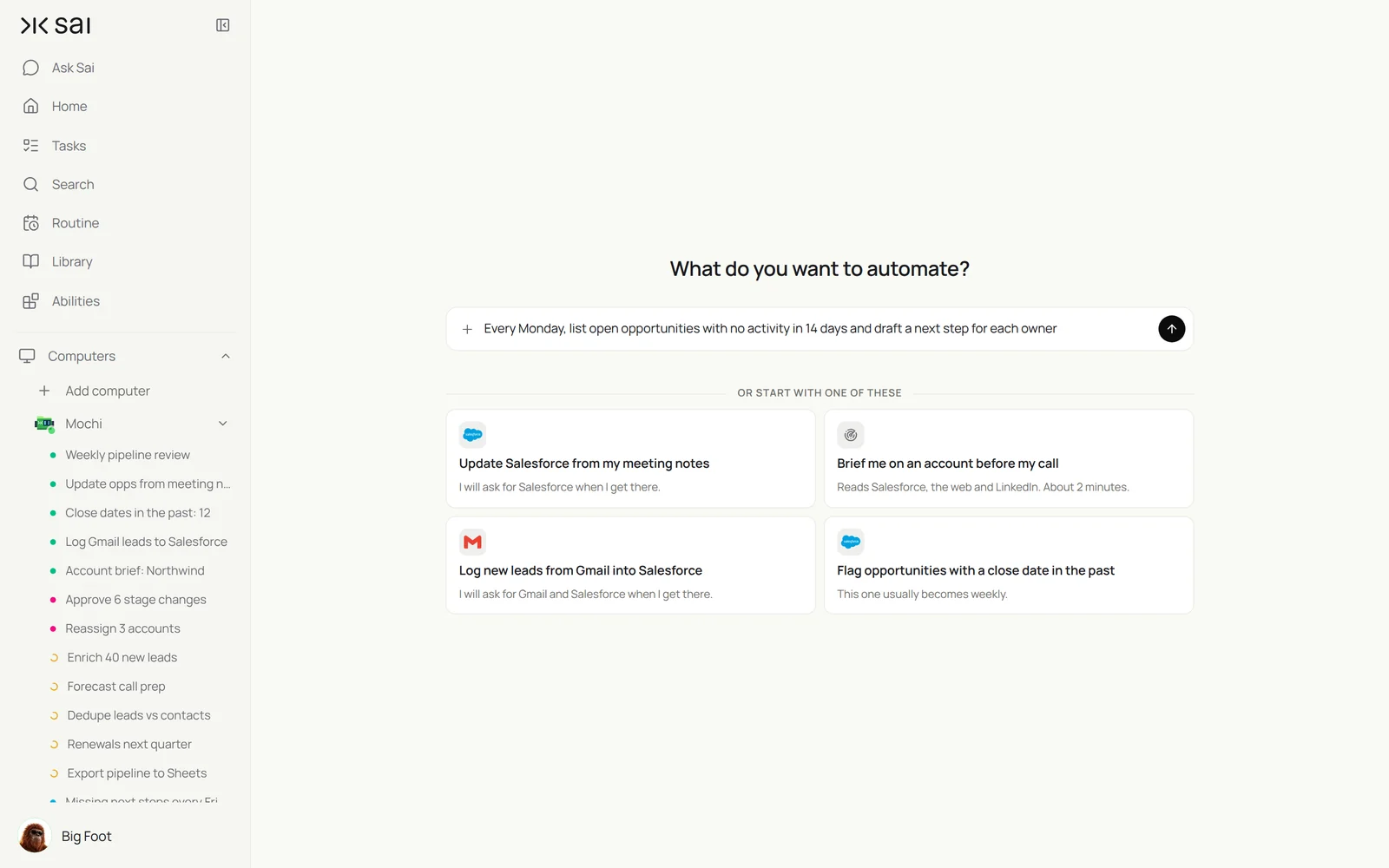
TL;DR: what Sai does in Salesforce
Salesforce is where the forecast lives, and the forecast is only as good as the opportunities behind it. Sai is an AI agent that keeps them current: it reads what happened in email, meetings and LinkedIn, updates the records, and asks before anything that changes the forecast or who owns a deal. Here is what that covers, by team:
- Sales. Updates opportunities from meeting notes (next step, stage suggestion, close date, contacts), logs new leads from Gmail and LinkedIn with the right source and owner, drafts follow-ups for opportunities that have gone quiet, and writes an account brief before every call.
- Sales leaders. Prepares the weekly pipeline review and forecast call: what moved, what slipped, commit versus best case, and the deals that need a decision.
- Investors and VCs. For funds that run deal flow in Salesforce, logs pitches and intros as accounts and opportunities with stage, round and intro source, and keeps portfolio metrics on each account.
- RevOps. Fixes past close dates and missing next steps in capped, human-paced batches, finds duplicate leads and contacts for approval, and keeps lead routing honest. See AI RevOps manager.
- Customer success. Lists renewals and open cases by account before each QBR and logs call notes. See AI customer success manager.
- Across your tools. Exports pipeline to Sheets, posts summaries in Slack and pulls context from Gmail and LinkedIn, all in the same task.
How Sai works with Salesforce
Sai works in Salesforce the way a rep or an ops analyst does: in a browser on its own cloud computer, signed in as its own Salesforce user with the profile and permissions you choose. You sign that user in once through Sai’s approval link, so no password goes into a chat, and Sai keeps the session for routines. Everything Sai changes is attributed to that user in field history.
Because Sai works in the same screens your team uses, it can follow list views, page layouts and validation rules as they are, and combine Salesforce with the tools around it. One task can read a meeting note, check the contact’s LinkedIn, update the opportunity and post in Slack.
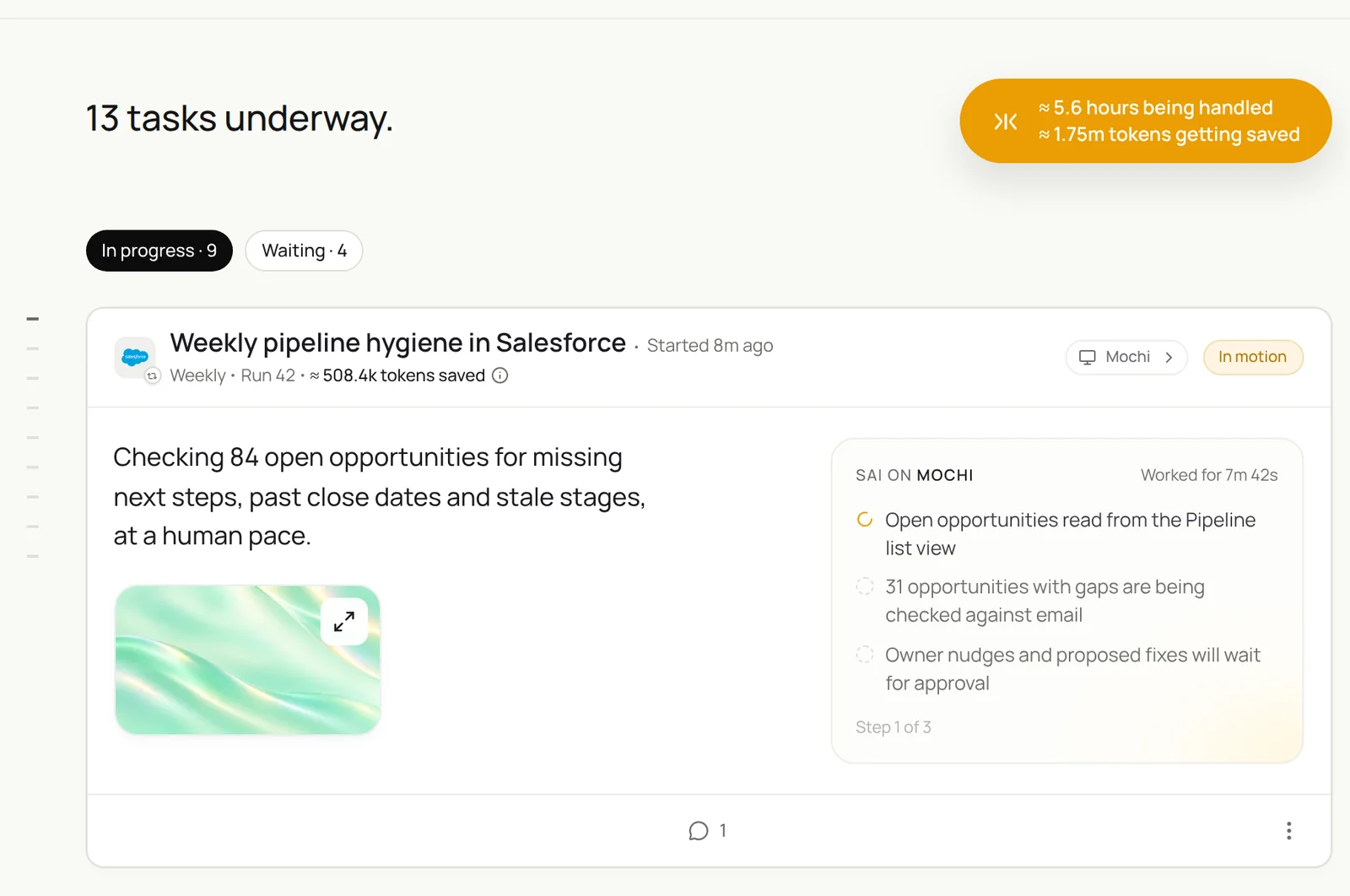
How far Sai can go in Salesforce
What Sai can do in each part of Salesforce, and the approval setting we recommend. Logging and filling empty fields is safe on automatic. Anything that changes the forecast, ownership or data other people rely on should wait for you.
| Area | What Sai can do | Recommended approval |
|---|---|---|
| Leads and contacts | Create and update, fill fields with a source, log activity | Automatic for new and empty fields |
| Opportunities | Update next step and notes, suggest stage and close date, add contact roles | Ask before stage, amount or close date changes |
| Activities | Log emails, calls and meeting notes to the right records | Automatic |
| Duplicates | Find duplicate leads and contacts, prepare merges | Ask before every merge |
| Ownership | Assign new leads by your rules, propose reassignments | Automatic within rules, ask to reassign |
| Reports and list views | Read reports, build list views, export to Sheets | Automatic |
| Setup and admin | Not in scope: no changes to fields, flows, users or permissions | Never |
Salesforce’s Main Services Agreement ties access to named users, forbids circumventing usage limits, and points to its AI Acceptable Use Policy. Give Sai its own licensed user, keep it at a human pace, and keep admin work with your admins.
Recommended Salesforce workflows
These are the workflows that save the most time. Each is set up later in this guide.
| Workflow | Who it is for | What Sai does | Routine |
|---|---|---|---|
| Meeting notes to opportunities | Sales | Updates next step, contacts and notes, suggests stage | After each meeting |
| Leads from Gmail and LinkedIn | Sales | Creates leads with source and owner, logs the first touch | Hourly |
| Account brief before calls | Sales | Record, emails, news and LinkedIn in one page | Before each meeting |
| Forecast call prep | Sales leaders | Commit vs best case, what moved, deals needing decisions | Mondays 8:00 |
| Deal flow and portfolio | VC | Pitches as opportunities, metrics on portfolio accounts | Daily, monthly |
| Close-date and next-step cleanup | RevOps | Fixes stale opportunities in capped batches | Weekly |
| Duplicate leads and contacts | RevOps | Prepares merges for approval | Weekly |
| Renewals and cases | Customer success | Renewals and open cases per account before QBRs | Before each QBR |
Set up Sai for Salesforce
Setup takes about 20 minutes, most of it creating Sai’s user. After that, every workflow reuses the same login, skills and approval rules.
Step 1: Give Sai its own Salesforce user
Ask your admin for a licensed user for Sai with a profile like a sales ops analyst: read and edit on leads, contacts, accounts, opportunities and activities, no setup permissions. Sign it in on Sai’s cloud computer through Sai’s approval link. Connect Gmail and Slack in Abilities → Integrations.
Step 2: Write your Salesforce rules as a skill
Open Abilities → Skills → Add skill → Write skill instructions. One skill covers stages, required fields, routing and what Sai must never do.
When to use it
Any task that reads or changes Salesforce.

Stages
- Discovery → Evaluation → Proposal → Negotiation → Closed.
- Proposal needs amount, close date, next step and an Economic Buyer contact role.

Updates
- Next step: one line with a date. Notes: three bullets max, link the source.
- Suggest stage and close date changes in a note; never change them without my OK.

Pace
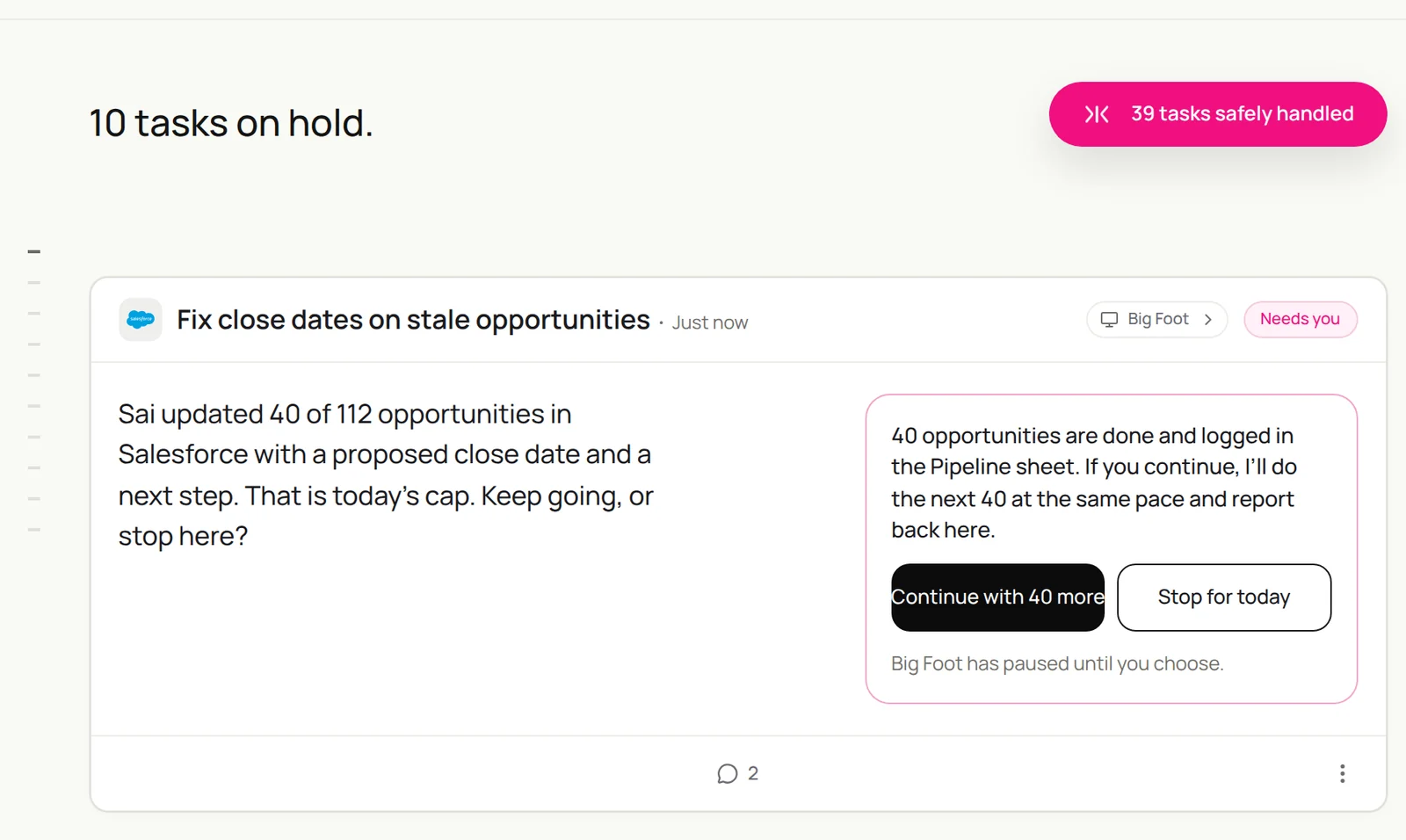
- At most 40 record updates per run. Stop and ask before continuing.

Never
- Change owners, amounts, forecast category or closed opportunities without my OK.
- Merge or delete records on your own.
- Touch Setup, flows, fields, users or permissions.
Step 3: Choose what runs on Auto
Use Auto for logging activity, creating leads and filling empty fields. Use Manual for stage, amount, close date and owner changes, and for merges. Sai prepares the change and waits.
Step 4: Turn the task into a routine
Run each task once and check the records. Then open Routine → New and describe the job in a sentence, including when it should run. Turn on Code-Replay for routines that repeat the same steps. See Routines.
Recipes: sales
Keep every opportunity current without asking reps to do data entry.
After today’s external meetings, read the notes in Google Docs, update each opportunity in Salesforce with a dated next step, a three-bullet note and any new contacts with roles, and suggest stage or close date changes for my approval.
- 5 meetings
- 5 notes
- 5 updated · 3 contacts added
Update opportunities from meeting notes
The most valuable update is the one nobody makes after the call.
After each external meeting on my calendar, read the notes in Google Docs.
Find the opportunity in Salesforce. Update Next Step with a dated action, add a three-bullet note,
add any new people as contacts with roles, and suggest a stage and close date change if the notes support it.
Ask me before changing stage or close date.
Skill: Salesforce Rules. Approval: Auto for notes and contacts, Manual for stage and dates.
Log leads from Gmail and LinkedIn
Every inbound lead in Salesforce within the hour.
Every hour, read new emails to sales@ and new LinkedIn conversations with prospects.
Create a lead for each new person with company, title, source and the first message as an activity.
Assign the owner with my routing rules. Skip anyone who is already a lead or contact.
Skill: Salesforce Rules. Approval: Auto. Related: syncing LinkedIn leads to Salesforce and Sai × LinkedIn.
Prep the forecast call
Walk in knowing what changed.
Every Monday at 8:00, from the Forecast report in Salesforce:
commit and best case by rep versus last week, opportunities that moved stage or slipped a close date,
and the five that need a decision, with the latest email on each.
Post it in #sales-leadership and save it to the Forecast sheet.
Skill: Salesforce Rules. Approval: Auto, read only. Related: Salesforce forecasts in Google Sheets.
Recipes: investing
For funds that run their pipeline in Salesforce.
Read today’s pitch emails and intros. For each company create an account and a Deal Flow opportunity with stage, round, sector and location, add founders with LinkedIn URLs and who made the intro, and skip companies already in Salesforce.
- 9 companies · 3 intros
- 15 founders matched
- 7 new · 2 already in Salesforce
Deal flow from pitch emails and intros
Every pitch logged with who sent it.
Every evening, read new pitch emails and intro threads in Gmail.
For each company, create an account and an opportunity in the Deal Flow record type with stage, round, sector and location.
Add founders as contacts with LinkedIn URLs and record who made the intro. Skip companies already in Salesforce.
Skill: Investment Thesis. Approval: Auto. See AI investment analyst.
Portfolio metrics on each account
Monthly numbers where the partners look.
On the 5th of every month, read each portfolio company's update email.
Update MRR, burn, runway and headcount on its account, with a two-line summary.
Create a task for the partner on any company with less than 9 months of runway.
Skill: Salesforce Rules. Approval: Auto.
Recipes: RevOps and pipeline hygiene
Clean data, in capped batches, with every judgment call left to people.
List open opportunities with a past close date or no next step, propose a close date and next step for each from the latest emails, and find leads that match existing contacts. Update at most 40 records after I approve, then stop.
- 112 need attention
- 112 threads
- 112 proposals with evidence
- 40 of 112 updated
Fix past close dates and missing next steps
The weekly sweep that keeps the forecast honest.
Every Monday, list open opportunities with a close date in the past or no next step.
For each, read the latest emails and propose a close date and next step, with the evidence.
Update up to 40 per run after I approve the batch, then stop and ask before continuing.
Skill: Salesforce Rules. Approval: Manual per batch. Related: cleaning Salesforce deals via Google Sheets.
Duplicate leads and contacts
Merges prepared, approved by you.
Every Monday, find leads that match an existing contact by email, and contacts that share an email.
List each pair with the fields that differ and the record that should win.
Merge only the pairs I approve.
Skill: Salesforce Rules. Approval: Manual.
Where the results land
Record changes go into Salesforce under Sai’s user, so field history shows exactly what changed. Batches, proposals and reports go into a Google Sheet you name, summaries into Slack, and follow-up drafts wait in Gmail. To move data the other way, see syncing Salesforce with Google Sheets and Gmail.
Stay within Salesforce’s rules
- A licensed user for Sai. Salesforce access is per named user. Do not share a person’s login with Sai.
- Human pace and caps. Keep runs to a fixed number of record updates and never work around usage limits.
- No admin work. Setup, flows, fields, users and permissions stay with your Salesforce admins.
- Follow the AI policy. Salesforce’s agreement incorporates its AI Acceptable Use Policy. Keep a person in the loop for decisions about customers.
- Approve what changes the forecast. Stage, amount, close date, owner and merges wait for you.
Why automate Salesforce with Sai
Why Sai is a good fit for Salesforce work.
- It works in Salesforce as your org is configured. Your layouts, validation rules and list views, without building an integration.
- It brings the context in. Email, meeting notes, LinkedIn and the web are read in the same task that updates the record.
- Your process is a paragraph. Stages, required fields and limits live in a skill anyone can edit.
- You stay in control. Auto for logging, Manual for anything that moves the forecast, and a cap on every run.
- It finishes the job. Sai ranks #1 on OSWorld, and with Code-Replay, weekly routines get faster and cheaper.
Frequently asked questions
Can Sai automate Salesforce?
Yes. Sai can update opportunities from meeting notes, create leads from Gmail and LinkedIn, log activity, fix close dates and next steps, prepare merges and build forecast reviews, working in Salesforce with its own user and asking before stage, amount, owner and merge changes.
How does Sai connect to Salesforce?
Sai uses Salesforce in a browser on its own cloud computer, signed in as a licensed Salesforce user you create for it. You sign in once through Sai’s approval link.
Can Sai update Salesforce from meeting notes?
Yes. After each meeting Sai reads the notes, updates next step and notes, adds new contacts with roles and suggests stage and close date changes for your approval.
Will Sai change the forecast?
Only with approval. Stage, amount, close date and forecast category changes are suggested in a note and applied after you approve them.
Is it allowed to automate Salesforce with an AI agent?
Give Sai its own licensed user, keep it at a human pace within usage limits, keep admin work with admins, and follow Salesforce’s agreement and AI Acceptable Use Policy.
Can Sai clean up Salesforce data?
Yes. Sai fixes past close dates and missing next steps in capped batches you approve, and prepares merges for duplicate leads and contacts.
Can VCs use Salesforce with Sai?
Yes. Sai logs pitches and intros as accounts and opportunities with stage, round and intro source, and keeps monthly portfolio metrics on each account.
How much does it cost to automate Salesforce with Sai?
You can set up and test every workflow on the Free plan; Sai’s Salesforce user needs its own Salesforce license. Daily and weekly routines usually need Sai Pro at $50 a month. See Plans, usage, and limits.
Related guides
Go deeper on the pieces used here.
Ready-made skills for Salesforce: CRM data cleanup and order entry automation.