
How to automate LinkedIn with Sai
Sai can automate LinkedIn the way you use it: it opens LinkedIn in a browser on its own computer, signed in as you, and reads, writes and clicks like a person. This guide covers what Sai can do in LinkedIn for sales, investing, marketing and recruiting, the workflows worth automating first, and how to set them up with skills, routines and approvals.
Tools: LinkedIn, Google Sheets, HubSpot, Notion, Google Calendar
TL;DR: what Sai does in LinkedIn
Sai is an AI agent that operates a real computer, so it can automate LinkedIn without an API, a browser extension or a separate LinkedIn tool. You describe the job in a sentence, teach Sai your criteria and style once with a skill, and decide which actions need your OK. Here is what that covers, by team:
- Sales. Builds lead lists from LinkedIn and Sales Navigator searches that match your ideal customer profile. Enriches a list you already have with current title, company size, location, recent posts and mutual connections. Maps the buying committee at a target account, flags signals such as job changes, new hires and funding posts, and logs it all in HubSpot or Salesforce.
- Investors and VCs. Sources founders who match your thesis, for example people who recently left a company to start something new. Watches portfolio and target companies for hiring, launches and leadership changes. Shows who you know at a company for warm intros and reference calls, and writes a founder brief before a first meeting.
- Founders, marketers and creators. Drafts posts from your notes or content calendar and publishes the ones you approve. Replies to comments in your voice, copies post analytics into a sheet every week, and tracks what peers and competitors are posting about.
- Recruiting and job search. Runs saved people or job searches every day, shortlists matches against your criteria in a sheet, and drafts a personal first message for each.
- Everyone. Triages your LinkedIn messages, follows up with people who accepted your invitations, and briefs you on every external attendee before a meeting.
- Across your tools. Every result can end in Google Sheets, HubSpot, Salesforce, Notion or Gmail in the same task, with nothing copied by hand.
How Sai works with LinkedIn
Sai works in LinkedIn the same way you do. It opens linkedin.com in a browser on its own cloud computer, or on your Mac if you prefer, signed in to your account. It reads what is on the screen, then scrolls, clicks and types. Anything you can do in LinkedIn by hand, Sai can do, at a pace you set.
That has two practical consequences. First, there is nothing to install or connect: no API key, no Chrome extension, no Zapier step. Second, Sai is not limited to one app. A single task can read a LinkedIn post, update a row in Google Sheets, create a contact in HubSpot and draft an email in Gmail, because all of them are just windows on the same computer.
To get started, sign in to LinkedIn once on Sai’s computer through Sai’s approval link, so your password never goes into a chat. If LinkedIn later asks for a two-factor code or a security check, Sai pauses and posts it in Sai Needs You.
How far Sai can go in LinkedIn
Here is what Sai can do in each part of LinkedIn, and the approval setting we recommend. Reading is safe to leave on automatic. Anything other people will see should wait for you.
| Area | What Sai can do | Recommended approval |
|---|---|---|
| Search and lists | Run people and company searches with your filters, open saved searches and Sales Navigator lists, read results page by page | Automatic, read only |
| Posts | Draft from notes or a calendar, add images you provide, publish or schedule | Ask before posting |
| Comments | Read threads on your posts, draft replies, reply or like after you approve | Ask before posting |
| Invitations | Review incoming invitations, accept the ones that match your rules, draft notes for invitations you send | Ask before sending |
| Messages | Sort the inbox, summarize threads, draft replies and follow-ups | Ask before sending |
| Profiles and companies | Read profiles, recent posts and company pages, fill in missing fields in your lead list, and write briefs | Automatic, read only |
| Post analytics | Read impressions, reactions, comments and follower changes for each post | Automatic, read only |
| Jobs | Run your saved searches, filter roles against your criteria, save matches to a sheet | Automatic, read only |
| Sales Navigator and Recruiter | Work in the same way inside the seat you already pay for | Same as above |
Two things always stay with you: your login, including two-factor codes, and any security check LinkedIn shows. Sai does not change your LinkedIn account settings unless you ask it to in a task.
Recommended LinkedIn workflows
Start with one workflow that you already do every week and dislike. Each one below is set up later in this guide with a task, a skill and a routine.
| Workflow | Who it is for | What Sai does | Skill | Routine |
|---|---|---|---|---|
| Build a lead list | Sales | Runs your LinkedIn or Sales Navigator search and adds new matches to a sheet | Lead Criteria | Mondays 8:00 |
| Enrich a lead list | Sales | Fills in title, company size, location, recent posts and mutual connections for each row | Lead Criteria | Daily, 25 rows |
| Map an account | Sales | Lists the decision makers at a target company and logs them in your CRM | Lead Criteria | On demand |
| Source founders | VC | Finds people who match your thesis and recently started something new | Investment Thesis | Weekly |
| Watch portfolio and targets | VC | Flags hiring, launches and leadership changes at companies you follow | Investment Thesis | Daily 7:30 |
| Post from a content calendar | Marketing | Drafts the week’s posts from your Notion or Sheets calendar, then publishes the approved ones | LinkedIn Voice | Mondays 8:00 |
| Reply to comments | Marketing | Drafts a reply to every new comment on your posts | LinkedIn Comment Replies | Weekdays 9:00 |
| Post analytics to a sheet | Marketing | Adds one row per post with impressions, reactions and comments | Post Analytics | Mondays 8:00 |
| Follow up with new connections | Everyone | Writes a short note to people who accepted your invitations and logs them in HubSpot | Connection Notes | Fridays 18:00 |
| Triage messages | Everyone | Sorts the inbox into reply, later and ignore, and drafts the replies | LinkedIn Voice | Daily 8:30 |
| Research before meetings | Everyone | Writes a brief on each external attendee from LinkedIn | Profile Research | Before each meeting |
| Job search watch | Job seekers, recruiters | Runs your saved searches and saves new matching roles | Job Search Filters | Daily 7:00 |
Set up Sai for LinkedIn
Setup takes about 20 minutes and you do it once. After that, every LinkedIn workflow reuses the same sign-in, skills and approval rules.
Step 1: Sign in to LinkedIn on Sai’s computer
Give Sai a first task that needs LinkedIn, such as Open my LinkedIn notifications and tell me what is new. Sai sends an approval link; open it and sign in as you would on a new laptop. The session stays on that computer, so later tasks and routines are already signed in. If you run several workflows at once, give LinkedIn work its own computer in Screens.
Step 2: Teach Sai your LinkedIn style with skills
A skill is a short brief that Sai reads before it acts. Open Abilities → Skills → Add skill → Write skill instructions, give it a name, one line on when to use it, and the instructions. Write it the way you would brief a new teammate. Most people need a criteria skill (your ideal customer profile or investment thesis) and a voice skill; add one for comment replies or connection notes when you automate those.
When to use it
Any time you write something that will appear on LinkedIn under my name.

How I write
- Short paragraphs, one idea each. First line under 12 words.
- Concrete over clever: a number, a customer, a mistake we made.
- Topics: AI agents at work, sales ops, building a startup team.
- End posts with one real question, never "Thoughts?"

Never
- Hashtags, emojis, "I'm humbled", "game-changer".
- Claims about customers I have not named publicly.
- Posting, commenting or messaging before I approve.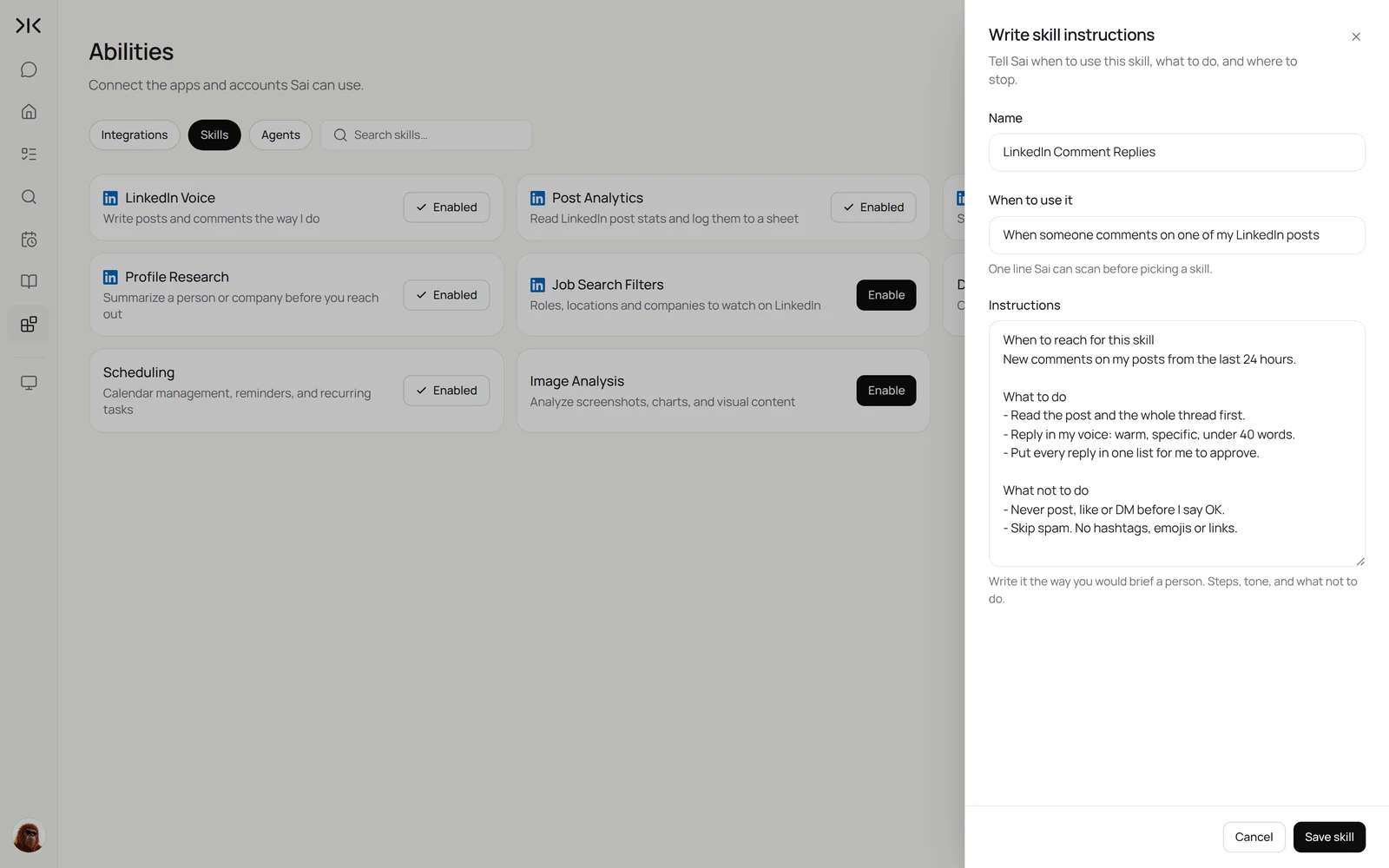
Step 3: Decide what Sai may do without asking
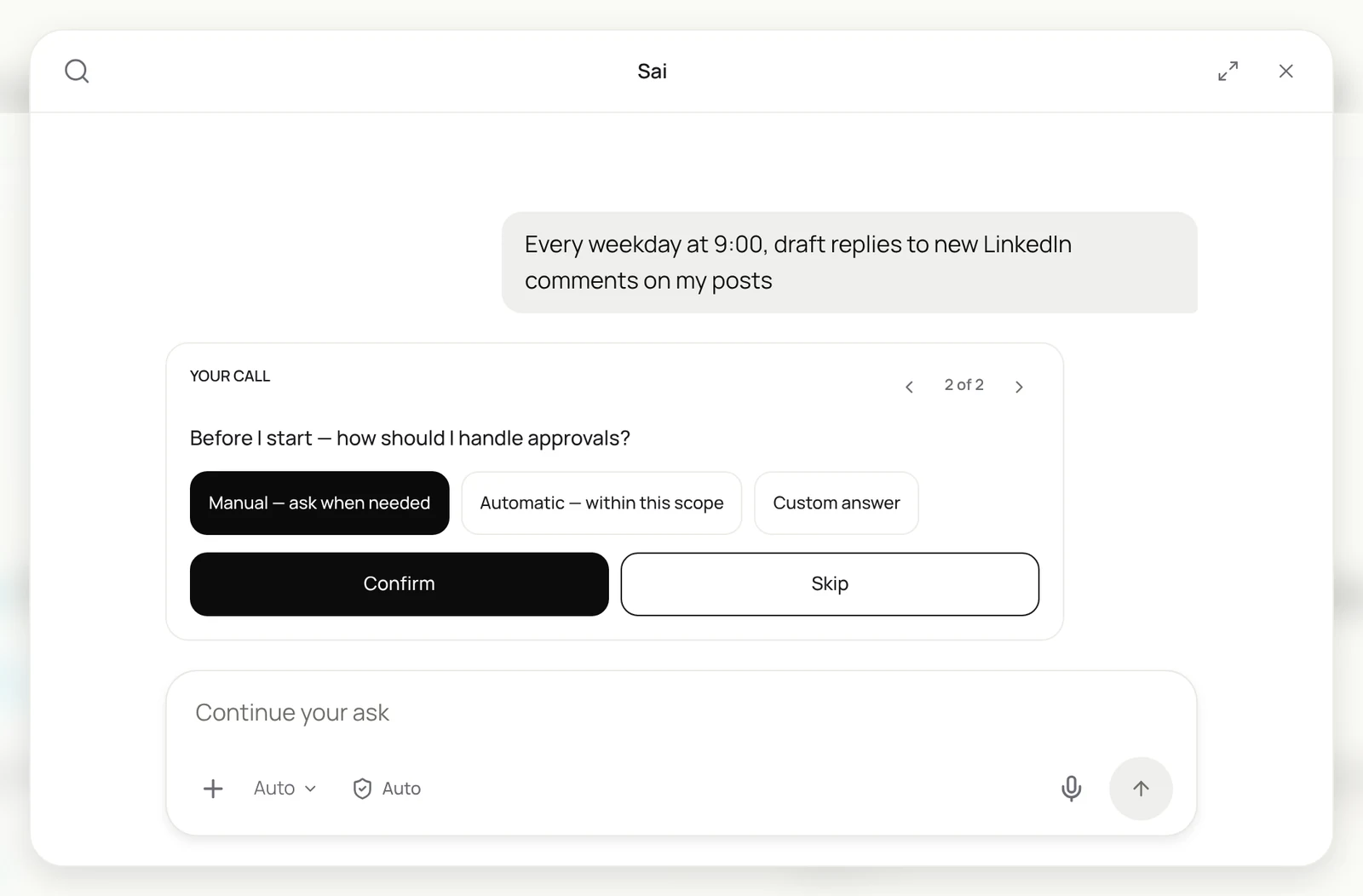
Before Sai starts a new kind of job, it asks how to handle approvals. Manual means Sai stops and asks before any action outside the task’s scope. Automatic, within this scope lets it finish without stopping, as long as it stays inside what you described. For LinkedIn, pick Manual for anything other people will see and Automatic for read-only work such as analytics and research.
Step 4: Turn the task into a routine
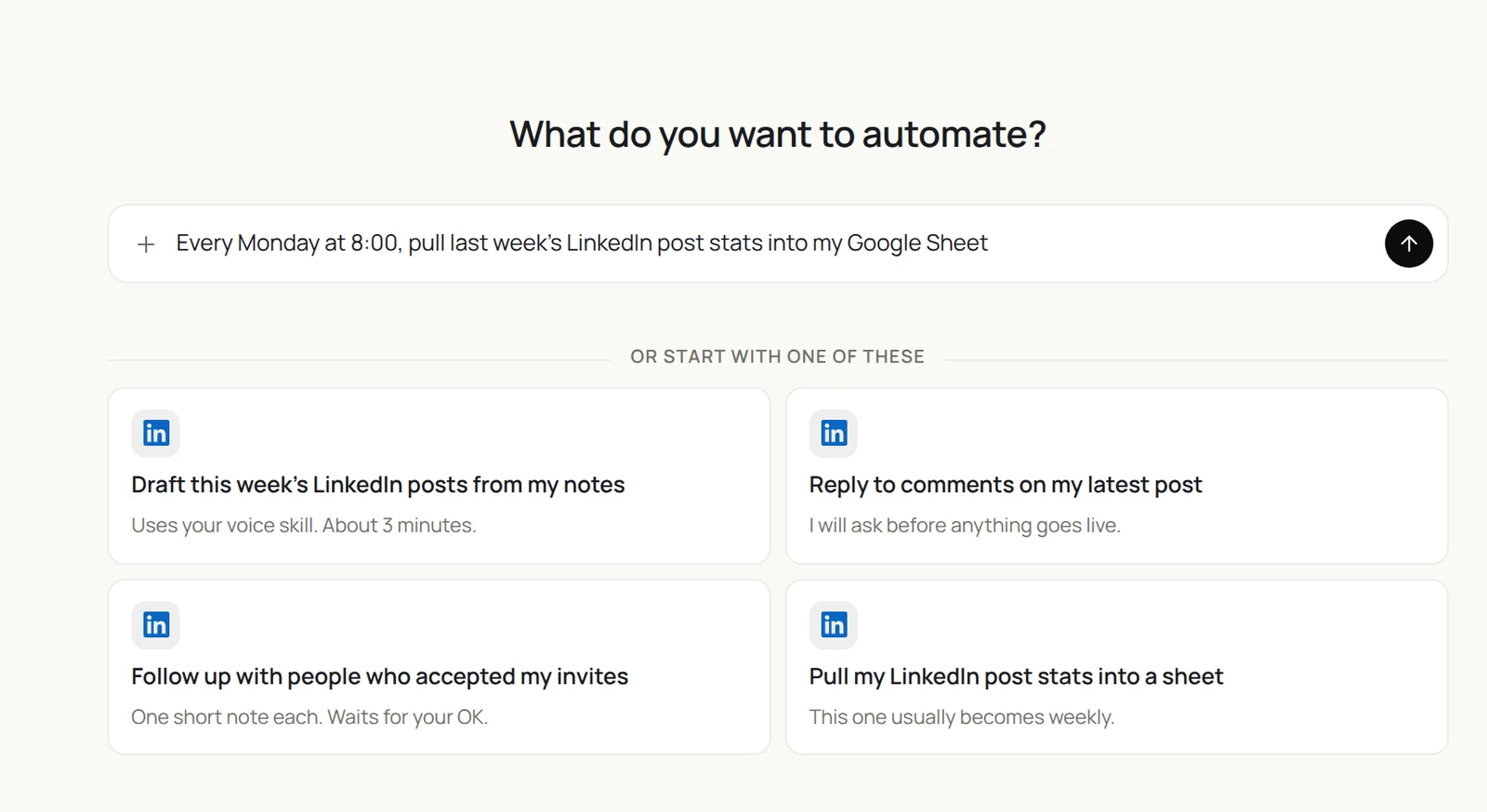
Run the task once by hand and check the result. Then open Routine → New and describe the job in one sentence, including when it should run. Sai offers LinkedIn starters if you prefer to begin from one. For routines that repeat the same clicks, turn on Code-Replay so later runs use less computer time. Every setting is explained in Routines.
Recipes: sales and investing
These recipes turn LinkedIn into a research desk for your pipeline or your deal flow. Each one reads at a human pace and caps how many rows it handles per run, so it stays within what you would do by hand.
Enrich the Event Leads sheet from LinkedIn: current title and company, company size, location, LinkedIn URL, one recent post and mutual connections. Score fit with my Lead Criteria skill. 25 rows, then stop.
- 25 rows without enrichment
- 23 matched, 2 marked check
- Title, size, location and one post each
- 23 rows enriched
- 7 contacts created
Write your criteria skill first
Lead lists and founder sourcing are only as good as the criteria behind them. Put yours in one skill, and every recipe below uses it.
When to use it
Any time you search, score or enrich people or companies on LinkedIn.

Who we sell to
- Companies: B2B software, 50 to 1,000 employees, North America or UK.
- People: VP or Head of RevOps, Sales Ops or Marketing Ops.
- Good signals: hiring for RevOps, new CRO in the last 6 months, recent funding.

Rules
- Skip current customers and anyone in HubSpot with an open deal.
- At most 25 new people per run.
- Never send invitations or messages without my OK.
Investors write the same thing as an Investment Thesis skill: sectors, stages, geographies, founder backgrounds you like, and companies to ignore.
Build a lead list from a LinkedIn search
Sai runs your search, reads each result and keeps only the people who fit.
To run this every week with buying signals and HubSpot dedupe, follow the AI lead generation guide.
Every Monday at 8:00, open my saved Sales Navigator search "RevOps leaders, SaaS 50-1000".
Check each result against my Lead Criteria skill.
Add new matches to the Leads sheet: name, title, company, company size, location, LinkedIn URL,
and one line on why they fit. Skip anyone already in the sheet or in HubSpot.
Stop at 25 new rows.
Skill: Lead Criteria. Approval: Automatic, read only. Related: building a targeted LinkedIn prospect list.
Enrich a lead list you already have
Event lists, webinar sign-ups and old CRM exports go stale fast. Sai brings each row up to date from LinkedIn.
For each row in the Event Leads sheet where Enriched is empty:
1. Find the person on LinkedIn using name and company. If unsure, mark "check" and move on.
2. Fill in current title, current company, company size, location and LinkedIn URL.
3. Add their most relevant post from the last 30 days and our mutual connections.
4. Set Fit to high, medium or low using my Lead Criteria skill.
Do 25 rows per run, then stop.
Skill: Lead Criteria. Approval: Automatic, read only. Related: a LinkedIn lead enrichment workflow.
Map the buying committee at an account
Before you reach out to a target account, know who decides, who uses the product and who you already know there.
For Northwind Logistics, find the people on LinkedIn who would decide on, buy or use a RevOps tool:
RevOps, Sales Ops, CRO, CFO and the main sales managers.
For each: name, title, time in role, LinkedIn URL, and whether we share connections.
Create them as contacts on the Northwind company in HubSpot and give me a one-paragraph account summary.
Skill: Lead Criteria. Approval: Automatic for research, Manual for HubSpot changes if you prefer.
Source founders for your fund
Many founders show up on LinkedIn before they show up anywhere else: a new headline, a job that ended, a first hire.
Every Monday, search LinkedIn for people whose headline or latest role mentions
"stealth", "building something new" or "founder", and who left a company in my
Investment Thesis skill’s list in the last 6 months.
For each match: name, previous company and role, what they seem to be building, mutual connections.
Add them to the Founder Watch sheet and rank the top 5 for me. Stop at 30 profiles.
Skill: Investment Thesis. Approval: Automatic, read only.
Watch portfolio and target companies
Know when a company you care about hires a VP, launches something or loses a leader, without checking each page.
Every weekday at 7:30, check the LinkedIn company pages and founders’ posts for the companies
in the Portfolio Watch sheet.
Log anything new: senior hires and departures, job postings by team, launches, funding or press.
Send me a short Slack summary with only the changes. Skip days with nothing new.
Skill: Investment Thesis. Approval: Automatic, read only.
Recipes: content and engagement
Copy a task, adjust the details, and run it once before you schedule it.
Every weekday at 9:00, read new comments on my LinkedIn posts and draft a reply to each in my voice. Show me the list before anything is posted.
- 3 posts with new comments
- 14 new comments, 2 marked as spam
- 12 drafts, each under 40 words
- 11 approved, 1 edited by you
- 12 replies posted
Post from a content calendar
Keep ideas in a Notion database or a sheet with a status column. Sai drafts, you approve, Sai publishes.
Every Monday at 8:00, open the LinkedIn Calendar database in Notion.
For each idea with Status = this week, draft a post using my LinkedIn Voice skill.
Put all drafts in one list for me to approve.
Publish each approved post on its planned day at 9:00 and paste the post URL back into Notion.
Skill: LinkedIn Voice. Approval: Manual. Related: how to build a LinkedIn content engine.
Reply to comments on your posts
The fastest win for most people: replies go out the same morning, in your voice, after one review.
Every weekday at 9:00, read new comments on my LinkedIn posts from the last 24 hours.
Draft a reply to each using my LinkedIn Comment Replies skill. Skip spam.
Show me all drafts in one list. Post only the ones I approve.
Skill: LinkedIn Comment Replies. Approval: Manual.
Recipes: networking and research
These workflows connect LinkedIn to the tools where the relationship lives: your CRM, your calendar and your inbox.
Every Friday at 6 PM, go through everyone who accepted my LinkedIn invitations this week. Read their profile, draft a two-line follow-up, and log them in HubSpot.
- 9 new connections this week
- Role, company and one talking point each
- 9 notes ready for review
- 9 contacts created or updated
Follow up with new connections
Turn accepted invitations into conversations, and keep the CRM current without copying anything.
Every Friday at 18:00, list everyone who accepted my LinkedIn invitations this week.
For each person: read their profile and last 3 posts, then draft a two-line note
using my Connection Notes skill.
Create or update the contact in HubSpot with their title, company and LinkedIn URL.
Send nothing until I approve the notes.
Skills: Connection Notes, Profile Research. Approval: Manual for notes, Automatic for HubSpot. Related: syncing LinkedIn and HubSpot.
Triage LinkedIn messages
Sai sorts the inbox so you only open the threads that need you.
Every day at 8:30, go through unread LinkedIn messages.
Sort each into Reply today, Later, or Ignore (sales pitches, recruiters I have not replied to).
For Reply today, draft an answer in my voice.
Send me the list with one line per thread. Do not send anything.
Skill: LinkedIn Voice. Approval: Manual.
Research people before a meeting
Pair LinkedIn with your calendar so every external meeting comes with a brief.
Before each Google Calendar meeting with someone outside my company,
read each attendee’s LinkedIn profile, recent posts and company page.
Write a one-page brief: role, background, what they posted about lately,
mutual connections, and two good opening questions. Save it to my Library.
Skill: Profile Research. Approval: Automatic, read only.
Track post analytics in a sheet
One row per post, every week, so you can see what actually works.
Every Monday at 8:00, open the analytics for each LinkedIn post I published last week.
Add one row per post to the LinkedIn Stats sheet:
date, first line, impressions, reactions, comments, reposts, new followers.
Then write three lines on which posts did best and why.
Skill: Post Analytics. Approval: Automatic, read only. Related: a LinkedIn daily activation workflow.
Watch for new jobs
For job seekers and recruiters alike: Sai checks your saved searches so you do not have to.
Every day at 7:00, run my saved LinkedIn job searches.
Keep roles that match my Job Search Filters skill and were posted in the last 24 hours.
Add new matches to the Job Watch sheet with title, company, location, link and why it fits.
Skill: Job Search Filters. Approval: Automatic, read only. Related: automating LinkedIn job hunts.
Where the results land
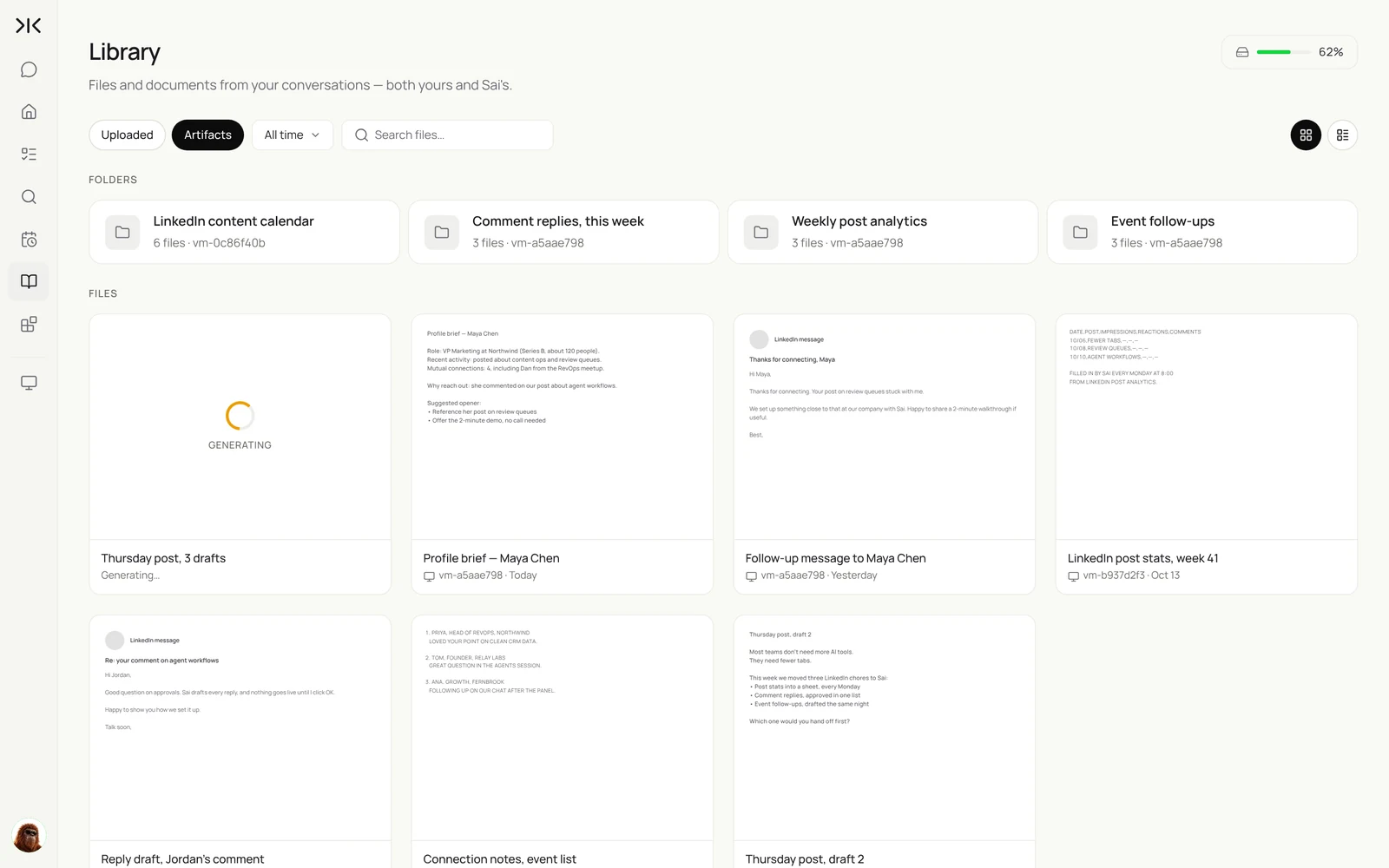
Everything Sai writes for LinkedIn is saved in your Library: post drafts, reply lists, profile briefs, connection notes and weekly stats. Each routine gets its own folder, so you can check last week’s drafts or reuse a brief without searching your chat history.
Keep your LinkedIn account in good standing
- Work at a human pace. LinkedIn’s User Agreement restricts bots and automated activity. Keep daily volumes to what you would do by hand, and use Sai to do that work better, not to multiply it.
- Approve anything public. Keep Manual approval on posts, comments, messages and invitations. Review the batch in one list, edit what you need, then let Sai post.
- Use your own account. One person, one LinkedIn account, signed in by you. Do not share logins between teammates.
- Tell Sai when to stop. Add stop rules to every task, such as a maximum number of notes per day, or stop if LinkedIn shows a warning, and Sai will pause and ask you.
- Read before you write. Start with read-only workflows like analytics and research, then add replies and posting once you trust the drafts.
Why automate LinkedIn with Sai
Everything above works because of how Sai is built. If you are comparing ways to automate LinkedIn, these are the differences that matter.
- It works across LinkedIn and everything around it. Most LinkedIn work ends somewhere else: a sheet, a CRM, a calendar, an email. Sai does the whole chain in one task, so nothing is copied by hand.
- It writes like you. A skill holds your voice, your topics and the phrases you never use. Every draft starts from it, and every edit you make can be saved back into the skill.
- You stay in control of what is public. Sai asks how approvals should work before it starts. With manual approvals, nothing is posted, sent or accepted until you say OK, and you approve a whole batch in one list.
- It runs while you are away. Routines run on Sai’s cloud computer on a schedule, so your laptop and your own LinkedIn tab stay free.
- It gets cheaper as it repeats. With Code-Replay, a routine that worked once replays the recorded steps instead of reasoning through them again, and the agent steps in only when LinkedIn’s page has changed.
- It finishes long tasks. Sai ranks #1 on OSWorld, the public benchmark for agents completing real work on a real computer.
Frequently asked questions
Can Sai automate LinkedIn without an API?
Yes. Sai uses LinkedIn in a real browser on its own computer, signed in as you, so it does not need a LinkedIn API key, a browser extension or a third-party LinkedIn tool.
What can Sai do on LinkedIn?
Sai can draft and publish posts, reply to comments, sort and draft messages, manage invitations, research profiles and companies, read post analytics and run job searches. It can also move the results into Google Sheets, HubSpot, Notion or Gmail in the same task.
Is it safe to automate LinkedIn with Sai?
LinkedIn’s User Agreement restricts bots and automated activity, so keep volumes at a human pace and keep approvals on for anything public. Sai works inside your own signed-in session, asks before it posts or sends when you choose Manual approval, and pauses for any security check.
Does Sai need my LinkedIn password?
No. You sign in yourself on Sai’s computer through an approval link, so your password never goes into a chat. Sai then uses that signed-in session for later tasks and routines.
Will Sai post on LinkedIn without asking me?
Only if you allow it. With Manual approval, Sai drafts everything and waits for your OK before posting, commenting, messaging or accepting invitations.
Can Sai write LinkedIn posts in my voice?
Yes. Put your style in a skill: tone, topics, words you never use and an example or two. Sai reads the skill before every draft, and you can save your edits back into it.
Can Sai enrich a lead list from LinkedIn?
Yes. Give Sai a sheet with names and companies and it fills in current title, company size, location, LinkedIn URL, recent posts and mutual connections, a set number of rows per run so it stays at a human pace.
Can VCs use Sai on LinkedIn for deal sourcing?
Yes. With your thesis in a skill, Sai can find founders who recently started something new, watch portfolio and target companies for hiring and leadership changes, and write a founder brief before a first call.
Does Sai work with LinkedIn Sales Navigator?
Yes. If you have a Sales Navigator or Recruiter seat, Sai works inside it the same way, using the searches, lists and filters you already have.
How much does it cost to automate LinkedIn with Sai?
You can set up and test every workflow on the Free plan, which includes a daily allotment of computer time. Daily routines usually need Pro at $50 a month. See Plans, usage, and limits.
Related guides
Go deeper on the pieces used here.