
How to automate Zoom with Sai
Sai can automate the work before and after Zoom meetings: it schedules meetings, writes briefs before calls, turns recordings and transcripts into recaps and action items, drafts follow-up emails and logs the call to your CRM, through the Zoom integration. This guide covers what Sai can do with Zoom, the workflows sales, customer success and project teams automate first, and how to set them up with integrations, skills, routines and approvals.
Tools: Zoom, Google Calendar, Gmail, HubSpot, Asana
TL;DR: what Sai does with Zoom
The meeting is the easy part. The work is before it, finding a time and preparing, and after it, the recap, the follow-up email, the CRM update and the tasks. Sai is an AI agent that does that work around each meeting and asks before anything is sent. Here is what that covers, by team:
- Sales. A brief before every call from the CRM and past emails, then a recap, a follow-up email draft and a CRM update from the transcript.
- Customer success. QBR prep with usage and tickets, recaps that capture risks and asks, and renewal notes on the account.
- Project and agency teams. Action items from the transcript turned into tasks with owners, and a recap sent to the client after you approve.
- Recruiting. Schedules interviews with Zoom links and collects interviewer notes into the candidate’s scorecard.
- Executives and assistants. Finds times, creates Zoom meetings and sends invites after approval, and keeps a weekly list of follow-ups owed.
How Sai works with Zoom
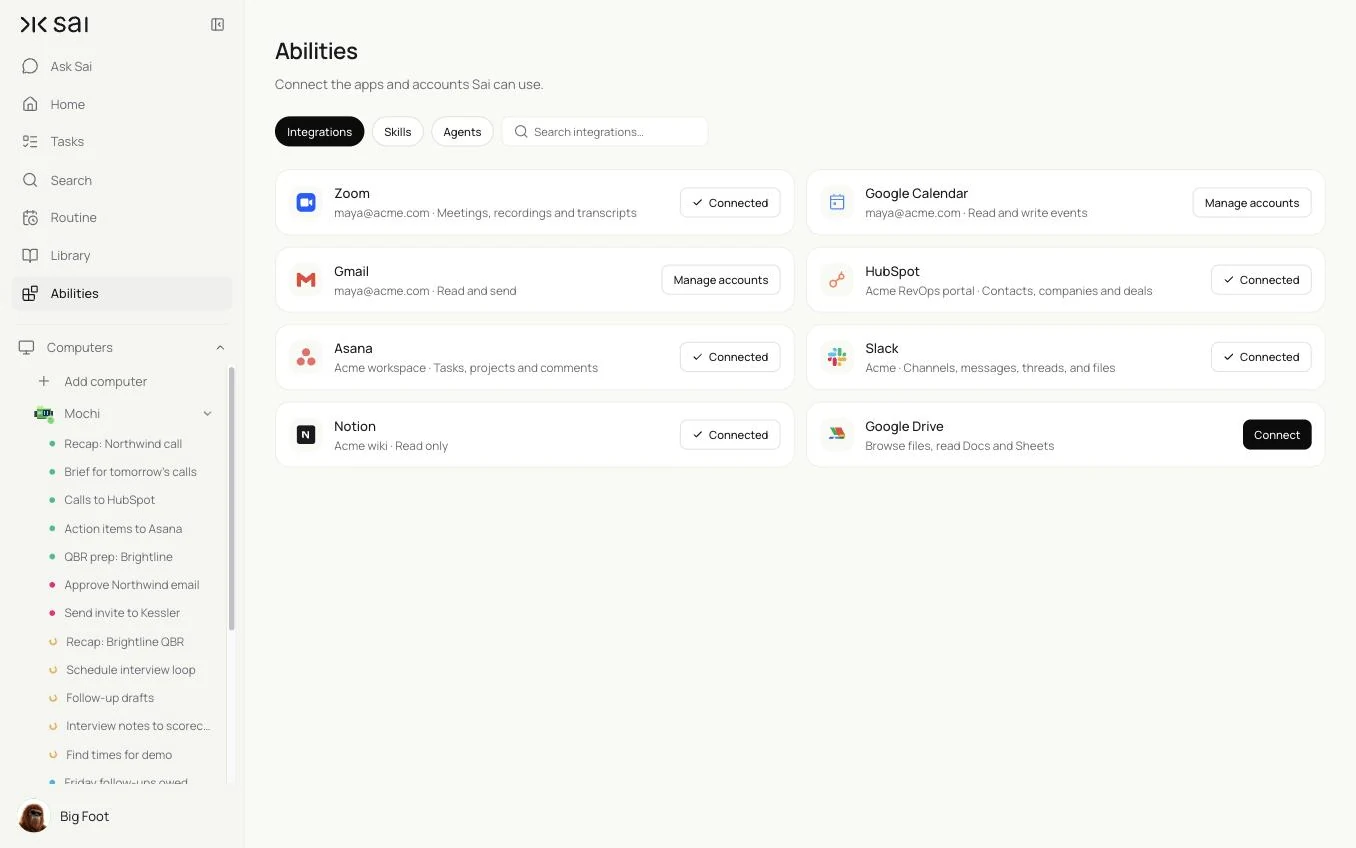
Connect Zoom once in Abilities → Integrations. Depending on your account and the permissions you approve, Sai can create and update meetings and read the cloud recordings and transcripts your account already keeps. Sai does not join or record meetings on its own; it works with what Zoom records under your settings. For anything the integration does not cover, Sai can use Zoom in a browser on its own cloud computer.
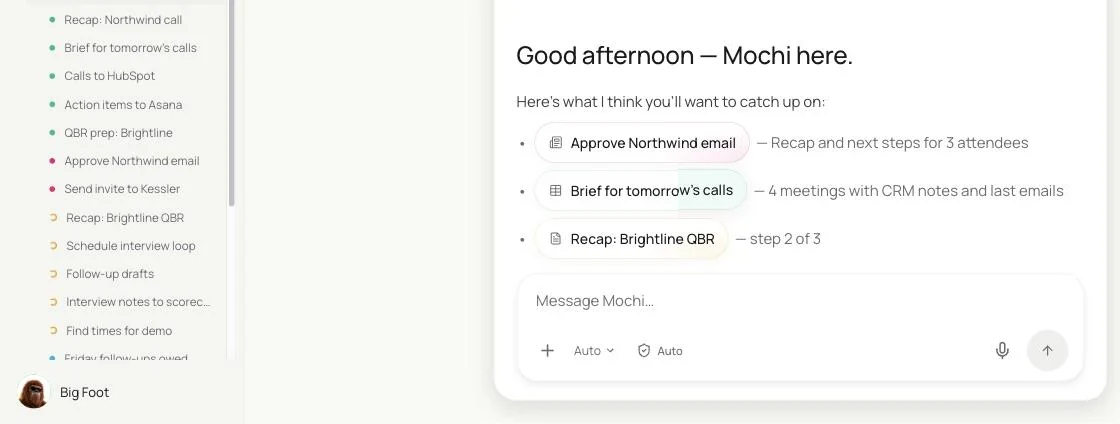
Zoom is the middle of a bigger task. Before the meeting, Sai reads the calendar, the CRM and past emails. After it, Sai reads the transcript, writes the recap, drafts the email in Gmail, updates HubSpot and creates tasks in Asana.
How far Sai can go with Zoom
What Sai can do with Zoom, and the approval setting we recommend. Reading transcripts and writing recaps is safe on automatic. Anything that sends to attendees or changes meetings for others should wait for you.
| Area | What Sai can do | Recommended approval |
|---|---|---|
| Scheduling | Find times, create Zoom meetings and calendar invites, reschedule | Ask before sending invites |
| Recordings and transcripts | Read cloud recordings and transcripts your account keeps | Automatic |
| Recaps and action items | Write recaps, decisions and action items with owners | Automatic |
| Follow-up emails | Draft follow-ups to attendees from the recap | Always ask |
| CRM and tasks | Log the call and next steps to the CRM, create tasks | Automatic for logging and tasks |
| Recording settings | Leave recording, consent and account settings to people | Not used |
Recording and transcribing calls is subject to Zoom’s terms, your company’s policies and the consent laws where your attendees are. Keep Zoom’s recording notices on, and only record when everyone has been told.
Recommended Zoom workflows
These workflows save the most time. Each is set up later in this guide.
| Workflow | Who it is for | What Sai does | Routine |
|---|---|---|---|
| Pre-call briefs | Sales, CS | A brief for each of tomorrow’s external calls | Weekdays 17:00 |
| Recap and action items | Everyone | Recap, decisions and action items from the transcript | After each meeting |
| Follow-up email drafts | Sales, agencies | Drafts the follow-up from the recap | After each meeting |
| Call to CRM | Sales, CS | Logs the call and next steps on the right record | After each meeting |
| Scheduling from email | Assistants | Finds times and creates Zoom invites from requests | Hourly |
| Weekly follow-ups owed | Executives | Lists promises made in meetings and not yet done | Fridays 16:00 |
Set up Sai for Zoom
Setup takes about 10 minutes. After that, every Zoom workflow reuses the same connection, skill and approval rules.
Step 1: Connect Zoom
Open Abilities → Integrations and connect Zoom with your account. If you want recaps from transcripts, make sure cloud recording and transcripts are on in your Zoom settings for the meetings that need them.
Step 2: Write your meeting rules as a skill
Open Abilities → Skills → Add skill → Write skill instructions. One skill covers what a recap looks like, where things go and what Sai must never do.
When to use it
Any task that schedules meetings or uses a Zoom recording or transcript.

Recaps
- Five lines max: purpose, decisions, action items with owner and date, risks, next meeting.
- Quote numbers and commitments exactly as said.

Where things go
- Customer calls: note on the HubSpot company. Action items: Asana, in the client's project.

Never
- Send anything to attendees without my OK.
- Use recordings from meetings marked Confidential.
- Change recording or account settings.
Step 3: Choose what runs on Auto
The guardrail next to the chat input switches between Auto and Manual. Use Auto for briefs, recaps, CRM notes and tasks. Use Manual for invites and anything sent to attendees.
Step 4: Turn the task into a routine
Run the task once after a real meeting and check the recap. Then open Routine → New and describe the job and when it should run. See Routines.
Recipes: before and after the call
Prepared going in, nothing dropped coming out.
Write a recap of the Northwind call from the Zoom transcript, create the action items in Asana, add the recap to the Northwind company in HubSpot and draft the follow-up email.
- 46 minutes · 4 action items
- 4 tasks with owners and dates
- Note added · next step set
- Draft to 3 attendees
Brief for tomorrow’s calls
Every call starts with context.
Every weekday at 17:00, read tomorrow's Zoom meetings in my calendar.
For each external meeting, write a brief: attendees and roles, the CRM record, our last emails, open questions and what we want from the call.
Send all briefs to me in one note.
Skill: Meeting Rules. Approval: Auto.
Recap, action items and follow-up
The recap and the email, ready before the next meeting.
After each external Zoom meeting with a transcript, write a recap with my Meeting Rules skill.
Create the action items as Asana tasks, add the recap as a note on the HubSpot company, and draft a follow-up email to the attendees in Gmail.
Wait for my OK before sending the email.
Skill: Meeting Rules. Approval: Auto for notes and tasks, Manual for email. See Sai × HubSpot and Sai × Asana.
Recipes: scheduling and follow-through
Fewer emails about times, fewer forgotten promises.
Schedule from email requests
Times proposed, invite sent when you say so.
Every hour, find emails asking to meet.
Propose three times that fit my calendar, draft the reply, and once I approve, create the Zoom meeting and send the invite.
Skill: Meeting Rules. Approval: Manual. See AI executive assistant.
Weekly list of follow-ups owed
The promises made in meetings, in one list.
Every Friday at 16:00, read this week's meeting recaps.
List every follow-up I promised and whether it was done, with a link to the meeting.
Draft the ones that are still open for my review.
Skill: Meeting Rules. Approval: Auto for the list, Manual for drafts.
Where the results land
Briefs and recaps come to you in Sai, recaps are also saved as notes on the CRM record, action items land in Asana, email drafts wait in Gmail, and invites wait for your approval.
Stay within Zoom’s rules
- Record with consent. Keep Zoom’s recording notices on and follow the consent laws where your attendees are.
- Sai does not join calls. It works with recordings and transcripts your account already keeps.
- Connect through the integration. Never share a Zoom password.
- Ask before sending. Invites and follow-ups to attendees wait for you.
- Respect confidential meetings. List the meetings Sai must skip in your skill.
Why automate Zoom with Sai
Why Sai is a good fit for meeting work.
- It does the work after the recap. CRM notes, tasks and the follow-up email happen in the same run.
- It prepares you. Briefs pull from the CRM, email and past recaps, not just the calendar invite.
- Your format, every time. The recap format lives in a skill your team can edit.
- You stay in control. Auto for notes and tasks, Manual for anything attendees receive.
- It is reliable. Sai ranks #1 on OSWorld, the open benchmark for computer use.
Frequently asked questions
Can Sai automate Zoom?
Yes. Sai can schedule Zoom meetings, write briefs before calls, turn recordings and transcripts into recaps and action items, draft follow-up emails and log calls to your CRM, with approval before anything is sent.
Does Sai join or record my Zoom calls?
No. Sai works with the cloud recordings and transcripts your Zoom account already keeps under your settings. Recording and consent stay with you.
How does Sai connect to Zoom?
Connect Zoom in Abilities → Integrations. For anything the integration does not cover, Sai can use Zoom in a browser on its own cloud computer.
Can Sai create tasks and CRM notes from a Zoom meeting?
Yes. Sai writes the recap, creates action items as tasks with owners and dates, and adds the recap as a note on the right CRM record.
How is this different from Zoom AI Companion?
Zoom AI Companion summarizes meetings inside Zoom. Sai uses the summary or transcript to do the follow-up work in other tools: the CRM, task tracker, email and calendar.
How much does it cost to automate Zoom with Sai?
You can set up and test every workflow on the Free plan. Routines that run after every meeting usually need Pro at $50 a month. See Plans, usage, and limits.
Related guides
Go deeper on the pieces used here.
Routines that start from meetings: automated client reporting and timesheet reminders.