
How to automate Asana with Sai
Sai can automate the work around Asana: it turns emails, Slack requests and meeting notes into tasks, keeps projects current, nudges owners about overdue work and writes the weekly status report, through the Asana integration. This guide covers what Sai can do in Asana, the workflows project managers, operations and agency teams automate first, and how to set them up with integrations, skills, routines and approvals.
Tools: Asana, Slack, Gmail, Zoom, Google Sheets
TL;DR: what Sai does in Asana
Asana works when every request becomes a task and every task stays current. The trouble is that requests arrive in email, Slack and meetings, and updates live in people’s heads. Sai is an AI agent that closes that gap every day and asks before changing anyone’s work. Here is what that covers, by team:
- Project managers. Turns meeting action items into tasks with owners and due dates, writes the weekly status report from the project, and flags tasks that slipped.
- Operations. Turns requests from email and Slack into tasks in the right project, checks every task has an owner and a date, and keeps intake forms tidy.
- Agencies. Sets up a new client project from your template, logs client emails as tasks or comments, and sends each client a weekly update you approve.
- Marketing. Builds the campaign plan from a brief, tracks deliverables against launch dates and posts the weekly content calendar.
- Leaders. A Friday summary across portfolios: what shipped, what is late and what needs a decision.
How Sai works with Asana
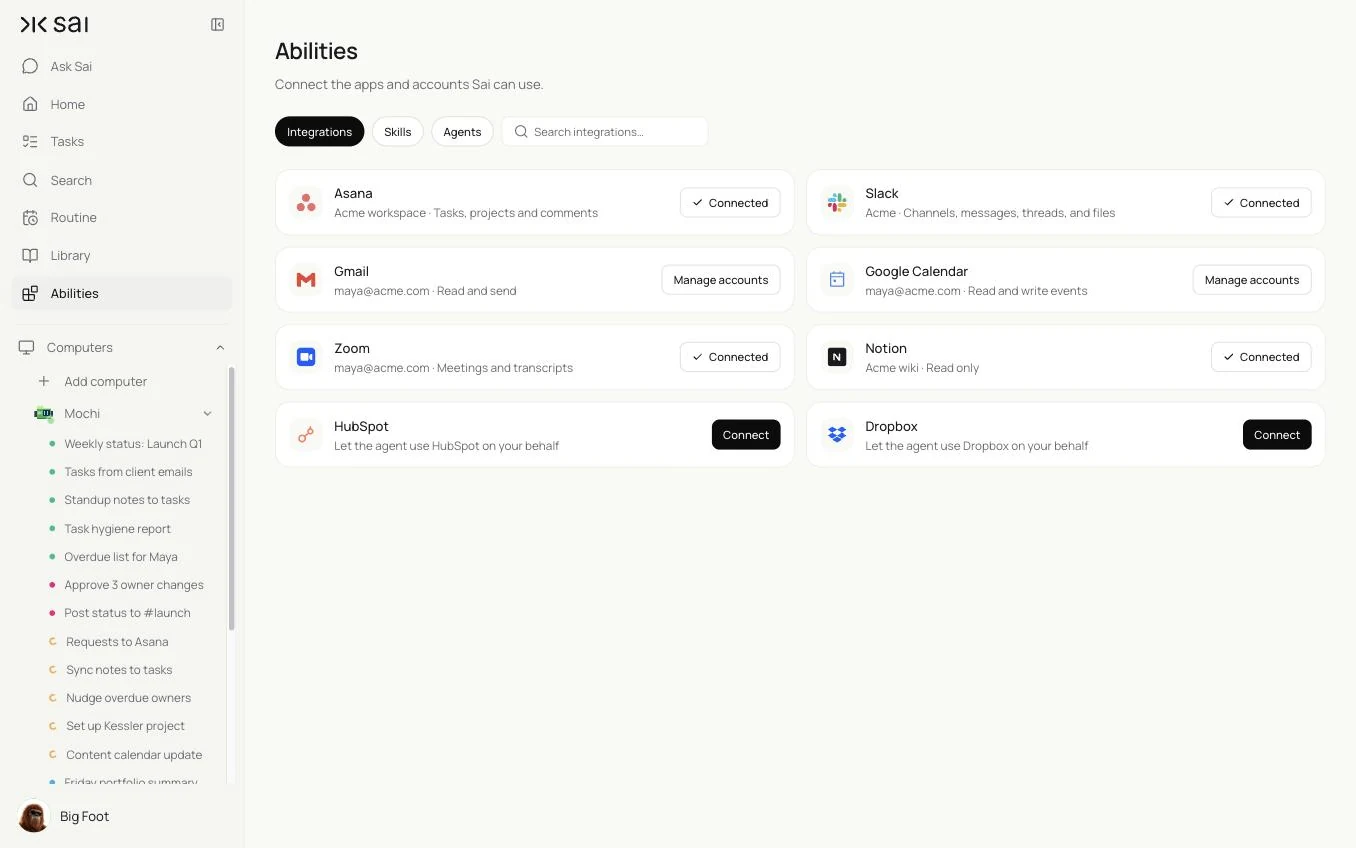
Connect Asana once in Abilities → Integrations. Sai can then read and create tasks, update fields, add comments and read projects in the workspaces you allow. For anything the integration does not cover, such as a report view, Sai can use Asana in a browser on its own cloud computer, signed in as its own user.
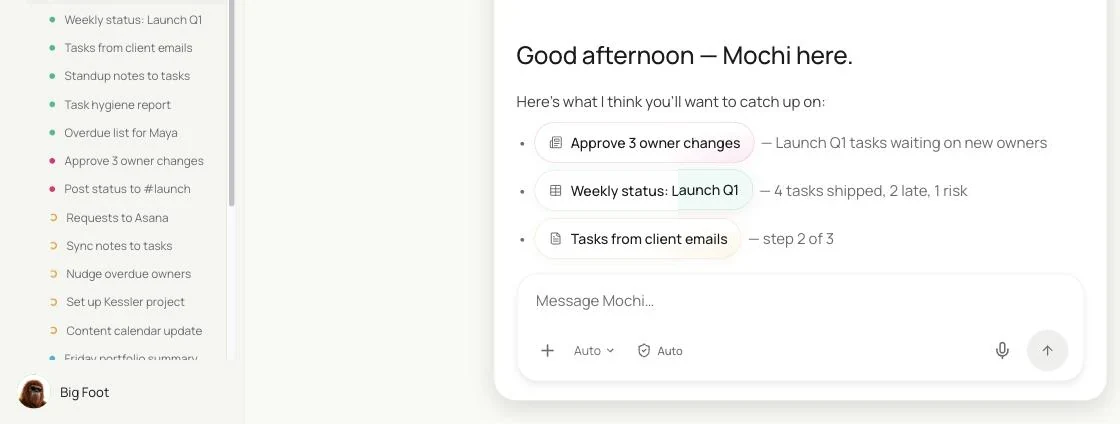
Asana is usually the middle of a task. Sai reads the email, Slack thread or Zoom transcript where the work was asked for, creates the task in Asana, and replies with the link, so nothing depends on someone remembering to copy it over.
How far Sai can go in Asana
What Sai can do in Asana, and the approval setting we recommend. Creating tasks and adding comments is safe on automatic. Changing someone else’s work should wait for you.
| Area | What Sai can do | Recommended approval |
|---|---|---|
| Tasks | Create tasks with title, description, project, due date and a link to the source | Automatic |
| Assignees and due dates | Suggest owners and new dates, reassign on request | Ask before changing someone else’s task |
| Comments | Add updates and links, summarize long comment threads | Automatic |
| Projects and templates | Create a project from a template, add sections and milestones | Ask first |
| Status updates | Draft project status updates from task progress | Ask before posting |
| Completing and deleting | Mark tasks done when the source shows they are done; never delete | Ask before completing; never delete |
Use of Asana through apps is governed by Asana’s terms and your workspace admin’s settings. Connect through the integration, and give Sai access only to the workspaces and projects it needs.
Recommended Asana workflows
These workflows save the most time. Each is set up later in this guide.
| Workflow | Who it is for | What Sai does | Routine |
|---|---|---|---|
| Meeting notes to tasks | Project managers | Creates tasks with owners and dates from meeting notes or transcripts | After each meeting |
| Email and Slack intake | Operations | Turns requests into tasks in the right project, with a link back | Hourly |
| Overdue nudges | Project managers | Drafts a short nudge to owners of overdue tasks | Weekdays 9:00 |
| Weekly status report | PMs, leaders | Status per project from task progress, with risks | Fridays 14:00 |
| New client setup | Agencies | Project from your template with dates from the kickoff | On request |
| Task hygiene | Operations | Finds tasks without owner, date or project | Mondays 8:00 |
Set up Sai for Asana
Setup takes about 10 minutes. After that, every Asana workflow reuses the same connection, skill and approval rules.
Step 1: Connect Asana
Open Abilities → Integrations and connect Asana with a user that can see the projects Sai will work in. Keep Sai out of projects it does not need.
Step 2: Write your project rules as a skill
Open Abilities → Skills → Add skill → Write skill instructions. One skill covers where tasks go, what a good task looks like and what Sai must never change.
When to use it
Any task that reads or changes Asana.

Tasks
- Title starts with a verb. Description links to the source email, thread or notes.
- Every task has an owner, a due date and a project. If you can't tell, put it in Triage.

Projects
- Client requests: the client's project. Internal requests: Ops Requests.

Never
- Reassign or change the due date of someone else's task without my OK.
- Delete tasks or projects.
- Mark a task done unless the source clearly says it is done.
Step 3: Choose what runs on Auto
The guardrail next to the chat input switches between Auto and Manual. Use Auto for creating tasks, comments and reports to you. Use Manual for reassignments, date changes and status updates others will read.
Step 4: Turn the task into a routine
Run the task once and check the result in Asana. Then open Routine → New and describe the job and when it should run. See Routines.
Recipes: intake
Every request becomes a task, wherever it was asked.
Read the action items from today’s Launch Q1 sync transcript and create an Asana task for each with the owner, a due date and a link to the notes.
- 38 minutes · 7 action items
- 7 tasks with owners and dates
- Draft ready for approval
Meeting notes to tasks
Action items with owners, before people leave the call.
After each meeting with notes or a Zoom transcript, read the action items.
Create a task in Asana for each one with the owner, a due date and a link to the notes, in the project named in the meeting title.
Post the list of tasks to the meeting's Slack channel after I approve.
Skill: Asana Rules. Approval: Auto for tasks, Manual for the post. See Sai × Zoom.
Requests from email and Slack
One intake, wherever the request came from.
Every hour, read new emails to requests@ and new messages in #requests.
For each real request, create a task in the right project with my Asana Rules skill and link the source.
Reply to the requester with the task link.
Skill: Asana Rules. Approval: Auto for tasks, Manual for replies. See Sai × Slack.
Recipes: follow-ups and reporting
Keep projects honest without chasing people.
Nudge owners of overdue tasks
A short, specific nudge instead of a status meeting.
Every weekday at 9:00, find tasks overdue by 2 days or more in the Launch Q1 portfolio.
Draft a short comment on each asking for an update or a new date. Group them for my approval.
List any task overdue by 7 days or more for me separately.
Skill: Asana Rules. Approval: Manual.
Weekly status report
Written from the project, not from memory.
Every Friday at 14:00, read the tasks in each project in the Launch Q1 portfolio.
For each project write: shipped this week, in progress, late with owner, and risks.
Draft the status update in Asana and a one-page summary for #leadership. Wait for my OK before posting.
Skill: Asana Rules. Approval: Manual. Related: the automated client reporting routine for agencies.
Task hygiene every Monday
Tasks without owners or dates are how work gets lost.
Every Monday at 8:00, find open tasks without an owner, a due date or a project in our workspace.
Suggest an owner and date for each from the project and past tasks.
Show me the list. Apply only the suggestions I approve.
Skill: Asana Rules. Approval: Manual.
Where the results land
Tasks, comments and status updates go into Asana itself, each with a link to its source. Approvals wait in Sai, summaries go to you or a Slack channel you choose, and report history goes into a sheet you name.
Stay within Asana’s rules
- Connect through the integration. Use the Asana integration rather than a shared login.
- Limit access. Give Sai only the workspaces and projects it needs.
- Respect ownership. Reassignments and date changes on other people’s tasks wait for you.
- Never delete. Sai completes or comments; it does not delete tasks or projects.
- Keep a trail. Every task links to the email, thread or notes it came from.
Why automate Asana with Sai
Why Sai is a good fit for Asana work.
- It captures work where it is asked for. Email, Slack and meeting transcripts become tasks without copy and paste.
- It understands the request. Sai decides which project, owner and date fit, using your rules.
- Status reports write themselves. Sai reads task progress and drafts the update for you to approve.
- You stay in control. Auto for intake and comments, Manual for changes to other people’s work.
- It is reliable. Sai ranks #1 on OSWorld, the open benchmark for computer use.
Frequently asked questions
Can Sai automate Asana?
Yes. Sai can create tasks from emails, Slack requests and meeting notes, add comments, nudge owners of overdue tasks and draft weekly status reports, through the Asana integration, with approval before changes to other people’s tasks.
How does Sai connect to Asana?
Connect Asana in Abilities → Integrations with a user that can see the projects Sai will work in. For anything the integration does not cover, Sai can use Asana in a browser on its own cloud computer.
Can Sai turn meeting notes into Asana tasks?
Yes. Sai reads notes or a Zoom transcript, creates a task for each action item with an owner, due date and link to the notes, and can post the list to Slack after you approve.
Will Sai reassign tasks or change due dates?
Only with your approval. Sai suggests owners and dates and applies the ones you approve.
How is this different from Asana rules?
Asana rules react to changes inside Asana. Sai reads what happens outside Asana, such as email, Slack and meetings, decides what it means and creates or updates the work.
How much does it cost to automate Asana with Sai?
You can set up and test every workflow on the Free plan. Daily and hourly routines usually need Pro at $50 a month. See Plans, usage, and limits.
Related guides
Go deeper on the pieces used here.
Routines for project teams: timesheet reminders and automated client reporting.