
How to automate Slack with Sai
Sai can automate the busywork in Slack: it writes channel digests and standup summaries, turns requests into tasks, answers common questions from your docs, logs wins and customer signals to your CRM and posts the weekly report, through the Slack integration. This guide covers what Sai can do in Slack, the workflows teams automate first, and how to set them up with integrations, skills, routines and approvals.
Tools: Slack, Gmail, Notion, Google Sheets, HubSpot
TL;DR: what Sai does in Slack
Slack is where work is asked for and talked about, which is also why so much of it gets lost in threads. Sai is an AI agent that reads the channels you choose, does the follow-up work in the tools around Slack, and posts back only what you approve. Here is what that covers, by team:
- Leaders and founders. A morning digest of the channels you care about, with decisions, blockers and anything waiting on you, and a weekly summary for the leadership channel.
- Engineering and product. Collects standup updates in a thread, summarizes them for the team, and turns bug reports and feature requests into tickets with a link back to the thread.
- Sales. Summarizes deal chatter in #sales, logs wins and customer signals to the CRM, and drafts replies in shared customer channels for your review.
- Support and IT. Answers repeat questions in help channels from your docs and wiki, as drafts or on Auto once you trust them, and summarizes open support threads.
- Operations. Posts recurring reports from Sheets, checks that every request has an owner, and reminds owners about requests that have gone quiet.
How Sai works with Slack
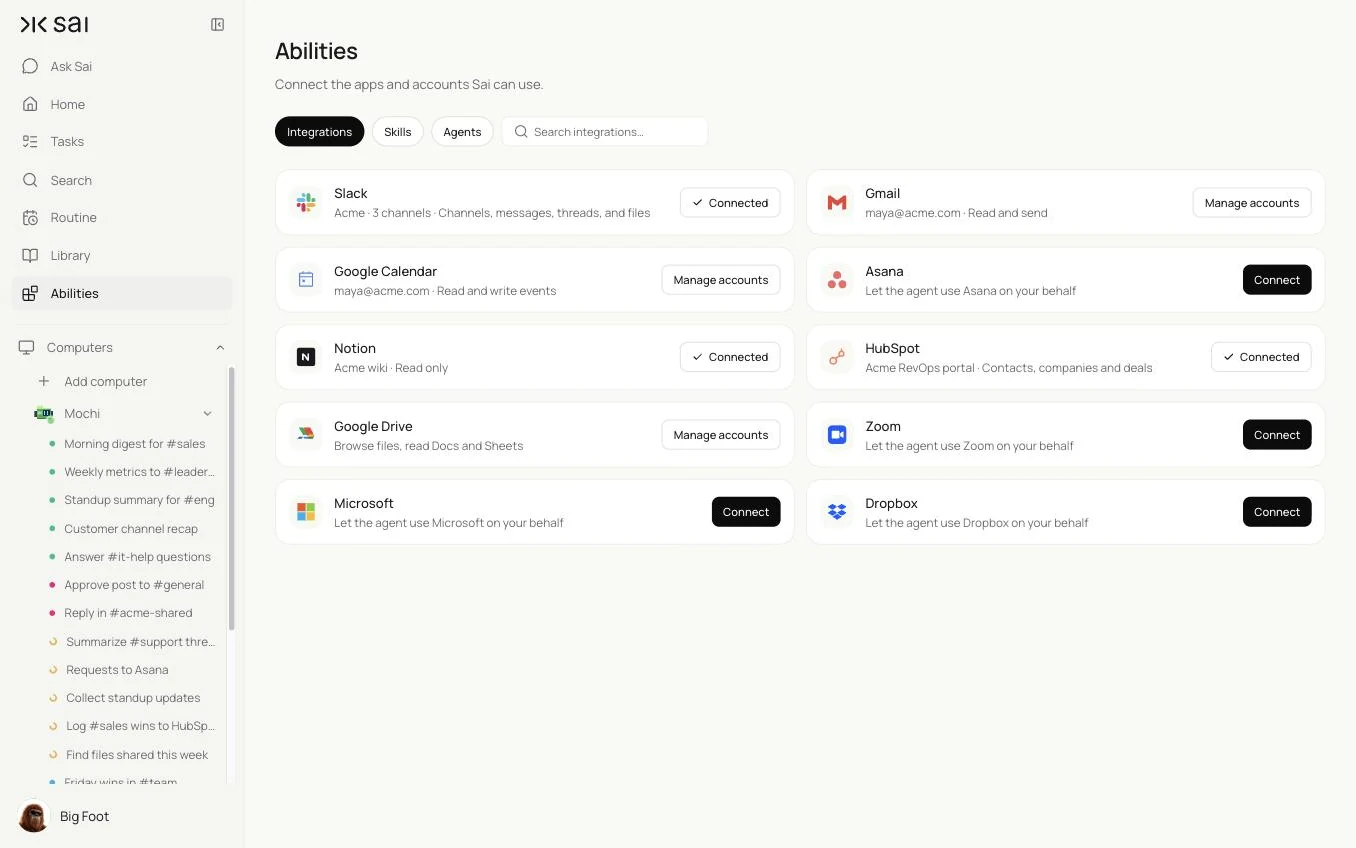
Connect Slack once in Abilities → Integrations. Sai can then read the channels and threads it has been added to, read files shared there and post messages, all within the permissions your workspace admin approves. For anything the integration does not cover, Sai can also use Slack in a browser on its own cloud computer, signed in as its own user.
In most workflows Slack is the start or the end of a bigger task. Sai reads a request in a thread, creates the task in Asana or the ticket in Linear, updates a sheet, checks the CRM, and replies in the thread with the link, without anyone copying text between tabs.
How far Sai can go in Slack
What Sai can do in Slack, and the approval setting we recommend. Reading and summarizing is safe on automatic. Anything other people will read should wait for you until you trust the routine.
| Area | What Sai can do | Recommended approval |
|---|---|---|
| Channels and threads | Read the channels Sai is added to, summarize threads, find decisions and open questions | Automatic |
| Posting in channels | Post digests, reports and replies in threads | Ask first; Auto for a recurring report you have approved |
| Direct messages | Draft DMs to teammates, such as reminders and follow-ups | Always ask |
| Shared channels with customers | Draft replies and summarize customer threads | Always ask before posting |
| Files | Read files shared in channels and save them to Drive or Dropbox | Automatic |
| Workspace settings | Leave channel creation, member changes and settings to admins | Not used |
Slack’s API Terms of Service and your workspace admin decide which apps can join a workspace and what they may read. Add Sai only to the channels it needs, and tell your team that Sai is in the channel.
Recommended Slack workflows
These workflows save the most time. Each is set up later in this guide.
| Workflow | Who it is for | What Sai does | Routine |
|---|---|---|---|
| Morning channel digest | Leaders | Decisions, blockers and asks from the channels you pick | Weekdays 8:00 |
| Standup summary | Engineering | Collects updates in a thread and posts a summary | Weekdays 10:00 |
| Requests to tasks | Product, ops | Turns requests into Asana tasks or tickets with a link back | Hourly |
| Answers from your docs | Support, IT | Drafts answers to repeat questions in help channels | Every 30 minutes |
| Wins to the CRM | Sales | Logs wins and customer signals from #sales to HubSpot | Daily 18:00 |
| Weekly metrics post | Leaders, ops | Posts the week’s numbers from Sheets with a short summary | Fridays 15:00 |
Set up Sai for Slack
Setup takes about 10 minutes. After that, every Slack workflow reuses the same connection, skill and approval rules.
Step 1: Connect Slack
Open Abilities → Integrations and connect Slack. If your workspace requires admin approval for apps, your admin approves it once. Then invite Sai to the channels it should read, and only those.
Step 2: Write your Slack rules as a skill
Open Abilities → Skills → Add skill → Write skill instructions. One skill covers tone, which channels matter and what Sai must never post.
When to use it
Any task that reads or posts in Slack.

Channels
- Digest: #sales, #eng, #support, #leadership.
- Never read or summarize #people or #legal.

Posting
- Short and plain. Lead with the decision or the ask. Link to the source thread.
- Mention people only when something is waiting on them.

Never
- Post in #general or a shared customer channel without my OK.
- Send DMs on my behalf without my OK.
- Share anything from a private channel in a public one.
Step 3: Choose what runs on Auto
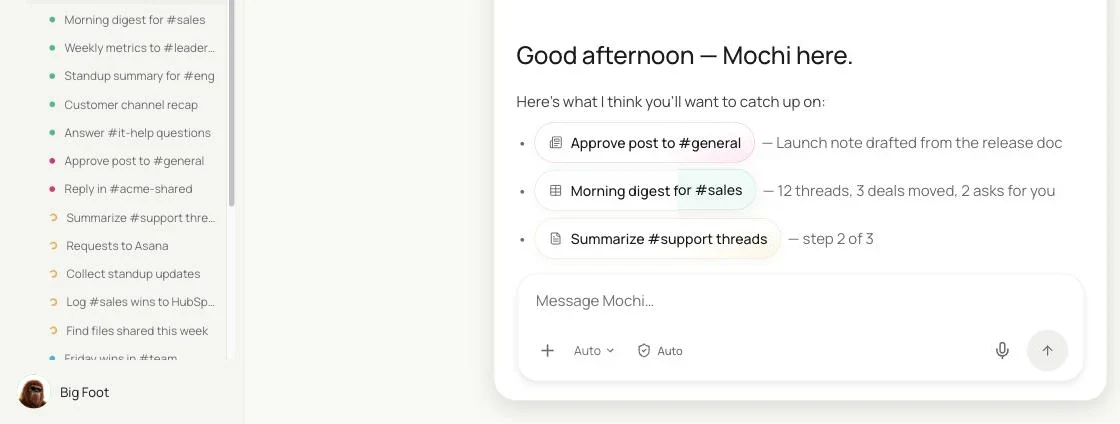
The guardrail next to the chat input switches between Auto and Manual. Use Auto for reading, digests sent to you and tasks created from requests. Use Manual for posts other people will read until a routine has earned your trust.
Step 4: Turn the task into a routine
Run the task once and check the result. Then open Routine → New, describe the job and when it should run, and set Ask me before acting. See Routines.
Recipes: digests and reports
Read less, know more: the summaries that replace scrolling.
Read yesterday’s messages in #sales, #eng and #support and send me a digest: decisions, blockers, questions waiting on me and anything a customer raised, with links.
- 146 messages · 23 threads
- 4 decisions · 2 blockers · 3 asks for you
- Sent as a DM with 9 links
Morning digest of the channels you care about
Start the day with the decisions and the asks, not the scroll.
Every weekday at 8:00, read yesterday's messages and threads in #sales, #eng and #support.
Write a digest for me: decisions made, blockers, questions waiting on me, and anything a customer raised.
Link each item to its thread. Send it to me as a DM, not to a channel.
Skill: Slack Rules. Approval: Auto.
Standup summary for the team
Async standups that someone actually reads.
Every weekday at 10:00, read today's replies in the #eng standup thread.
Post a summary in the thread: what shipped, what is in progress, and blockers with the person who can unblock them.
List anyone who has not posted, for me only.
Skill: Slack Rules. Approval: Manual for the post until you switch it to Auto.
Weekly metrics post
The Friday numbers, posted the same way every week.
Every Friday at 15:00, read this week's column in the Metrics sheet.
Post in #leadership: the five headline numbers, week over week, and one line on what moved most.
If a number is missing, say so instead of guessing.
Skill: Slack Rules. Approval: Manual. Related: the automated marketing reports routine.
Recipes: requests, answers and the CRM
Turn what is said in Slack into work that gets done.
Read new messages in #requests. Create an Asana task in Requests for each real request, with the requester and a link to the thread, and draft a reply with the task link.
- 11 messages · 6 requests
- 6 tasks with owners and links
- 6 drafts
Turn requests into tasks
Every request gets an owner and a link back to the thread.
Every hour, read new messages in #requests.
For each real request, create a task in Asana in the Requests project with a clear title, the requester and a link to the thread.
Reply in the thread with the task link. Skip messages that are questions, not requests.
Skill: Slack Rules. Approval: Auto for tasks, Manual for replies. See Sai × Asana.
Answer repeat questions from your docs
The same ten questions, answered from the source.
Every 30 minutes, read new questions in #it-help.
If the answer is in the IT wiki in Notion, draft a reply with the steps and a link to the page.
If it is not, leave it for the IT team and add it to the Missing answers list.
Skill: Slack Rules. Approval: Manual for replies at first. See Sai × Notion.
Log wins and customer signals to HubSpot
What reps say in Slack belongs on the record.
Every day at 18:00, read today's messages in #sales.
For each closed deal, pricing objection or competitor mention, add a note to the right company in HubSpot with the date and a link to the message.
Post a one-line summary of what was logged to me.
Skill: HubSpot Rules. Approval: Auto. See Sai × HubSpot.
Where the results land
Digests and summaries go to you as a DM unless you choose a channel. Posts that need approval wait in Sai until you approve them. Tasks land in Asana or your ticket tracker with a link back to the thread, CRM notes in HubSpot, and report history in a sheet you name.
Stay within Slack’s rules
- Let your admin approve the app. Workspaces decide which apps can join; connect Sai through the integration rather than a shared login.
- Add Sai only where it is needed. Invite it to the channels in your skill and keep it out of sensitive ones.
- Be open about it. Tell your team Sai is in the channel and what it does there.
- Approve what other people read. Posts in channels, shared customer channels and DMs wait for you until a routine has earned Auto.
- Keep a trail. Every post links to its source thread, and every task links back to the request.
Why automate Slack with Sai
Why Sai is a good fit for Slack work.
- It finishes the follow-up. Sai does not just summarize; it creates the task, updates the CRM and replies with the link.
- It works across your tools. Asana, Linear, HubSpot, Notion, Drive and Sheets are steps in the same task.
- Your rules are a paragraph. Channels, tone and what never to post live in a skill anyone can edit.
- You stay in control. Auto for reading and digests, Manual for anything your team or customers read.
- It is reliable. Sai ranks #1 on OSWorld, the open benchmark for computer use, and routines that repeat the same steps get faster with Code-Replay.
Frequently asked questions
Can Sai automate Slack?
Yes. Sai can read the channels it is added to, write digests and summaries, turn requests into tasks, draft answers from your docs and post reports, through the Slack integration, with approval before posts other people will read.
How does Sai connect to Slack?
Connect Slack in Abilities → Integrations. Your workspace admin may need to approve the app once. Then invite Sai to the channels it should read.
Can Sai read private channels and DMs?
Only channels Sai has been added to, within the permissions your admin approves. Keep it out of sensitive channels and list the channels it should read in your skill.
Will Sai post without asking?
Not unless you allow it. Posts in channels, shared customer channels and DMs wait for your approval; you can switch a trusted recurring report to Auto.
Can Sai turn Slack messages into Asana tasks or tickets?
Yes. Sai reads requests, creates the task or ticket with the requester and a link to the thread, and replies in the thread with the link.
How is this different from Slack workflows?
Slack’s built-in workflows run fixed steps you design. Sai reads what people wrote, decides what it is, and does the follow-up work in other tools, such as Asana, HubSpot or Notion.
How much does it cost to automate Slack with Sai?
You can set up and test every workflow on the Free plan. Daily and hourly routines usually need Pro at $50 a month. See Plans, usage, and limits.
Related guides
Go deeper on the pieces used here.
Routines that post to Slack: automated marketing reports and the daily sales report.