
How to automate Shopify operations with Sai
Sai can run the daily operations around a Shopify store: it answers order-status emails, watches stock and competitor prices, prepares product updates, reconciles payouts and writes the daily sales summary, using your store’s app connection and the tools around it. This guide covers what Sai can do for a Shopify store, the workflows merchants, wholesale teams and e-commerce investors automate first, and how to set them up with skills, routines and approvals.
Tools: Shopify, Gmail, Google Sheets, Stripe, Slack
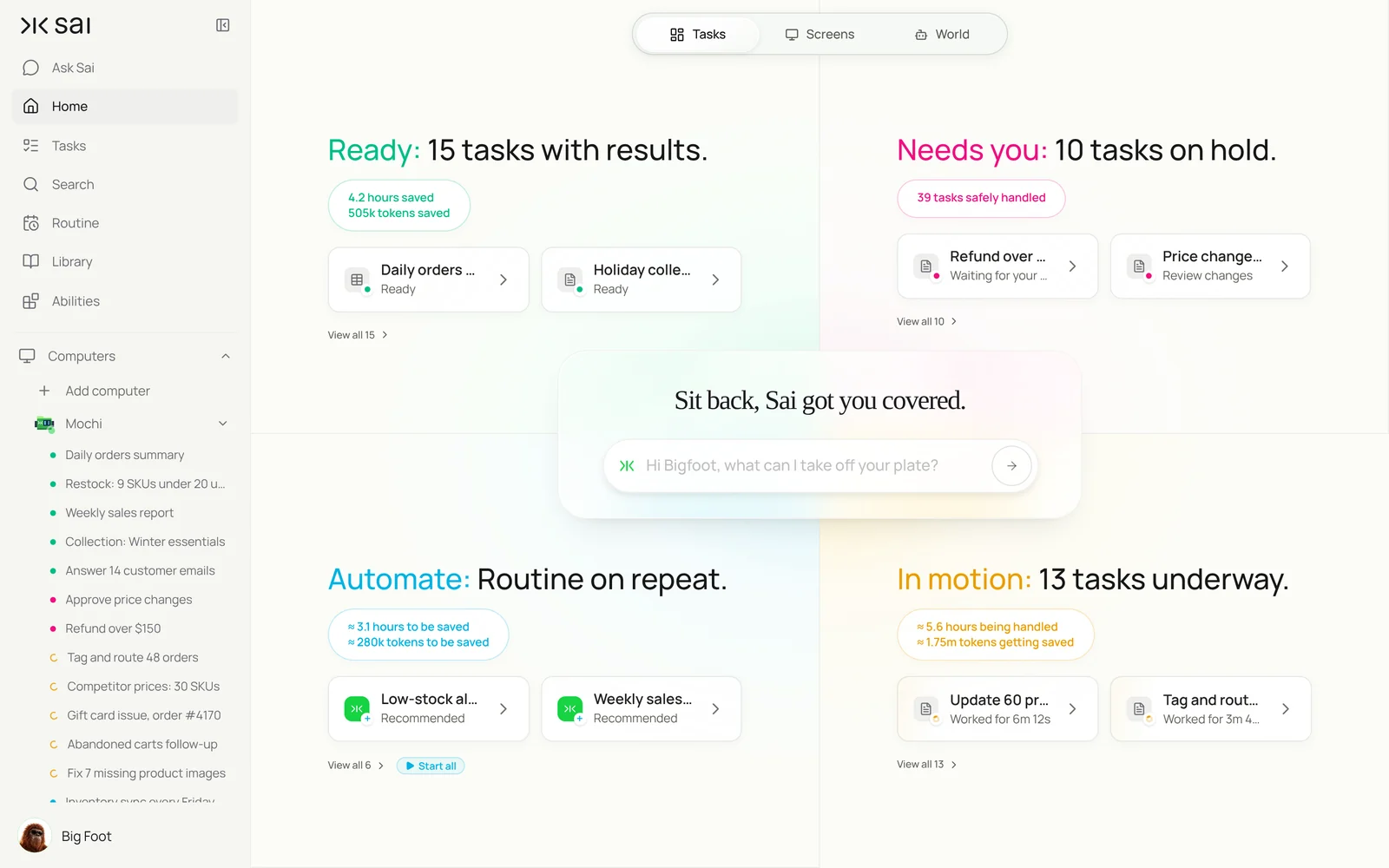
TL;DR: what Sai does for a Shopify store
Running a store is a hundred small jobs a day, most of them between Shopify and somewhere else: the inbox, a supplier portal, a competitor’s product page, a sheet. Sai is an AI agent that does those jobs on a schedule and asks before anything that costs money or changes what customers see. Here is what that covers, by team:
- Store operators. Writes the daily orders summary, flags orders stuck in fulfillment, answers order-status emails with tracking links, and holds refunds and discounts for your approval.
- Merchandising. Watches stock against reorder points and drafts purchase orders to suppliers, checks competitor prices including shipping, and prepares product and price updates for you to approve.
- Wholesale and B2B sales. Turns wholesale inquiries into draft orders and price sheets, follows up on retailers who have gone quiet, and logs every buyer in your CRM.
- Investors and aggregators. With read-only access, writes a weekly KPI sheet for each portfolio store: revenue, orders, AOV, repeat rate, refunds and stock cover, so diligence and monthly reviews start from the same numbers.
- Finance. Matches Shopify payouts to bank deposits, lists refunds and chargebacks, and adds the day’s sales to the books sheet.
- Marketing. Finds products with missing images or thin descriptions, drafts copy in your brand voice, and reports weekly on what sold.
How Sai works with Shopify
Sai works with your store through an app connection: an app created for your store in Shopify’s Dev Dashboard, by you or your developer, with only the Admin API scopes you choose, such as reading orders, products and inventory. That is the route Shopify designs for tools that act on a store. Sai does not drive the Shopify admin with a bot, because Shopify’s Terms of Service do not allow accessing the Services by automated means.
Everything around the store is where Sai’s browser does the work: supplier portals, carrier tracking pages, competitor product pages, marketplaces you sell on, Gmail, Sheets and Slack. One task can read an email, look up the order through the store connection, check tracking on the carrier’s site and draft the reply.
How far Sai can go with Shopify
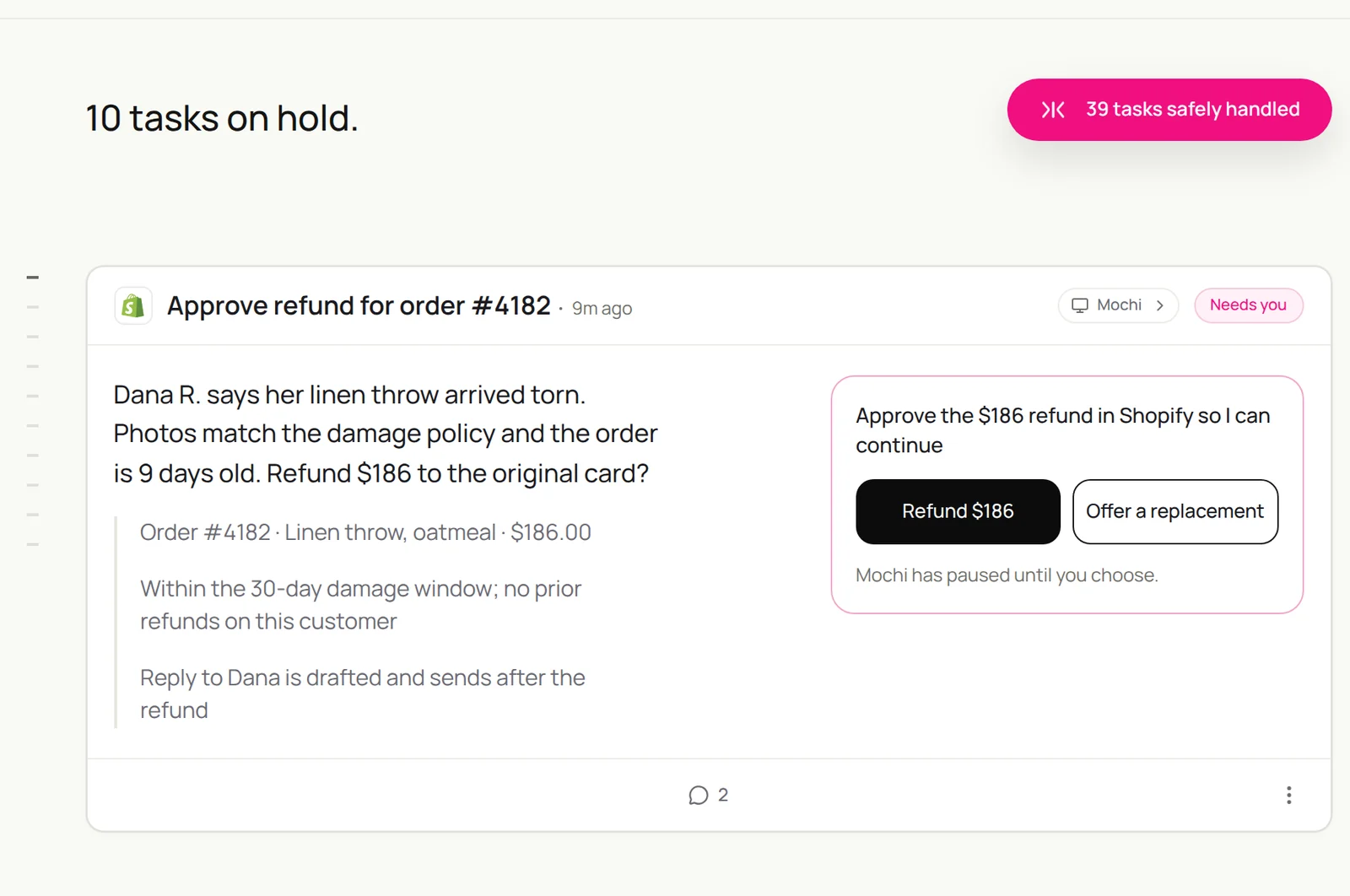
What Sai can do for your store, and the approval setting we recommend. Reading and reporting are safe on automatic. Anything that moves money or changes what customers see should wait for you.
| Area | What Sai can do | Recommended approval |
|---|---|---|
| Orders | Read orders, status and fulfillment, tag and add notes, flag stuck orders | Automatic for reading and tags |
| Refunds and discounts | Prepare the refund or code with the reason and the policy that applies | Always ask |
| Customer email | Answer order-status questions with tracking links, draft other replies | Ask, or Auto for status-only replies |
| Products and prices | Draft product copy, fix missing fields, prepare price changes | Ask before publishing or changing prices |
| Inventory | Read stock, compare with reorder points, draft purchase orders | Ask before sending POs |
| Payouts and reports | Match payouts to deposits, write daily and weekly reports | Automatic, read only |
| Outside Shopify | Supplier portals, carriers, competitor pages, marketplaces | Same as the strictest step |
Give the app connection only the scopes each workflow needs. Reading orders and products covers most reporting; add write scopes only for the jobs you approve, such as tags or product drafts.
Recommended Shopify workflows
These are the workflows that save the most time. Each is set up later in this guide.
| Workflow | Who it is for | What Sai does | Routine |
|---|---|---|---|
| Order-status replies | Store operators | Looks up the order and tracking, drafts the reply | Twice daily |
| Daily orders summary | Store operators | Orders, revenue, stuck fulfillments, refunds | Daily 7:00 |
| Stock watch and POs | Merchandising | Flags low cover, drafts purchase orders | Daily 6:00 |
| Competitor price check | Merchandising | Prices plus shipping, flags gaps over 5% | Daily 6:00 |
| Wholesale inquiries | Wholesale sales | Draft order and price sheet, logs buyer in CRM | Daily |
| Portfolio store KPIs | Investors | Weekly KPI sheet per store from read-only access | Mondays 8:00 |
| Payout reconciliation | Finance | Matches payouts to deposits, lists refunds and chargebacks | Daily 18:00 |
| Catalog cleanup | Marketing | Finds missing images and thin copy, drafts fixes | Weekly |
Set up Sai for your Shopify store
Setup takes about 20 minutes, most of it creating the app connection. After that, every workflow reuses the same connection, skills and approval rules.
Step 1: Create the app connection
In Shopify’s Dev Dashboard, create an app for your store and install it with only the Admin API scopes you need: start with read access to orders, products and inventory. Store the access token in Sai through its approval link, never in a chat. Connect Gmail, Sheets and Slack in Abilities → Integrations.
Step 2: Write your store rules as a skill
Open Abilities → Skills → Add skill → Write skill instructions. One Store Playbook covers most workflows: refund policy, pricing floors, voice and the things Sai must never do.
When to use it
Any task about our Shopify store, orders, customers, products, stock or suppliers.

Customers
- Friendly, short, first name. Include the tracking link when there is one.
- Damaged item: offer a replacement first. Refunds over $100 go to me.

Pricing
- Never price below cost x 1.35. Compare competitors including shipping to ZIP 94107.

Stock
- Reorder at 21 days of cover. Order up to 60 days.

Never
- Refund, discount, publish a product or change a price without my OK.
- Use the Shopify admin through the browser. Use the store connection only.
- Email a customer about anything but order status without my OK.
Step 3: Choose what runs on Auto
Use Auto for reports, stock checks and order-status replies once you trust them. Use Manual for refunds, discounts, price changes, publishing and purchase orders. Sai then prepares the change and waits for you.
Step 4: Turn the task into a routine
Run each task once and check the result. Then open Routine → New and describe the job in a sentence, including when it should run. Turn on Code-Replay for routines that repeat the same steps. See Routines.
Recipes: sales and wholesale
Turn wholesale interest into orders, and keep retail customers answered.
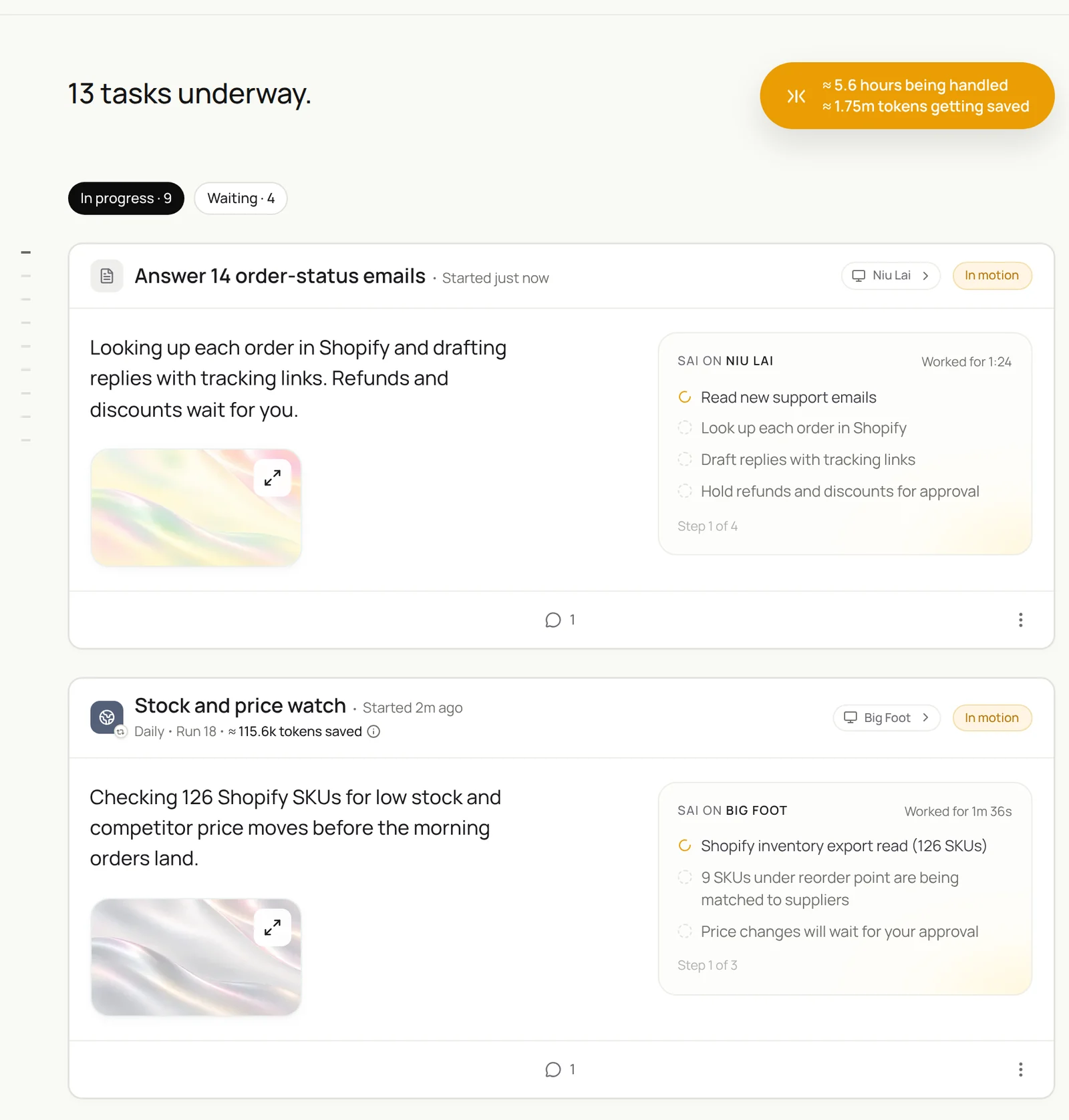
Read new customer emails. For each order-status question find the order through the store connection, check tracking on the carrier’s site, and draft a reply with the status and link. Hold refunds and anything else for me.
- 14 order questions · 3 other
- 14 orders found
- 11 in transit · 2 delivered · 1 delayed
- 14 drafts
Wholesale inquiries to draft orders
Every retailer who asks gets a price sheet the same day.
Every day, read new emails to wholesale@ in Gmail.
For each retailer: check stock for the products they asked about through the store connection,
build a price sheet from the Wholesale tab in our Pricing sheet, and draft a reply with minimums and lead times.
Log the buyer in HubSpot. Do not send.
Skill: Store Playbook. Approval: Manual. Logging buyers in a CRM: see Sai × HubSpot.
Answer order-status emails
The most common support question, answered in minutes.
Twice a day, read new customer emails in Gmail.
For each order-status question: find the order through the store connection and check tracking on the carrier's site.
Draft a reply with the status and tracking link. Hold refunds, discounts and anything else for me.
Skill: Store Playbook. Approval: Auto for status-only replies once you trust them, Manual for everything else.
Recipes: investing
For investors, aggregators and holding companies that own or back Shopify brands.
For each store in the Portfolio sheet, read last week’s orders through its read-only connection and add a row: revenue, orders, AOV, repeat rate, refunds and stock cover for the top 10 SKUs. Flag any store down more than 15% or under 14 days of cover.
- 8,412 orders
- 6 rows · 7 metrics each
- 2 stores flagged
Weekly KPI sheet for each portfolio store
The same numbers for every brand, every Monday.
Every Monday at 8:00, for each store in the Portfolio sheet, read last week's orders through its read-only connection.
Add a row: revenue, orders, average order value, repeat customer rate, refunds, and days of stock cover for the top 10 SKUs.
Flag any store where revenue fell more than 15% week over week or stock cover is under 14 days.
Skill: Portfolio Metrics. Approval: Auto, read only. See AI investment analyst.
Diligence on a store you are evaluating
Start from the data, not the deck.
The founder of Linen & Co gave us a read-only connection for diligence.
From the last 24 months of orders, build cohorts by first-order month, repeat rate at 90 and 180 days,
revenue by channel and product, refund rate and seasonality. Compare with their deck and list anything that does not match.
Skill: Investment Thesis. Approval: Auto, read only.
Recipes: store operations
The routines that keep the shelves full and the prices right.
Check stock for every SKU through the store connection, flag anything under 21 days of cover and draft purchase orders to reach 60 days. Then check the 30 competitor pages in the Pricing sheet and propose prices that respect my floor. Don’t change anything.
- 9 under 21 days of cover
- 3 suppliers · 9 SKUs
- 30 pages · shipping to 94107
- Proposed prices above floor
Stock watch and purchase orders
Reorder before you run out, not after.
Every day at 6:00, read stock for every SKU through the store connection.
Flag SKUs with less than 21 days of cover at the last 30 days' sales rate.
Draft a purchase order email to each supplier with quantities to reach 60 days of cover. Hold for my approval.
Skill: Store Playbook. Approval: Manual.
Competitor price check
Know where you stand every morning.
Every day at 6:00, check the 30 competitor product pages in the Pricing sheet.
Record price plus shipping to ZIP 94107 and stock status.
Flag our products more than 5% above the lowest and propose a price that respects my floor. Do not change prices.
Skill: Store Playbook. Approval: Manual for any price change.
Daily summary and payout check
One message every morning, and the money matched every evening.
Every day at 7:00, post in #store: yesterday's orders and revenue, orders stuck in fulfillment over 48 hours, refunds and low-stock flags.
Every day at 18:00, match Shopify payouts to bank deposits in the Books sheet and list anything unmatched.
Skill: Store Playbook. Approval: Auto. Related: building a Shopify sales dashboard in Google Sheets and syncing Google Sheets and Shopify.
Where the results land
Reports go to Slack and your sheets, email drafts wait in Gmail, and everything that needs a decision waits in Needs you with the order, the policy that applies and the drafted reply. Changes to the store happen only through the app connection, after you approve them, and each one is noted on the order or product.
Stay within Shopify’s rules
- Use the app connection, not the admin. Shopify’s Terms of Service do not allow accessing the Services with robots, scrapers or other automated means. Sai works with your store through an app you install, under Shopify’s API terms.
- Least privilege. Grant only the scopes a workflow needs, read-only wherever you can, and remove scopes you stop using.
- Money and storefront changes are yours. Refunds, discounts, prices and publishing wait for approval. Put that in the skill.
- Respect other sites. Competitor checks read public product pages at a human pace and a fixed cap per run, and follow each site’s terms.
- Protect customer data. Keep order exports in your own Drive, and handle customer data under your privacy policy.
Why automate Shopify operations with Sai
Why Sai is a good fit for store operations.
- It works across the whole operation. The store connection, inbox, carriers, suppliers, competitors and sheets are steps in one task.
- It understands the request. Sai reads the email and knows whether it is a tracking question, a damaged item or a wholesale lead.
- It follows your policies. Refund rules, price floors and voice live in one skill your team can edit.
- You stay in control. Auto for reading and reporting, Manual for money and anything customers see.
- It finishes the job. Sai ranks #1 on OSWorld, and with Code-Replay, daily routines get faster and cheaper. For multi-channel selling, see the AI e-commerce operations agent.
Frequently asked questions
Can Sai automate Shopify?
Sai can automate the daily operations around a Shopify store, such as order-status replies, stock and price checks, product updates, payout matching and reports, through an app connection you install with the scopes you choose, and with approval before refunds, price changes and publishing.
How does Sai connect to my Shopify store?
Through an app created for your store in Shopify’s Dev Dashboard, installed with only the Admin API scopes you choose. Sai does not use the Shopify admin through a browser.
Is it allowed to use an AI agent with Shopify?
Shopify’s Terms of Service do not allow accessing the Services by robots, scrapers or other automated means. Using an app you install, under Shopify’s API terms, is the supported route, and it is how Sai works with your store.
Can Sai answer customer emails about orders?
Yes. Sai finds the order, checks tracking on the carrier’s site and drafts a reply with the status and link. You can let status-only replies run on Auto once you trust them.
Will Sai issue refunds or change prices on its own?
No. Sai prepares refunds, discounts and price changes with the reason and your policy, and waits for your approval.
Can investors use Sai to track Shopify brands?
Yes. With a read-only connection to each store, Sai writes a weekly KPI sheet per brand and flags drops in revenue or stock cover. It can also build cohort and channel analysis for diligence.
Does Sai work with Amazon and other marketplaces too?
Sai can work with other channels where their rules allow it. Marketplaces set their own rules for agents; for example, Amazon requires automated agents to follow its Agent Policy. Check each channel’s terms first.
How much does it cost to automate Shopify with Sai?
You can set up and test every workflow on the Free plan. Daily routines usually need Pro at $50 a month. See Plans, usage, and limits.
Related guides
Go deeper on the pieces used here.
Ready-made routines for stores: Shopify inventory report, competitor price monitoring and MAP pricing monitoring.