
How to automate Pipedrive with Sai
Sai can automate the daily work in Pipedrive: it turns inbound emails and LinkedIn conversations into leads and deals, updates deals from call notes, follows up on deals that have gone quiet, cleans up duplicates and writes the weekly pipeline report, through the Pipedrive integration or in Pipedrive’s own screens. This guide covers what Sai can do in Pipedrive, the workflows small sales teams automate first, and how to set them up with integrations, skills, routines and approvals.
Tools: Pipedrive, Gmail, LinkedIn, Google Calendar, Slack
TL;DR: what Sai does in Pipedrive
Pipedrive is built around activities: the next call, the next email, the next step on every deal. Keeping those current is what slips when a small team gets busy. Sai is an AI agent that keeps the pipeline current every day and asks before anything reaches a customer. Here is what that covers, by role:
- Founders and small sales teams. Turns inbound emails and form fills into leads and deals with the right owner, and drafts a reply with real times from your calendar.
- Account executives. Updates deals from call notes, sets the next activity, and drafts follow-ups for deals with no activity in ten days.
- SDRs. Logs LinkedIn conversations to the right person, finds prospects who match your ICP and are not in Pipedrive yet, and adds them as leads.
- Sales managers. Writes the weekly pipeline report by stage and owner, and flags deals with past close dates or no next activity.
- Operations. Dedupes people and organizations, fills missing fields with a source, and imports event leads from a sheet.
How Sai works with Pipedrive
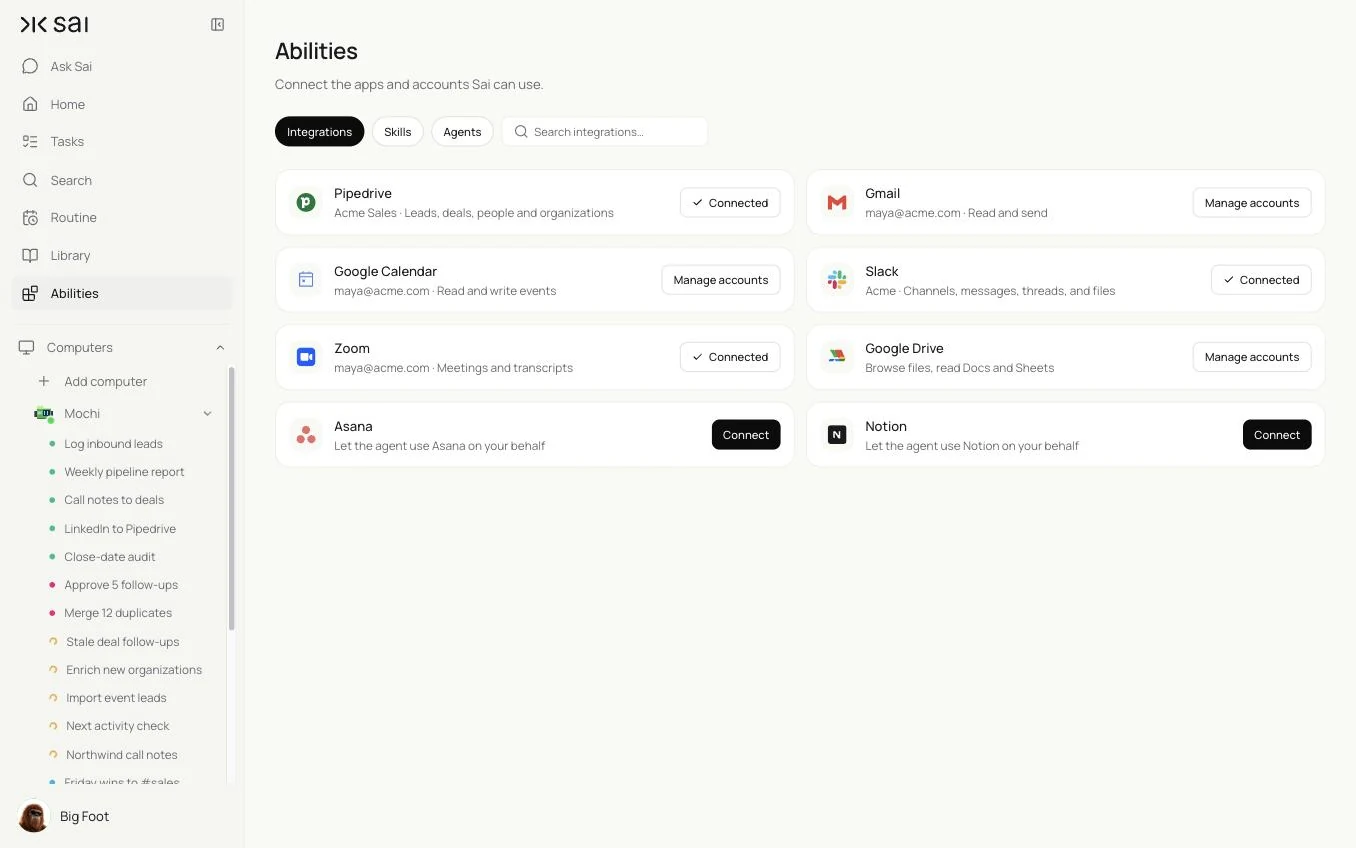
There are two ways Sai reaches Pipedrive. The first is the integration: connect Pipedrive once in Abilities → Integrations, and Sai can read and update leads, deals, people, organizations and activities. The second is the browser: Sai can open Pipedrive on its own cloud computer, signed in as its own user, for anything the integration does not cover, at a human pace.
Either way, Pipedrive is one step in a bigger task. Sai can read a Gmail thread, check the company website and the person’s LinkedIn profile, update the deal, set the next activity and post the win in Slack in one run.
How far Sai can go in Pipedrive
What Sai can do in each part of Pipedrive, and the approval setting we recommend. Logging and filling empty fields is safe on automatic. Anything that merges, changes ownership or reaches a customer should wait for you.
| Area | What Sai can do | Recommended approval |
|---|---|---|
| Leads and deals | Create leads and deals, update stage, value, expected close date and next activity | Automatic for new records and logging; ask before stage changes |
| People and organizations | Create and enrich records, link people to organizations, add notes | Automatic for new and empty fields |
| Activities | Schedule calls and follow-ups, mark activities done from notes | Automatic |
| Merges | Prepare merge sets with a reason and surviving values | Ask before every merge; never delete |
| Emails | Draft one-to-one emails from the deal context | Always ask |
| Reports | Read pipeline and forecast views, export to Sheets | Automatic |
Pipedrive’s Terms of Service apply to apps and users alike. Give Sai its own seat or connect the integration, prefer the integration, and keep browser work at a human pace.
Recommended Pipedrive workflows
These workflows save the most time. Each is set up later in this guide.
| Workflow | Who it is for | What Sai does | Routine |
|---|---|---|---|
| Inbound leads from Gmail | Founders, sales | Creates the lead or deal, assigns the owner, drafts a reply | Hourly |
| Call notes to deals | Account executives | Updates stage, value and next activity from notes | After each call |
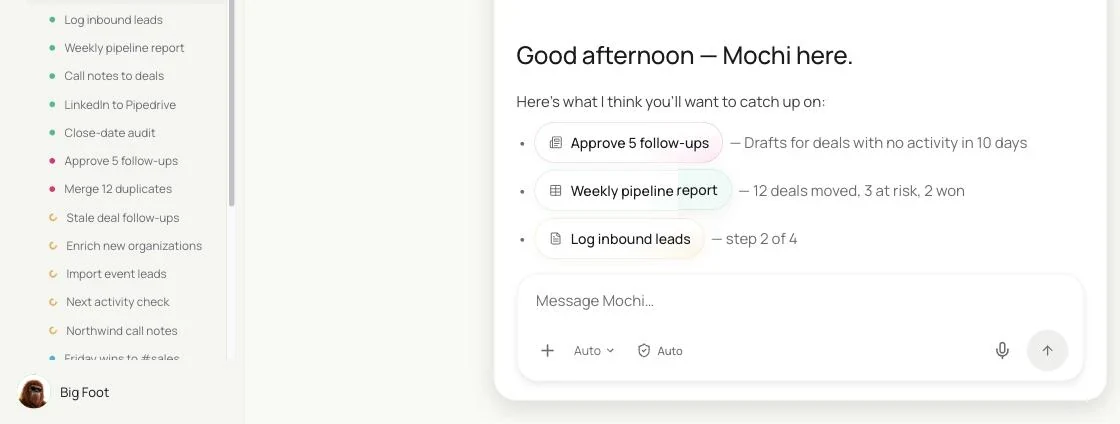
| Stale deal follow-ups | Account executives | Drafts a follow-up for deals with no activity in 10 days | Weekdays 9:00 |
| LinkedIn to Pipedrive | SDRs | Logs conversations and adds new prospects as leads | Daily 19:00 |
| Duplicate cleanup | Operations | Groups duplicates into merge sets for approval | Mondays 8:00 |
| Weekly pipeline report | Managers | Pipeline by stage and owner, movement and risks | Fridays 15:00 |
Set up Sai for Pipedrive
Setup takes about 15 minutes. After that, every Pipedrive workflow reuses the same connection, skill and approval rules.
Step 1: Connect Pipedrive
Open Abilities → Integrations and connect Pipedrive with a user that has the visibility a sales ops user would have. For browser work, sign Sai’s own Pipedrive user in on its cloud computer through Sai’s approval link.
Step 2: Write your pipeline rules as a skill
Open Abilities → Skills → Add skill → Write skill instructions. One skill covers stages, required fields, routing and what Sai must never do.
When to use it
Any task that reads or changes Pipedrive.

Pipeline
- Stages: Qualified, Demo, Proposal, Negotiation, Won/Lost.
- Every open deal has a next activity. Proposal needs value and expected close date.

Routing
- US: Maya. Europe: Sam. Partners: Dev. Unknown region: me.

Never
- Send an email without my OK.
- Merge or delete records, or change an owner, without my OK.
- Fill a field you cannot confirm. Leave it blank and add a note.
Step 3: Choose what runs on Auto
The guardrail next to the chat input switches between Auto and Manual. Use Auto for logging, activities and reports. Use Manual for emails, merges and owner changes.
Step 4: Turn the task into a routine
Run the task once and check the records. Then open Routine → New and describe the job and when it should run. See Routines.
Recipes: leads and follow-ups
Every lead captured, every deal with a next step.
Read new emails to sales@. For each real inbound lead create the person, organization and a Qualified deal in Pipedrive, assign the owner with my Pipedrive Rules skill, schedule a call and draft a reply with two times.
- 8 inbound leads · 11 skipped
- 6 new · 2 matched existing
- 2 slots per lead
- 8 drafts
Inbound leads from Gmail to Pipedrive
Reply the same morning, with the deal already in place.
Every hour, read new emails to sales@ in Gmail.
For each real inbound lead, create or update the person and organization in Pipedrive, add a deal at Qualified and assign the owner with my Pipedrive Rules skill.
Schedule a follow-up call for the owner and draft a reply offering two times from their calendar. Do not send.
Skill: Pipedrive Rules. Approval: Auto for records, Manual for email.
Follow up on stale deals
Let the pipeline decide who needs a nudge.
Every weekday at 9:00, find open deals with no activity in 10 days.
Read the last email thread and draft a short follow-up that adds something new.
If the expected close date has passed, propose a new one in a note for the owner.
Skill: Pipedrive Rules. Approval: Manual for email.
Log LinkedIn conversations
The deal history should include LinkedIn too.
Every day at 19:00, read today's LinkedIn conversations with prospects.
Add each one as a note on the right person in Pipedrive with a one-line summary.
Create leads for new prospects who replied. Read at most 40 conversations.
Skill: Pipedrive Rules. Approval: Auto. See Sai × LinkedIn.
Recipes: hygiene and reporting
A clean pipeline and an honest forecast.
Update deals from call notes
Notes become stages, values and next steps.
After each sales call with notes or a transcript, find the deal in Pipedrive.
Update the value, expected close date and next step, mark the call activity done and schedule the next one.
Propose a stage change in a note if the notes support it.
Skill: Pipedrive Rules. Approval: Auto for activities, Manual for stage changes. See Sai × Zoom.
Clean up duplicates every Monday
Merge sets prepared, merges approved by you.
Every Monday at 8:00, find duplicate people and organizations updated in the last 30 days.
Group them into merge sets with the reason and surviving values.
Show me the sets and merge only the ones I approve. Never delete.
Skill: Pipedrive Rules. Approval: Manual. See the CRM data cleanup skill.
Weekly pipeline report
The Friday numbers, the same way every week.
Every Friday at 15:00, read open deals in Pipedrive.
Report pipeline by stage and owner, deals that moved this week, deals won and lost, and deals with a past close date or no next activity.
Post the summary in #sales and save the table to the Pipeline sheet.
Skill: Pipedrive Rules. Approval: Auto.
Where the results land
Record changes go into Pipedrive, with a note on each record saying what Sai changed and why. Email drafts wait in Gmail, merge sets and approvals in Sai, and reports in Slack and a sheet you name.
Stay within Pipedrive’s rules
- Give Sai its own seat or use the integration. Never share a login.
- Prefer the integration. Use the browser only for what it does not cover, at a human pace.
- No bulk email. Sai drafts one-to-one emails for approval; it does not run campaigns.
- Approve what cannot be undone. Merges, owner changes and anything a customer reads wait for you.
- Keep a trail. Every change is noted on the record.
Why automate Pipedrive with Sai
Why Sai is a good fit for Pipedrive work.
- It works around Pipedrive, not just in it. Gmail, LinkedIn, calendars, websites and Slack are steps in the same task.
- It reads the conversation. Sai decides whether an email is a lead, a customer question or noise.
- Every deal keeps a next step. Sai sets activities from notes and follows up on deals that went quiet.
- You stay in control. Auto for logging, Manual for emails and merges.
- It is reliable. Sai ranks #1 on OSWorld, the open benchmark for computer use.
Frequently asked questions
Can Sai automate Pipedrive?
Yes. Sai can create leads and deals from emails and LinkedIn, update deals from call notes, schedule activities, follow up on stale deals, prepare merges and report on pipeline, with approval before emails and merges.
How does Sai connect to Pipedrive?
Connect Pipedrive in Abilities → Integrations. For anything the integration does not cover, Sai can use Pipedrive in a browser on its own cloud computer, signed in as its own user.
Can Sai log Gmail and LinkedIn activity to Pipedrive?
Yes. Sai reads the conversations and adds each one as a note or activity on the right person and deal, creating leads for new prospects who reply.
Will Sai send emails from Pipedrive?
Sai drafts one-to-one emails for your approval. It does not send campaigns or bulk email.
How is this different from Pipedrive’s workflow automation?
Pipedrive’s automations run when something changes inside Pipedrive. Sai reads email, LinkedIn and call notes outside Pipedrive, decides what they mean and updates the pipeline.
How much does it cost to automate Pipedrive with Sai?
You can set up and test every workflow on the Free plan. Daily and hourly routines usually need Pro at $50 a month. See Plans, usage, and limits.
Related guides
Go deeper on the pieces used here.
Ready-made skills for CRM work: CRM data cleanup and automated data entry.