
How to automate Microsoft 365 with Sai: Outlook, Teams and Excel
Sai can automate everyday work in Microsoft 365: it triages Outlook email and drafts replies, schedules meetings, prepares meeting briefs, summarizes Teams channels, and updates Excel workbooks in OneDrive and SharePoint, through the Microsoft integration or in the apps themselves. This guide covers what Sai can do across Microsoft 365, the workflows teams automate first, and how to set them up with integrations, skills, routines and approvals.
Tools: Microsoft 365, Teams, OneDrive, Slack, HubSpot
TL;DR: what Sai does in Microsoft 365
For teams that live in Outlook, Teams and Excel, most of the day is reading, scheduling and copying numbers between files. Sai is an AI agent that does that work on a schedule and asks before anything is sent. Here is what that covers, by role:
- Executives and founders. Triages the Outlook inbox into what needs you, drafts replies in your voice, and writes a brief for tomorrow’s meetings with the last emails and files for each attendee.
- Executive assistants. Finds times across calendars, sends invites after approval, reschedules conflicts and keeps a running list of follow-ups.
- Finance and operations. Updates Excel workbooks in OneDrive or SharePoint from exports and emails, checks formulas still tie, and sends the weekly numbers.
- Sales and customer success. Logs Outlook conversations to the CRM, drafts follow-ups after meetings, and prepares account briefs before calls.
- Team leads. Summarizes busy Teams channels and chats, and posts a weekly update to the team.
How Sai works with Microsoft 365
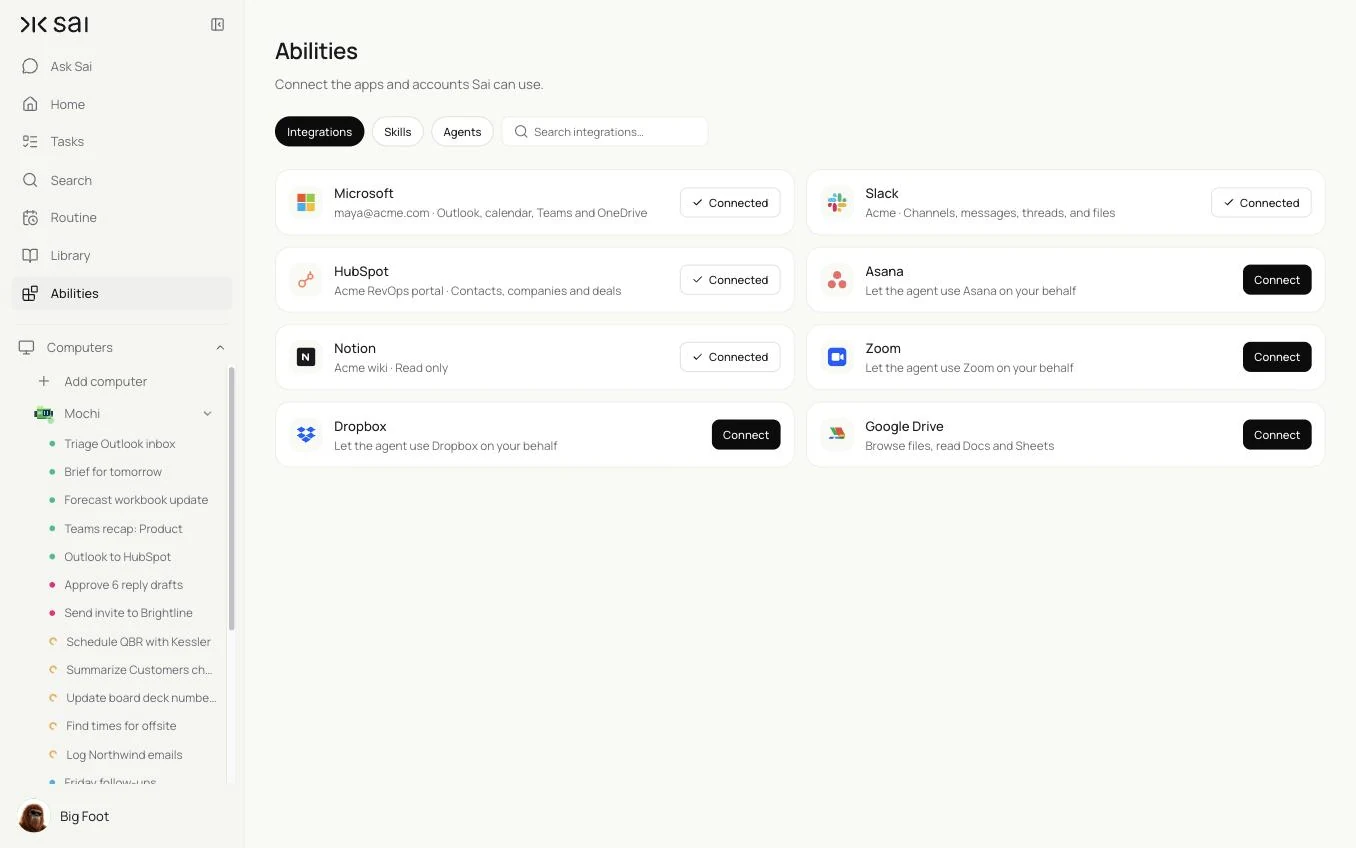
Connect Microsoft once in Abilities → Integrations with a work or school account. Depending on the permissions your organization approves, Sai can then read and draft Outlook email, read and create calendar events, work with files in OneDrive and SharePoint, and read Teams messages. For anything the integration does not cover, such as a desktop-only Excel feature, Sai can use the Microsoft 365 apps in a browser or on its own cloud computer, signed in as its own user.
Microsoft 365 is usually one part of a bigger task. Sai can read an Outlook thread, check the CRM, update a workbook, post a summary in Slack or Teams and add the follow-up to Asana in one run.
How far Sai can go in Microsoft 365
What Sai can do in each app, and the approval setting we recommend. Reading, sorting and drafting are safe on automatic. Anything that sends, invites or overwrites should wait for you.
| App | What Sai can do | Recommended approval |
|---|---|---|
| Outlook mail | Read, sort into folders or categories, summarize threads, draft replies | Automatic for sorting and drafts; ask before sending |
| Outlook calendar | Find times, create and move events, prepare meeting briefs | Ask before sending invites to others |
| Excel, OneDrive and SharePoint | Read and update workbooks, save copies, organize files | Automatic on copies; ask before overwriting shared files |
| Teams | Read channels and chats Sai can access, summarize, draft posts | Ask before posting |
| Word and PowerPoint | Draft documents and update recurring decks from data | Automatic for drafts |
| Admin settings | Leave tenant, security and user settings to IT | Not used |
Your organization’s admin decides which apps can access Microsoft 365 data, and use is governed by the Microsoft Services Agreement and your company’s policies. Ask IT to approve the connection rather than sharing a password.
Recommended Microsoft 365 workflows
These workflows save the most time. Each is set up later in this guide.
| Workflow | Who it is for | What Sai does | Routine |
|---|---|---|---|
| Outlook inbox triage | Executives | Sorts new mail, flags what needs you, drafts replies | Weekdays 7:30 and 13:00 |
| Meeting briefs | Executives, sales | A brief for each of tomorrow’s meetings | Weekdays 17:00 |
| Scheduling requests | Assistants | Finds times and drafts invites from email requests | Hourly |
| Workbook update | Finance, ops | Updates an Excel workbook from exports and checks totals | Mondays 8:00 |
| Teams channel summary | Team leads | Decisions and open questions from busy channels | Weekdays 17:30 |
| Outlook to CRM | Sales | Logs customer emails to the right CRM records | Daily 19:00 |
Set up Sai for Microsoft 365
Setup takes about 15 minutes, plus any time your IT team needs to approve the app.
Step 1: Connect Microsoft
Open Abilities → Integrations and connect Microsoft with your work account. If your organization requires admin consent, IT approves it once. For browser work, sign Sai’s own account in on its cloud computer through Sai’s approval link, so no password goes into a chat.
Step 2: Write your email and calendar rules as a skill
Open Abilities → Skills → Add skill → Write skill instructions. One skill covers priorities, tone and what Sai must never do.
When to use it
Any task that reads or drafts Outlook email or changes my calendar.

Priorities
- Needs me today: customers, the board, my direct reports, anything with a deadline this week.
- Can wait: newsletters, notifications, cold sales emails.

Calendar
- No meetings before 9:30 or after 17:00. Keep Friday afternoons free.
- Prefer Teams links for external meetings.

Never
- Send an email or an invite without my OK.
- Delete email. Archive instead.
- Accept or decline meetings for me.
Step 3: Choose what runs on Auto
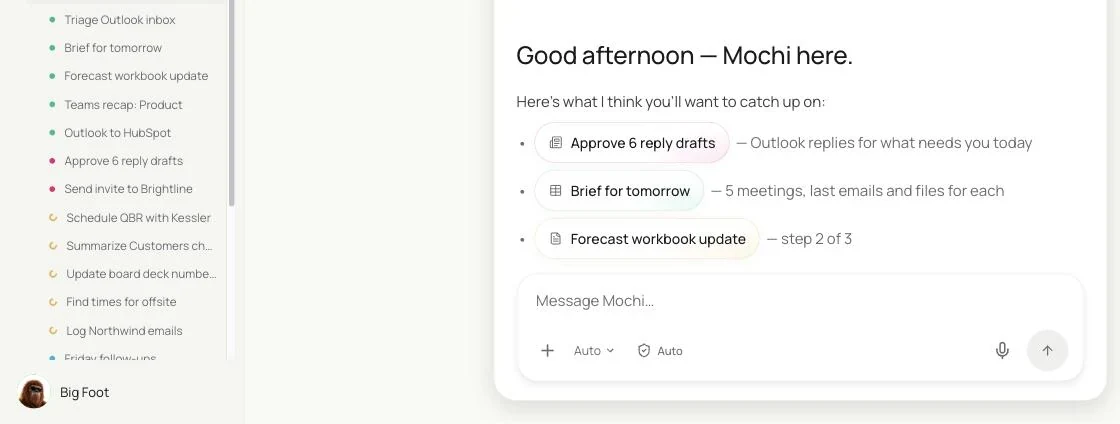
The guardrail next to the chat input switches between Auto and Manual. Use Auto for sorting, drafts and briefs. Use Manual for anything that sends, invites or overwrites a shared file.
Step 4: Turn the task into a routine
Run the task once and check the result. Then open Routine → New and describe the job and when it should run. See Routines.
Recipes: Outlook email and calendar
The inbox and the calendar, handled before you sit down.
Read new email in my Outlook inbox, sort it into Needs me today, Can wait and FYI with my Outlook Rules skill, draft replies for Needs me today and archive notifications.
- 42 new emails
- 6 need you · 14 can wait · 22 FYI
- 6 drafts in Outlook
Triage the Outlook inbox twice a day
See what needs you; let the rest wait.
Every weekday at 7:30 and 13:00, read new email in my Outlook inbox.
Sort it with my Outlook Rules skill: Needs me today, Can wait, FYI.
Draft replies for Needs me today in my voice and list them for me. Archive notifications. Send nothing.
Skill: Outlook Rules. Approval: Auto for sorting and drafts, Manual for sending. See AI email assistant.
Brief for tomorrow’s meetings
Walk into every meeting knowing the last thing that was said.
Every weekday at 17:00, read tomorrow's events in my Outlook calendar.
For each external meeting, write a short brief: who is attending, our last emails, open questions and files shared.
Put all briefs in one note and send it to me.
Skill: Outlook Rules. Approval: Auto.
Turn scheduling emails into invites
No more back-and-forth about times.
Every hour, find emails asking to meet.
Propose three times that fit my calendar rules, draft the reply, and once I approve, send the invite with a Teams link.
Skill: Outlook Rules. Approval: Manual. See AI executive assistant.
Recipes: Excel and Teams
Workbooks updated and channels summarized without the copy and paste.
Update the weekly workbook
The numbers move from exports into Excel, formulas intact.
Every Monday at 8:00, open Forecast.xlsx in SharePoint and save a dated copy.
Paste last week's exports from the CRM and the billing tool into the input tabs. Don't touch formulas.
Check that totals tie to the exports and send me a summary with any differences.
Approval: Auto on the copy. See Excel automation.
Summarize busy Teams channels
Catch up on the day in two minutes.
Every weekday at 17:30, read today's messages in the Product and Customers channels in Teams.
Write a summary: decisions, open questions and anything waiting on me, with links.
Send it to me. Don't post in the channels.
Approval: Auto.
Where the results land
Email drafts wait in Outlook, invites wait for your approval in Sai, briefs and summaries come to you in Sai or by email, and workbook changes are saved as dated copies in OneDrive or SharePoint, with a note on what changed.
Stay within Microsoft 365 rules
- Use the integration your IT team approves. Admin consent keeps access visible and revocable; never share a password.
- Give Sai its own account for browser work. Sign it in on its cloud computer through the approval link.
- Ask before sending. Email, invites and Teams posts wait for you; Sai never accepts meetings for you.
- Work on copies. Shared workbooks are copied before changes, and formulas are left alone.
- Keep a trail. Every change has a note saying what Sai did and why.
Why automate Microsoft 365 with Sai
Why Sai is a good fit for Microsoft 365 work.
- It works across the suite and beyond. Outlook, Teams, Excel, the CRM and Slack are steps in the same task.
- It reads like a person. Sai decides whether an email is a customer question, a meeting request or noise.
- Excel stays Excel. Sai updates the workbook your team already uses instead of rebuilding it elsewhere.
- You stay in control. Auto for sorting and drafts, Manual for sending and shared files.
- It is reliable. Sai ranks #1 on OSWorld, the open benchmark for computer use.
Frequently asked questions
Can Sai automate Outlook?
Yes. Sai can sort new email, summarize threads, draft replies in your voice and turn meeting requests into invites, with approval before anything is sent.
How does Sai connect to Microsoft 365?
Connect Microsoft in Abilities → Integrations with a work or school account. Your IT admin may need to approve the app. For anything the integration does not cover, Sai can use the apps in a browser on its own cloud computer.
Can Sai update Excel files?
Yes. Sai can update workbooks in OneDrive or SharePoint from exports and emails, working on a dated copy and leaving formulas alone, and report any totals that do not tie.
Can Sai read Microsoft Teams?
Sai can summarize channels and chats it has access to and draft posts for your approval.
Will Sai send email or accept meetings for me?
Not without your OK. Sending, invites and Teams posts wait for approval, and Sai never accepts or declines meetings for you.
Does this replace Power Automate?
No. Power Automate runs fixed flows you design. Sai reads the content, decides what it is and does the follow-up across Microsoft 365 and other tools. Many teams use both.
How much does it cost to automate Microsoft 365 with Sai?
You can set up and test every workflow on the Free plan. Daily routines usually need Pro at $50 a month. See Plans, usage, and limits.
Related guides
Go deeper on the pieces used here.
Skills for Microsoft 365 files: Excel automation and PowerPoint automation.