
How to automate Dropbox with Sai
Sai can automate the file work around Dropbox: it files and renames incoming documents, pulls invoices and receipts into a sheet, sets up client folders, prepares share links for approval and writes a weekly summary of what changed, through the Dropbox integration. This guide covers what Sai can do in Dropbox, the workflows small businesses, agencies and finance teams automate first, and how to set them up with integrations, skills, routines and approvals.
Tools: Dropbox, Gmail, Google Sheets, Slack, QuickBooks
TL;DR: what Sai does in Dropbox
Dropbox is where the documents end up: scans, contracts, invoices, client deliverables. What takes time is everything after the upload: naming, filing, reading and sharing. Sai is an AI agent that does that work on a schedule and asks before anything leaves your team. Here is what that covers, by team:
- Small business owners. Files new scans and downloads into the right folders with a consistent name, and keeps a list of what arrived each week.
- Finance and bookkeeping. Reads invoices and receipts dropped into an inbox folder, adds them to the AP or expense sheet, and flags duplicates.
- Agencies and professional services. Sets up a client folder structure from your template, collects deliverables, and prepares share links for your approval.
- Operations. Finds files that are misnamed, duplicated or in the wrong place, and moves them after you approve.
- Teams that also use Google Drive or OneDrive. Copies the files a workflow needs between them, so one routine can read from either.
How Sai works with Dropbox
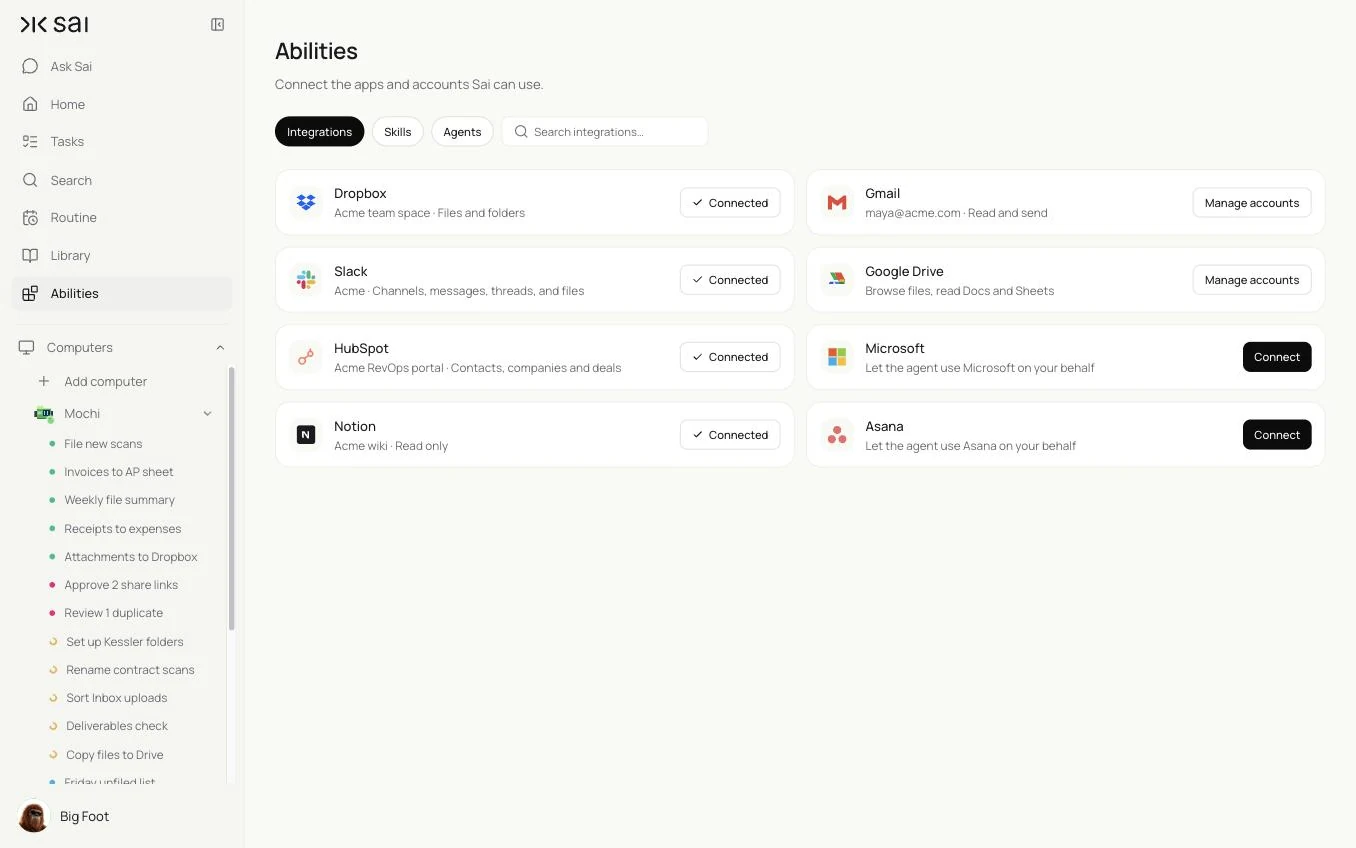
Connect Dropbox once in Abilities → Integrations. Sai can then list, read, create, move and rename files in the folders you allow. For anything the integration does not cover, Sai can use Dropbox in a browser on its own cloud computer, signed in as its own user.
Dropbox is often the source or the destination of a bigger task. Sai can save attachments from Gmail into the right folder, read an invoice, add a row to a sheet, enter a bill in QuickBooks and post a note in Slack in one run.
How far Sai can go in Dropbox
What Sai can do in Dropbox, and the approval setting we recommend. Reading, filing within your structure and extracting data are safe on automatic. Anything that shares outside your team or removes files should wait for you.
| Area | What Sai can do | Recommended approval |
|---|---|---|
| Reading files | Read PDFs, scans, spreadsheets and documents in allowed folders | Automatic |
| Filing and renaming | Move files into your folder structure and apply your naming rule | Automatic within your rules |
| Creating folders | Set up folder structures from a template | Automatic |
| Sharing | Prepare share links and folder invitations | Always ask |
| Deleting | Move files to a To delete folder for you to review; never delete | Never delete |
| Extracting data | Pull fields from invoices, receipts and forms into a sheet | Automatic |
Dropbox’s Acceptable Use Policy applies to apps and people alike. Connect through the integration, give Sai only the folders it needs, and keep sharing decisions with people.
Recommended Dropbox workflows
These workflows save the most time. Each is set up later in this guide.
| Workflow | Who it is for | What Sai does | Routine |
|---|---|---|---|
| File new uploads | Owners, ops | Renames and files new scans and downloads | Hourly |
| Invoices to the AP sheet | Finance | Reads invoices in an inbox folder and adds them to a sheet | Daily 8:00 |
| Email attachments to Dropbox | Everyone | Saves attachments from chosen senders to the right folder | Hourly |
| New client folders | Agencies | Creates the folder structure from your template | On request |
| Share links for approval | Agencies | Prepares share links for finished deliverables | On request |
| Weekly file summary | Ops | What was added, moved and still unfiled | Fridays 16:00 |
Set up Sai for Dropbox
Setup takes about 10 minutes. After that, every Dropbox workflow reuses the same connection, skill and approval rules.
Step 1: Connect Dropbox
Open Abilities → Integrations and connect Dropbox. Limit Sai to the folders it needs, such as an Inbox folder, Clients and Finance.
Step 2: Write your filing rules as a skill
Open Abilities → Skills → Add skill → Write skill instructions. One skill covers where files go, how they are named and what Sai must never do.
When to use it
Any task that files, renames or reads files in Dropbox.

Folders
- Clients/<Client>/<Year>/ for client work. Finance/Invoices/<Year>/<Month>/ for bills.
- Anything you can't place goes to Inbox/Review.

Naming
- <YYYY-MM-DD>_<Company>_<Document type>.pdf, for example 2026-10-03_Northwind_Invoice.pdf.

Never
- Delete files. Move them to Inbox/To delete instead.
- Create or change share links without my OK.
- Overwrite a file. Add a version suffix instead.
Step 3: Choose what runs on Auto
The guardrail next to the chat input switches between Auto and Manual. Use Auto for filing, renaming and extraction. Use Manual for sharing and for anything that moves many files at once.
Step 4: Turn the task into a routine
Run the task once and check the folders. Then open Routine → New and describe the job and when it should run. See Routines.
Recipes: filing and extraction
Documents in the right place, and the numbers out of them.
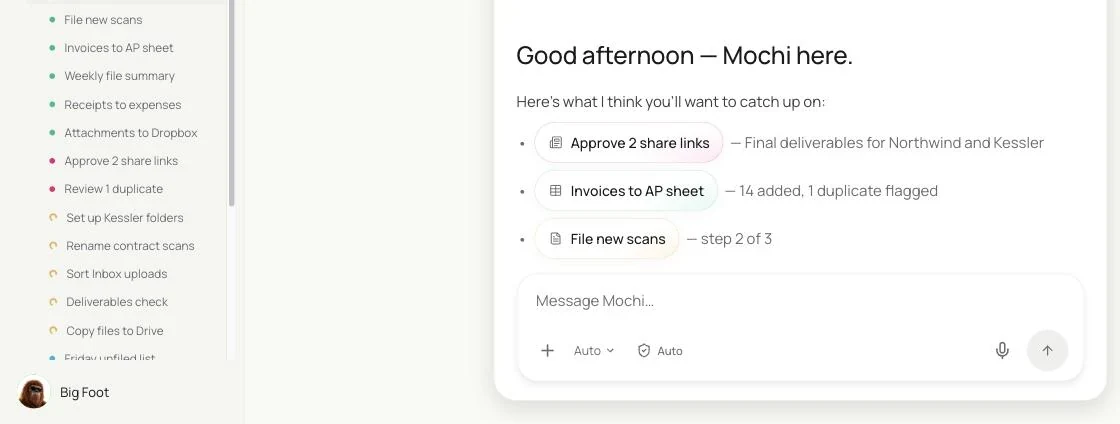
Read new invoices in Finance/Invoices/Inbox in Dropbox, add them to the AP sheet with a link to each file, flag duplicates and file each invoice with my Dropbox Filing skill.
- 15 invoices · 3 scans
- 14 rows · 1 duplicate flagged
- 14 filed · 1 moved to Review
File new scans and downloads
One naming rule, applied to everything.
Every hour, check Inbox in Dropbox for new files.
Read each one, rename it with my Dropbox Filing skill and move it to the right folder.
Put anything you can't place in Inbox/Review and list it for me.
Skill: Dropbox Filing. Approval: Auto.
Invoices to the AP sheet
Every invoice read once, entered once.
Every day at 8:00, read new invoices in Finance/Invoices/Inbox.
Add vendor, invoice number, date, due date, amount and currency to the AP sheet, with a link to the file.
Flag duplicates by vendor and invoice number, then file each invoice with my Dropbox Filing skill.
Skill: Dropbox Filing. Approval: Auto. See the invoice data extraction skill and the vendor reconciliation routine.
Save email attachments to Dropbox
Attachments stop living in the inbox.
Every hour, find new emails with attachments from senders in the Senders sheet.
Save each attachment to the folder listed for that sender, named with my Dropbox Filing skill.
Skip signatures, logos and calendar files.
Skill: Dropbox Filing. Approval: Auto. See Sai × Google Workspace.
Recipes: clients and sharing
Client folders set up and deliverables shared, with you deciding who sees what.
Set up a new client folder
The same structure for every client.
When I add a client to the Clients sheet, create Clients/<Client>/<Year>/ in Dropbox with the subfolders in the Template folder.
Add the folder link to the client's row in the sheet and to the client's company in HubSpot.
Skill: Dropbox Filing. Approval: Auto.
Prepare share links for finished work
Sharing stays a decision, not an accident.
When a file is moved to a client's Final folder, prepare a view-only share link.
Draft the email to the client contact with the link and a two-line summary.
Wait for my OK before creating the link or sending the email.
Skill: Dropbox Filing. Approval: Manual.
Weekly file summary
Know what arrived and what is still unfiled.
Every Friday at 16:00, list files added this week by folder, files still in Inbox/Review, and possible duplicates.
Send me the summary. Don't move anything.
Approval: Auto.
Where the results land
Files stay in Dropbox, in your folder structure, with the names your skill sets. Extracted data goes into the sheets you name, share links and emails wait for approval in Sai, and summaries come to you or a Slack channel.
Stay within Dropbox’s rules
- Connect through the integration. Never share a Dropbox password with Sai or anyone else.
- Limit access. Give Sai only the folders a workflow needs.
- Sharing is a person’s decision. Share links and invitations always wait for approval.
- Never delete. Sai moves files to a To delete folder for you to review.
- Keep a trail. Each run lists what was renamed, moved or extracted.
Why automate Dropbox with Sai
Why Sai is a good fit for Dropbox work.
- It reads the document. Sai knows an invoice from a contract from a receipt, and files each accordingly.
- It finishes the job. Filing, extracting, entering in a sheet or QuickBooks and telling the team happen in one run.
- Your rules are a paragraph. Folder structure and naming live in a skill anyone can edit.
- You stay in control. Auto for filing and extraction, Manual for sharing.
- It is reliable. Sai ranks #1 on OSWorld, the open benchmark for computer use.
Frequently asked questions
Can Sai automate Dropbox?
Yes. Sai can file and rename new files, extract data from invoices and receipts into a sheet, set up folder structures and prepare share links, through the Dropbox integration, with approval before sharing.
How does Sai connect to Dropbox?
Connect Dropbox in Abilities → Integrations and limit Sai to the folders it needs. For anything the integration does not cover, Sai can use Dropbox in a browser on its own cloud computer.
Can Sai extract data from PDFs in Dropbox?
Yes. Sai reads invoices, receipts and forms, including scans, and adds the fields you choose to a sheet with a link to each file.
Will Sai delete or share my files?
No deleting: Sai moves files to a To delete folder for you to review. Share links and invitations always wait for your approval.
How is this different from Dropbox automated folders?
Dropbox’s automations apply fixed actions to a folder. Sai reads each file, decides what it is, files it by your rules and does the follow-up in other tools.
How much does it cost to automate Dropbox with Sai?
You can set up and test every workflow on the Free plan. Daily and hourly routines usually need Pro at $50 a month. See Plans, usage, and limits.
Related guides
Go deeper on the pieces used here.
Skills for documents in Dropbox: invoice data extraction and the AI PDF form filler.