
How to build your first robosecretary in Sai
Sai is the first robosecretary: you tell it what desktop work you want done, it wakes a fleet of autonomous computers, does the work, and texts you when it is finished. This guide takes you from your first task to a team of computer use agents running routines for you.
What is Sai?
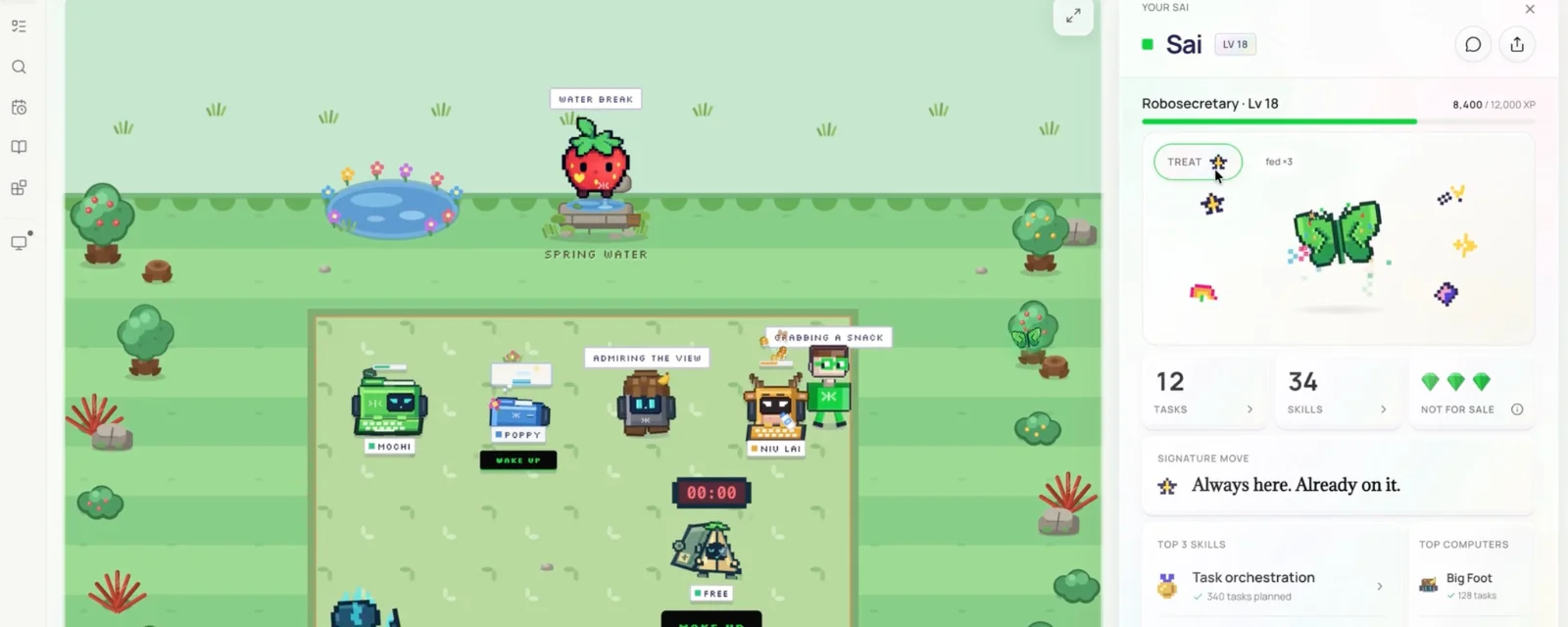
Sai is the first robosecretary: an AI agent that manages a fleet of computer use agents, each equipped with a permanent, 24/7 autonomous computer. You describe the desktop work you want done; Sai plans it, assigns it to a computer, does the work in your real apps, and texts you when it is finished.
Sai is built on OSWorld-topping computer use technology. On OSWorld 2.1, the latest release of the open benchmark for agents using real computers, Sai scores 77.3% at an average of $14.34 per task. See How reliable is Sai? for the full results.

How is Sai different from a chatbot?
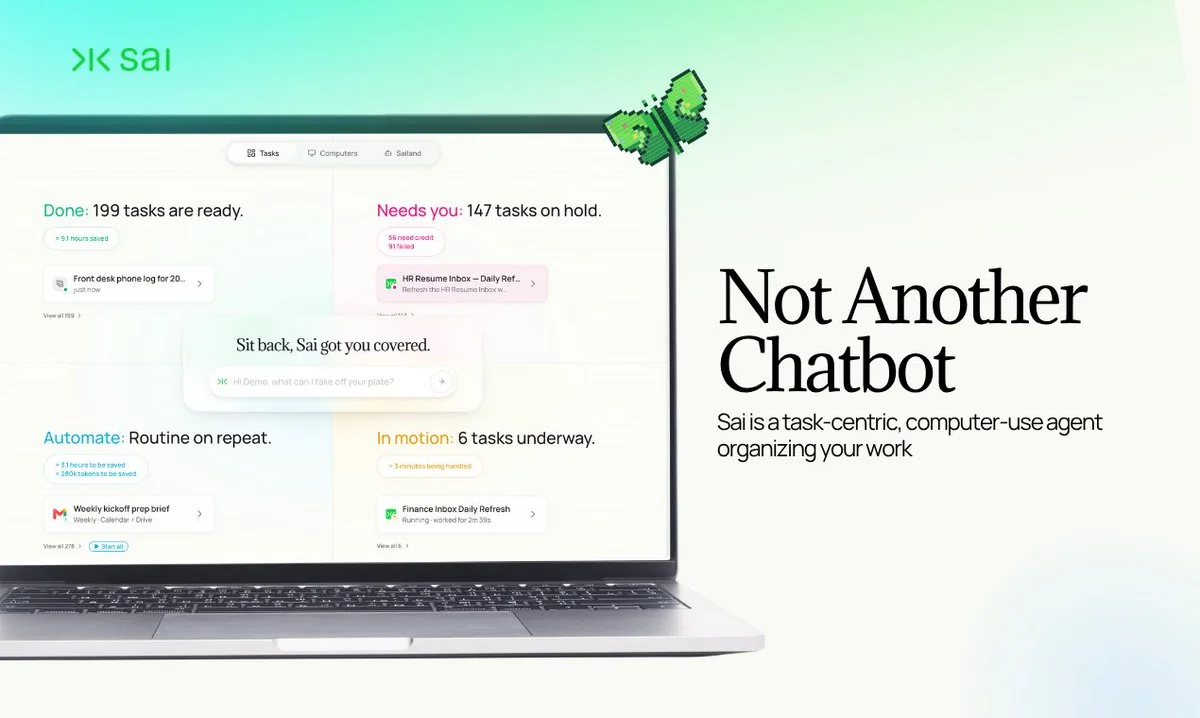
An agent that manages work should look nothing like a chatbot. Sai is organised around the four states work actually moves through: ready, needs your attention, in motion, and worth turning into a routine. You hand off a task and see everything at a glance, so you can close the app and focus on the work that needs you, or close the laptop and step away from your desk entirely.
Think of Sai as a manager. Sai leads a team of agents, and each agent can be given its own private autonomous computer. Instead of the one-thing-at-a-time rhythm of a chat window, you dispatch: several tasks and routines run in parallel, each assigned to the machine best suited to it, all coordinated by Sai.
Step 1: Give Sai your first task
Your first task takes four moves. Sai shows you its plan before anything touches a real computer.
1. Describe the task in plain language
Open Sai and type what you want in the middle of the screen. Describe it the way you would brief a new hire who is good but does not know your context yet: what to look at, what to produce, and where it should go.
2. Review the task card
Wait a few seconds. Sai comes back with a task card: a summary of how it intends to carry out the job, step by step. Complex requests come back as several cards. This is your checkpoint: before anything touches a real computer and starts using your tokens, you see the plan.
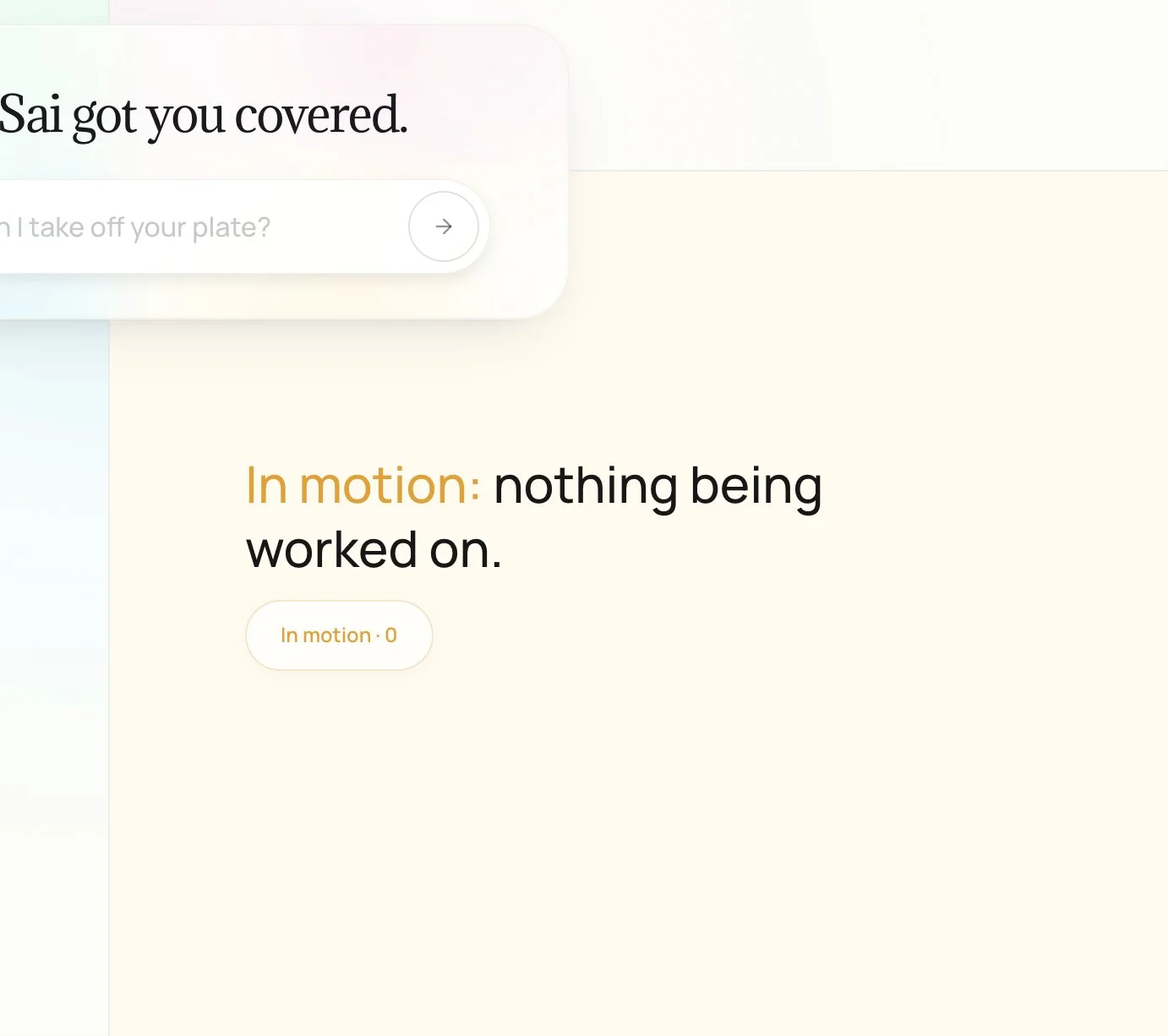
3. Watch it run in In Motion
Once you approve, the task moves into In Motion and you get a real computer view: the actual screen of the machine Sai assigned to the task, live. Windows open, forms fill, pages load.
4. Keep building while it runs
Go straight back to the chat and set up the next task. Starting something new does not interrupt, pause or slow down what is already running.
Step 2: Answer only when Sai needs you
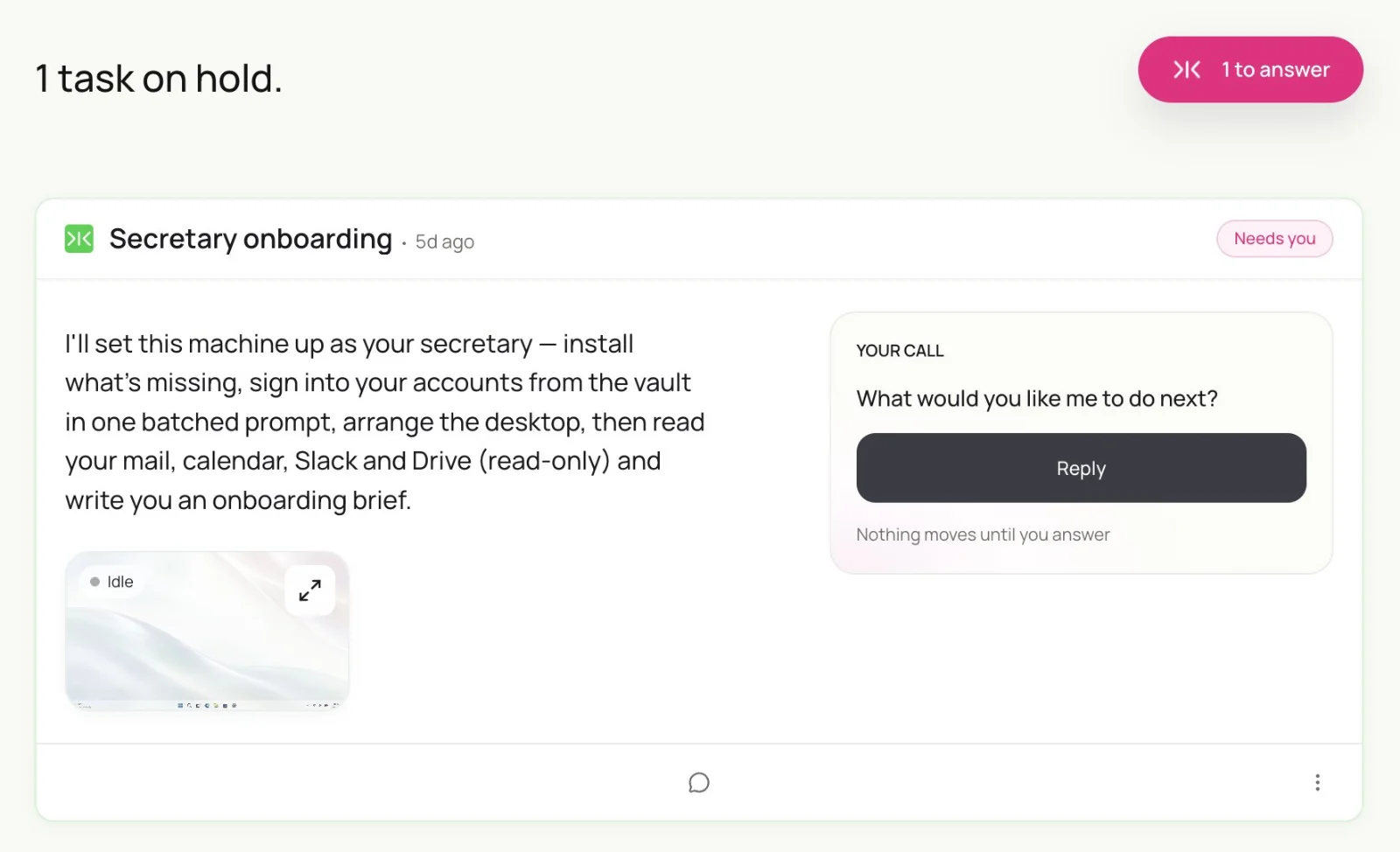
You are pulled in only when needed. If Sai reaches something that requires you, such as an approval, a missing login or a decision, it posts it in Sai Needs You. That is your inbox for blocked work. Nothing else needs your attention, so you can close the laptop.
Step 3: Open finished work in Completed Tasks
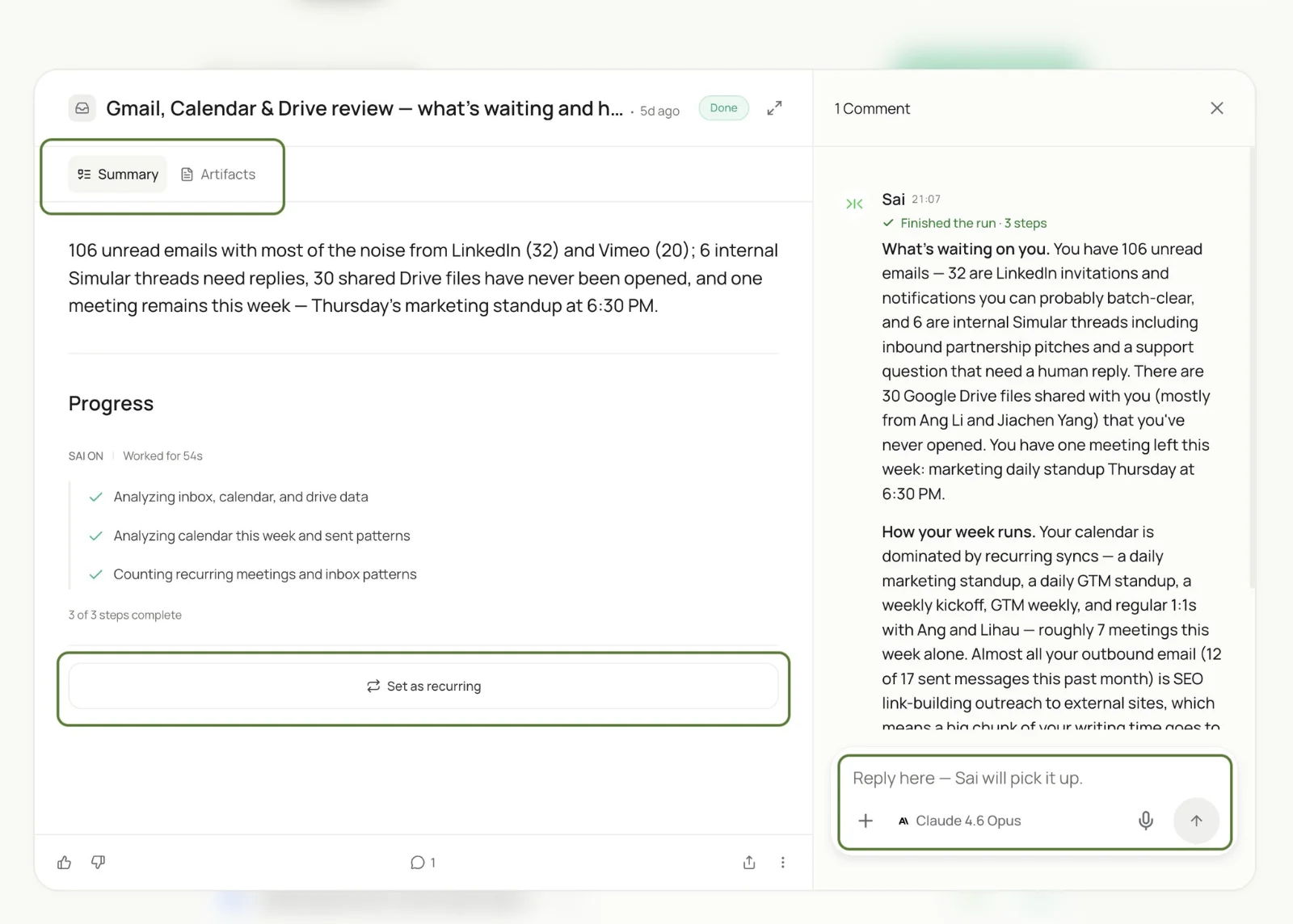
Finished work lands in Completed Tasks. Open one and you get four views:
- Summary: what happened and how it went.
- Artifacts: every output the task produced, including files, documents, spreadsheets, images and reports.
- History: the run log, with every execution of the task, what each run did and how it turned out.
- Chat: keep talking to Sai about the task to refine it.
Step 4: Open Abilities and Library on day one
Two settings are worth opening on your first day.
- Abilities → Tools: one-click connections to integrated tools, so Sai covers the environment you actually work in.
- Abilities → Skills: upload your own skills in one click. A skill is reusable know-how, such as your format, your rules or your process, written down once so every future task follows it without being re-explained. See Skills.
- Library: everything in one place, every file you have uploaded and every output Sai has produced for you across all tasks.
Step 5: Build your world of autonomous computers
Sai is more than one reliable AI agent. It is a platform for building a whole world of computer use agents: a team of reliable robostaff, each with an assigned private cloud computer.
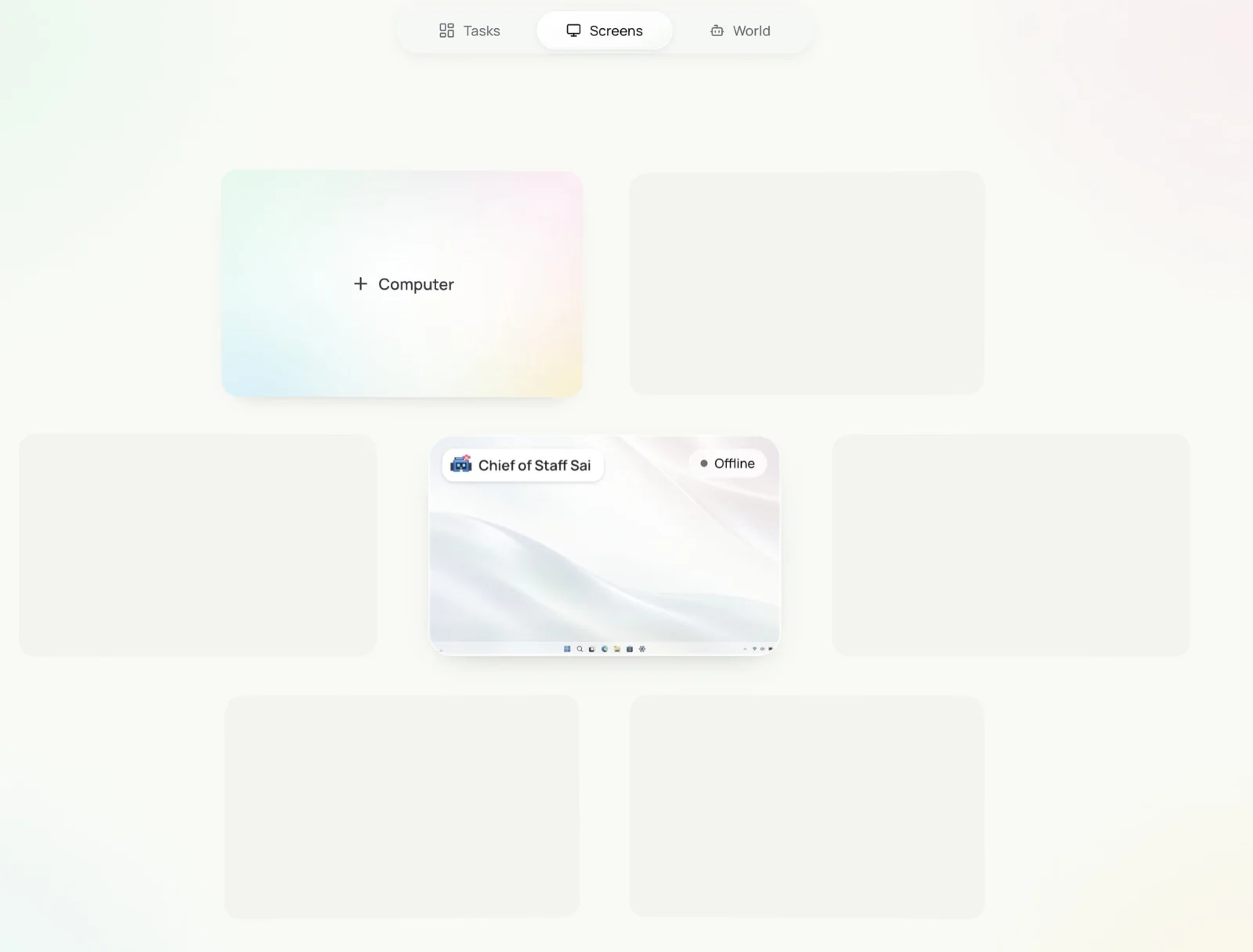
Go to Screens. Here you can spin up and wake several computers. Each one is a separate, private cloud machine with its own desktop, its own sessions and its own logged-in accounts, isolated from the others.
Add a computer
To add one:
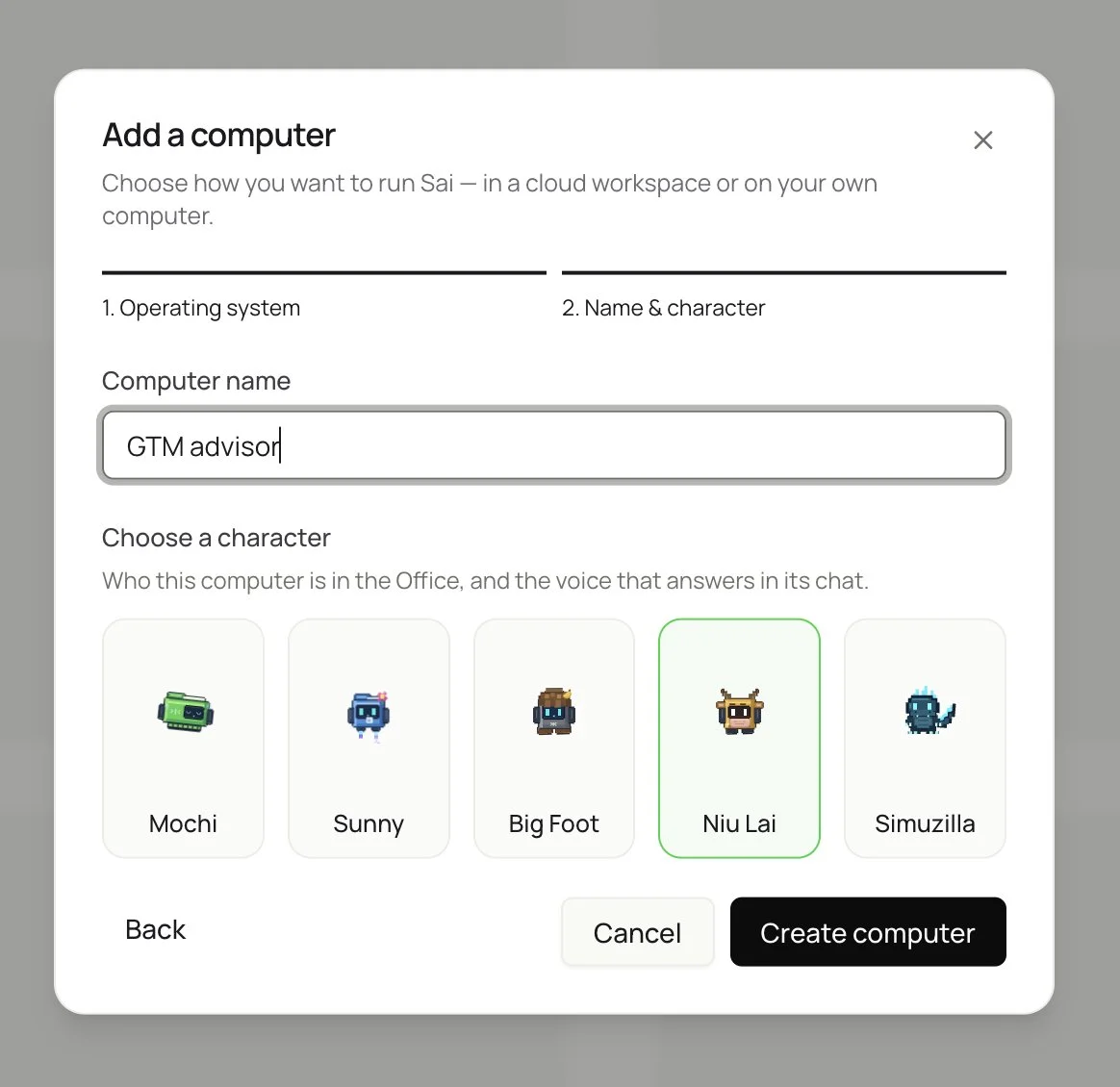
- Choose the operating system. Windows is supported by default and is created instantly. For macOS, bring your own device.
- Name it.
- Choose its look.
That is it: your Sai-led robostaff team just hired its first employee.
Name each computer by its job
This is the setup decision that pays off later, so make it deliberately. Name each computer after the kind of work it does: Sales, GTM, Engineering, Network, Personal Life, Research. Keeping environments separate means the accounts, sessions and files each agent needs stay exactly where they belong. Your personal life does not share a desktop with your pipeline.
Make it yours in World
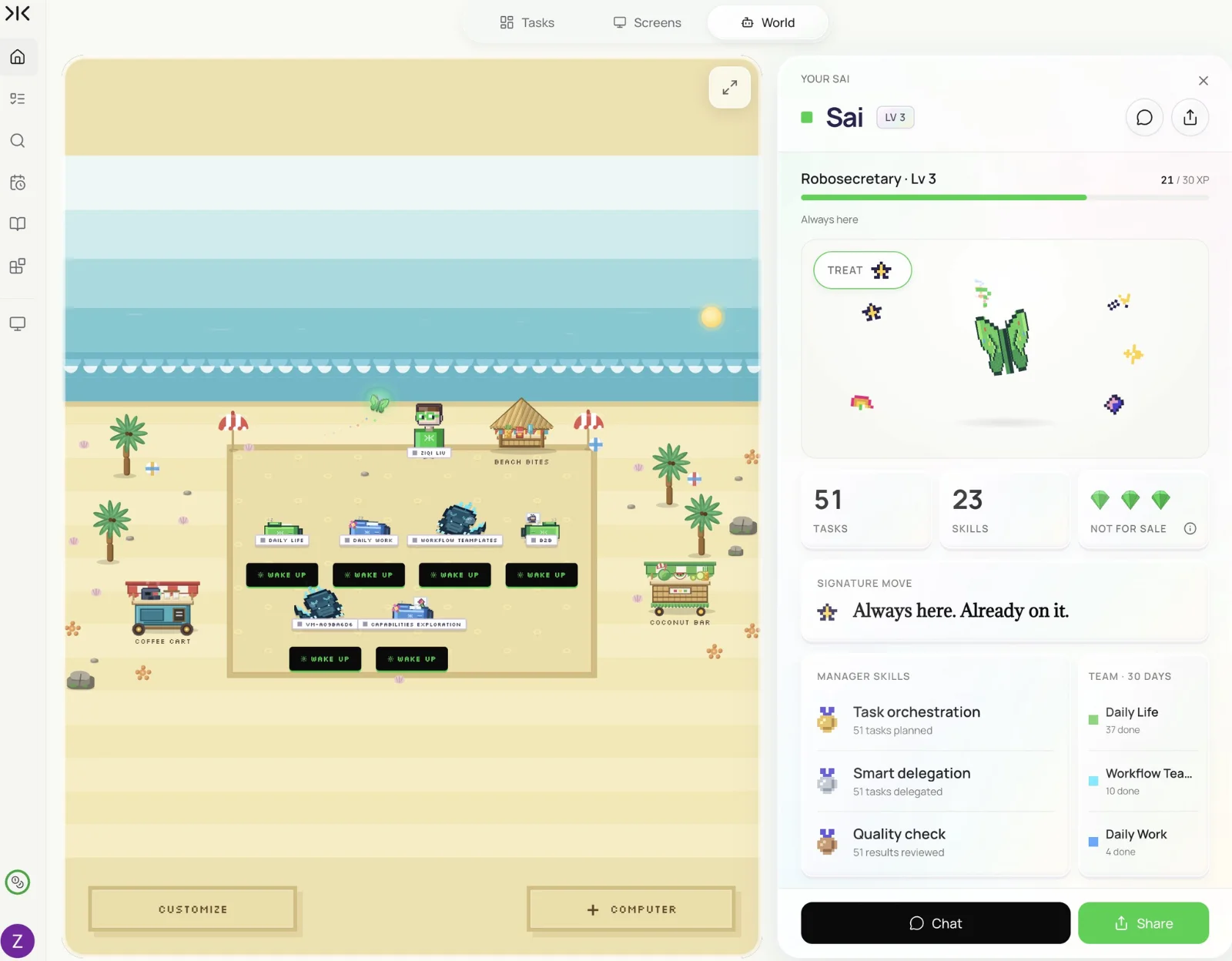
In World you can customise how Sai and your computer agent teams look, and share your Sai, or any of your robostaff cards, with friends.
Step 6: Set up your first routine
Look at your week, find the manual work that eats the most time, and hand it to Sai to run for you on a schedule.
To create a routine: click New and describe the job in plain language. Sai converts the description into a repeating task that runs automatically on the schedule you want.
To manage a routine: everything is adjustable from the routines view. Turn a routine on or off at any time, change its schedule, and adjust how it runs.
The shortcut: every task you set up yourself has a Set as recurring option. If you like how a task performed, make it a routine in one click. Read the full Routines guide.
Don't know where to start?
Open the Automate section and look at the featured starter tasks. It is a curated list covering common roles: office knowledge workers, PR, sales, personal and everyday use, solo founders, research and more. They are real workflows, already built and ready to run.
Pick the one closest to your job, run it, and watch what it does. Then change it, by swapping the source, changing the schedule or adjusting the output format, until it is yours. Starting from something that already works is faster than starting from a blank box, and it teaches you what a good task description looks like. See Writing good tasks.
Start building your robosecretary today
You do not need to plan your whole agent team today. You need one task, described in plain language, approved once. Start free with Sai and build your team inside Sai World.
Frequently asked questions
What is a robosecretary?
A robosecretary is an AI agent that manages a fleet of computer use agents, each with its own autonomous computer. Sai is the first robosecretary: you describe desktop work, and it plans, runs and reports back on it.
How do I give Sai my first task?
Type what you want in plain language, review the task card Sai returns, and approve it. The task then runs on a live computer in In Motion while you set up the next one.
Do tasks keep running if I close my laptop?
Yes. Tasks run on Sai's private cloud computers, so you can close the app or the laptop. Sai posts anything that needs you in Sai Needs You.
Can Sai run several tasks at once?
Yes. Sai dispatches tasks and routines in parallel, each assigned to the computer best suited to it. Starting a new task does not slow down tasks already running.
Which operating systems can Sai computers run?
Windows cloud computers are supported by default and are created instantly. For macOS, you bring your own device.
How do I make a task repeat?
Choose Set as recurring on any task you have run, or click New in Routines and describe the job and its schedule in plain language.